
In this guide
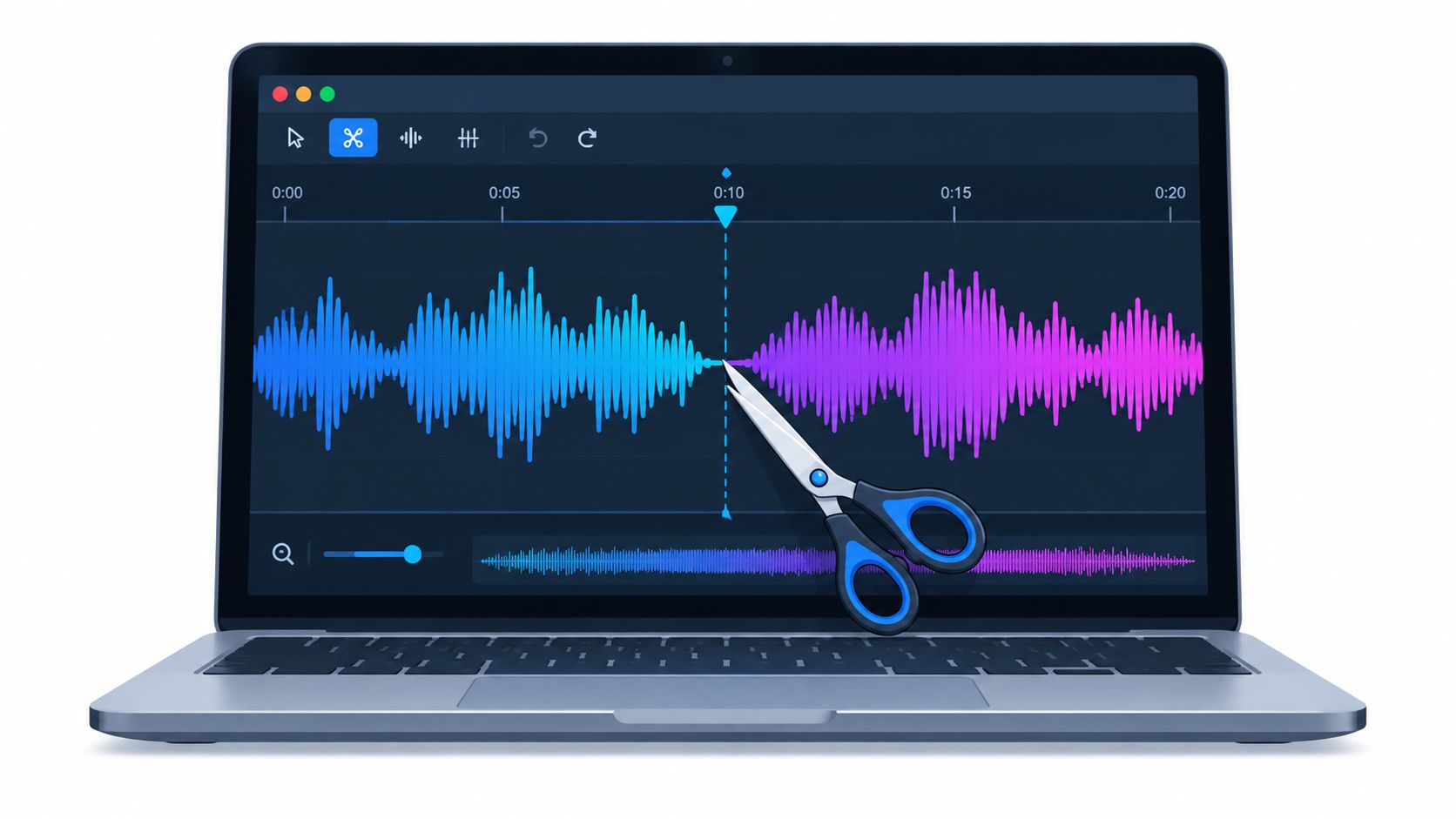
You've found the moment that needs to stay in a podcast, or the stretch of a song that should become a karaoke backing track. The waveform is open, and the trim tool is ready. But choosing where to cut before deciding what the result needs to do can leave clipped words, clicks, or a file that's harder to revise.
A dependable edit starts with two choices: what the cut should accomplish and what format the source is in. Those decisions guide where to set the boundaries, whether to isolate a sound first, and how to export without taking on avoidable quality loss.
Why Cutting Audio Is a Decision Before It Is an Action
A cut isn't just a selection on a waveform. It's an editorial choice about which material should remain, followed by a technical choice about how to preserve and deliver that material. A podcast intro may need the complete breath before a speaker's first word so the entrance feels natural. A karaoke track may need the vocals removed while the backing music continues. The selection tool can't make that distinction for you.
Before opening an editor, answer a few practical questions:
- What should the listener hear? Keep a phrase, remove a mistake, extract a sound effect, or retain everything except a named source?
- Where does the intended content begin and end? Consider consonants, breaths, musical attacks, and room tone, not just visible pauses.
- Can the source be revised later? A lossless master gives more room to adjust an edit than a file that has already been compressed.
- Does the task require separation? If speech, music, or an effect overlaps with other sounds, a simple trim may not produce the version you need.
This decision-led approach prevents a common waste: exporting a technically valid excerpt that misses the editorial point. The file may be shorter, but a clipped first syllable or missing musical pickup can make it unusable.
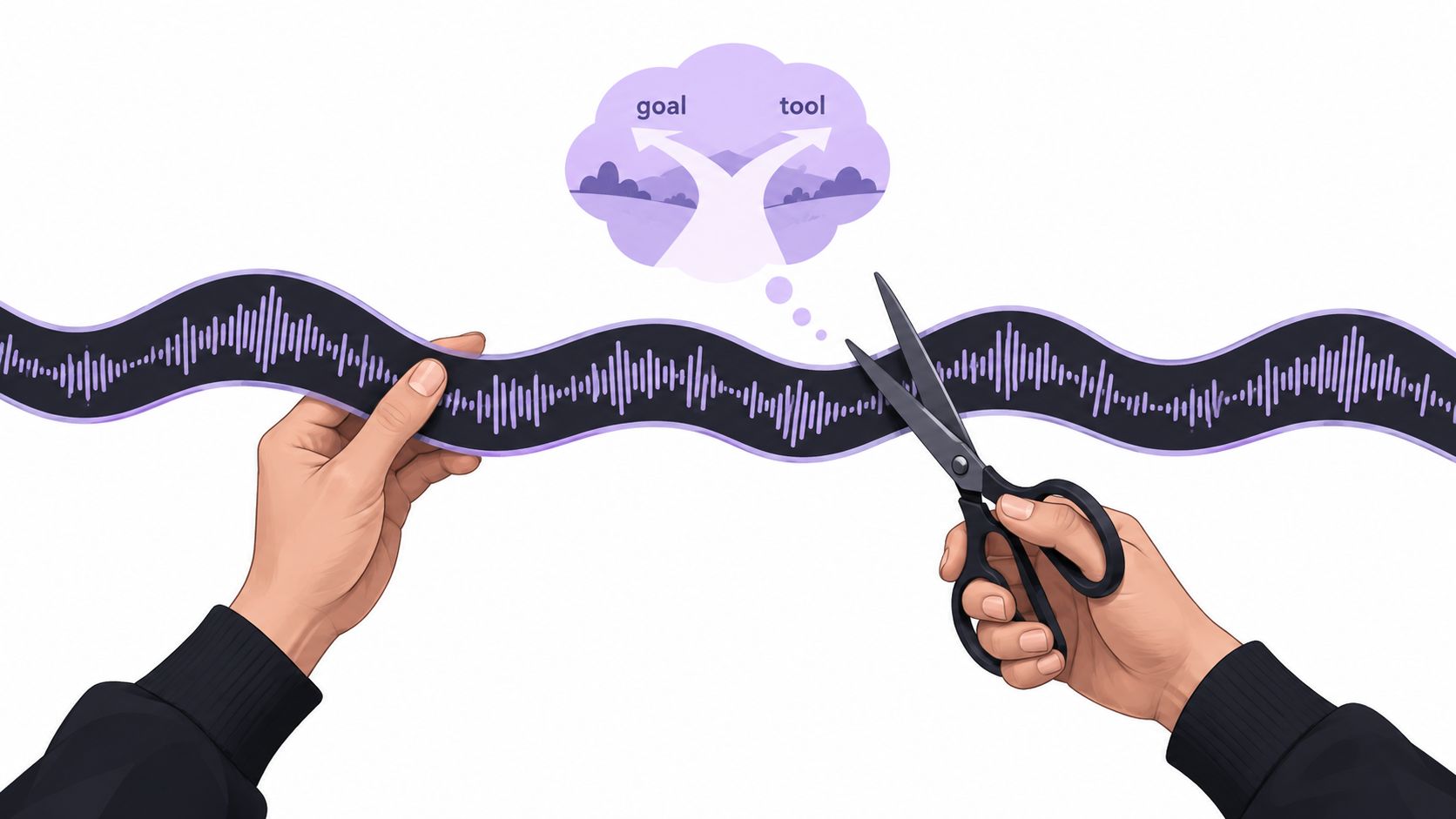
Treat format and intent as a pair. The format affects how much precision and revision flexibility the edit can retain; the intent tells the editor where the meaningful boundaries belong. Once both are clear, the waveform becomes a guide rather than the whole decision.
What Format You Are Working With Changes the Cut
The source format affects the risks of editing more than the choice of waveform editor. WAV, short for Waveform Audio File Format, was jointly developed by IBM and Microsoft and first published in 1991. It commonly stores uncompressed PCM audio, so trimming it doesn't add another perceptual compression loss. Boundary errors, abrupt waveform transitions, and unintended export changes remain possible, but the cut itself doesn't require another lossy encoding pass. For a quick refresher on file properties, see this guide to checking WAV sample rate and bit depth.
MP3 behaves differently. It's a lossy compressed format organized into frames, not a simple container of untouched PCM samples. MPEG-1 Audio Layer III was finalized in 1992 and published in 1993 as ISO/IEC 11172-3:1993. A commonly cited setting is 128 kbps, roughly an 11:1 compression ratio compared with uncompressed CD-quality audio data. The historical design target was approximately CD-quality sound at 128 kbps, while uncompressed CD audio is about 1,411 kbps for 44.1 kHz, 16-bit, stereo PCM. These figures are useful context, not a guarantee that every file at that bitrate sounds the same. (WAV format background, MP3 format background)
Keep the master, make the delivery copy
With compressed audio, a requested cut point may not line up perfectly with a frame boundary. Encoder delay or padding can cause a tiny offset, a brief silence, or a transient change at the join. Exporting the trimmed result as MP3 usually adds another lossy encoding pass, which can affect delicate material such as cymbals, sibilants, ambience, and sharp effects.
When a lossless source exists, cut from it and keep a lossless master for revision. Make MP3 the distribution copy when its smaller file size is useful. If MP3 is the only source, the edit is still workable, but listen carefully to the start and end rather than assuming the displayed selection tells the whole story.
Placing Boundaries That Do Not Click or Lose Words
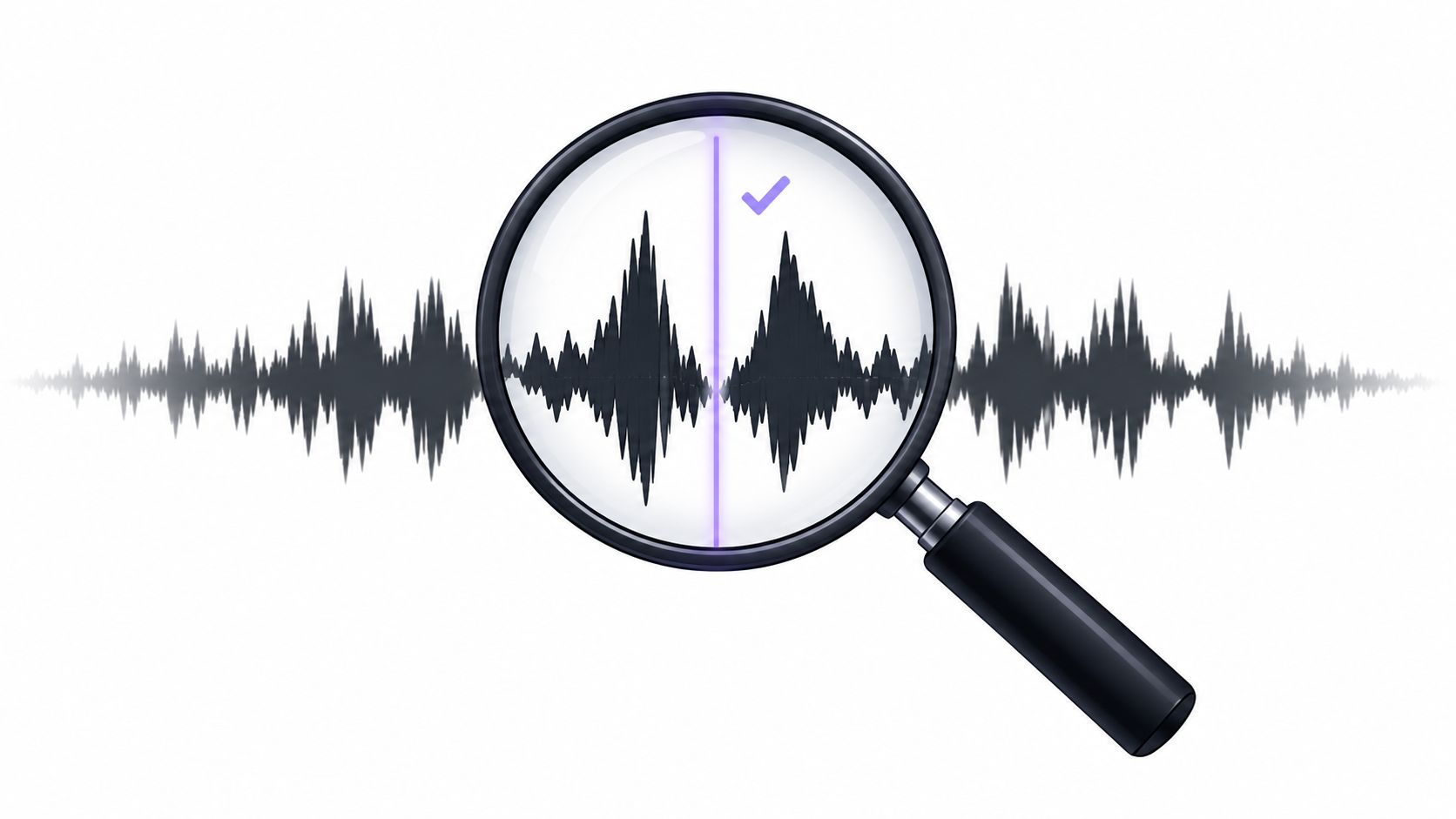
A clean-looking selection can still remove the start of a consonant or the attack of an instrument. Zoom into the waveform around both boundaries, then audition the passage while adjusting the start and end points. When possible, place a boundary at a zero crossing or a low-amplitude region. That reduces abrupt waveform changes that may create clicks.
Choose the command for the edit
In Audacity, the command matters because each one does a different job. Trim keeps only the selected range and discards material outside it. Delete removes the selected passage while preserving the audio around it. Split divides a clip at a point so the resulting sections can be moved, trimmed, or deleted separately. Audacity describes these basic editing actions in its audio-editing guide.
For a continuous excerpt, select the intended range and use Trim. To remove a mistake from the middle of an interview, split at both ends of the passage, select that region, and delete it. To rearrange sections, split the clip and move the pieces independently. Zooming and splitting at the cursor help refine the boundaries; Audacity's keyboard shortcut reference lists shortcuts for splitting and trimming.
If a hard boundary still clicks, add a short fade-in or fade-out. Keep it brief enough that it doesn't swallow a consonant, musical attack, or other important transient. A fade is a repair for an abrupt edge, not a substitute for finding the right edit point.
Keep the edit editorial: Cutting changes what's present, not what level the recording was meant to have. Don't normalize aggressively just because the excerpt is shorter.
When to Cut First Versus Isolate First
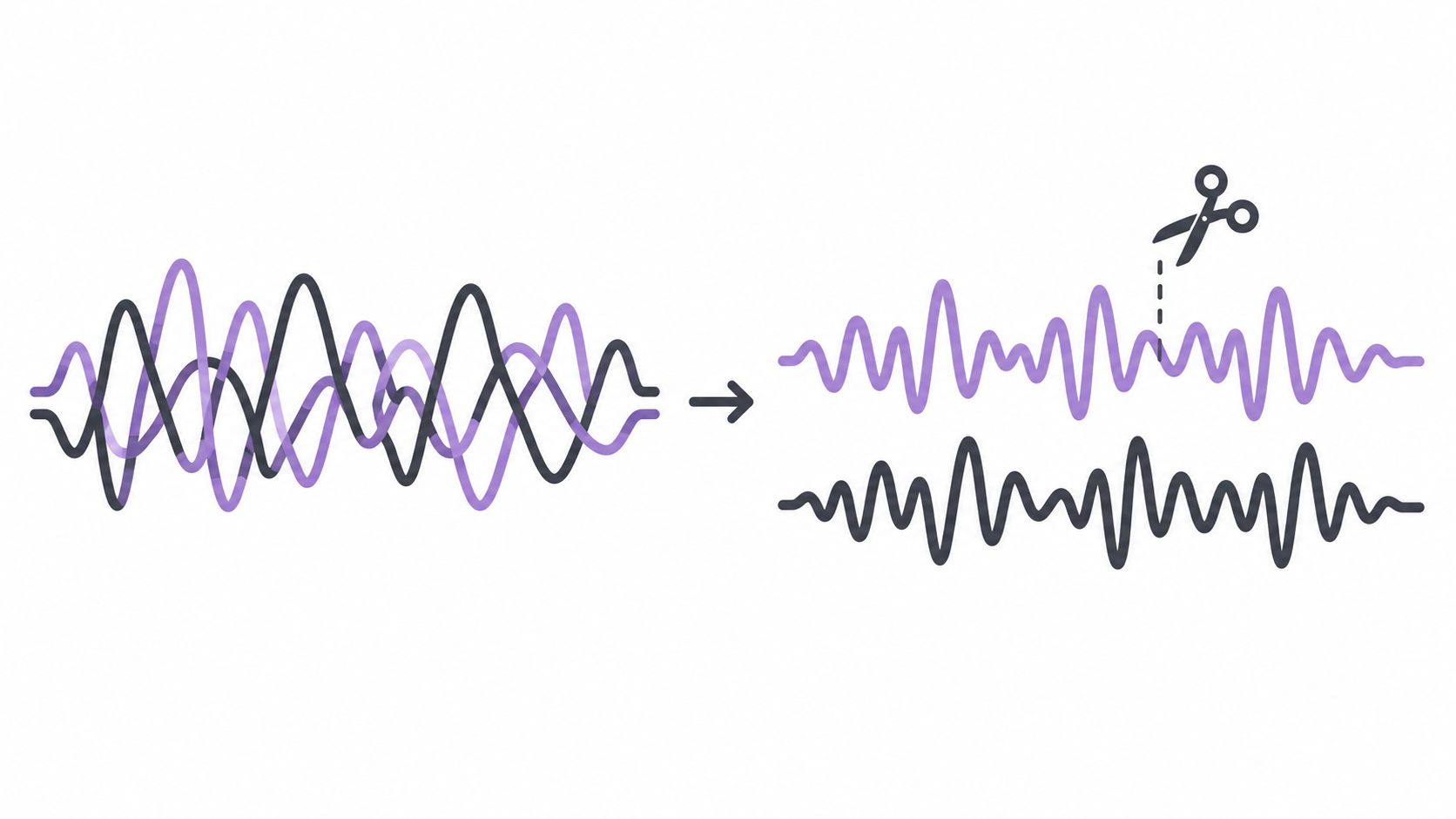
The right order depends on whether the goal is to keep a sound or remove it. For karaoke, the target is the vocals, but the desired result is the backing track. A text-guided isolation workflow can target “vocals” and let the editor audition the remaining Background audio before trimming a particular verse. For a dialogue excerpt, the goal may be the opposite: prompt for “spoken voice,” listen to Isolated sound, then trim the breath before the first word if the delivery calls for a tighter entrance.
That distinction matters because the trim should follow the intended result. Cutting a mixed recording first can leave unwanted vocals or speech in the excerpt. Isolating first gives the editor a separate result to evaluate, but it doesn't guarantee a clean separation.
A practical isolation pass
Saturalabs is a text-guided audio and video isolation service, not a general-purpose video editor or music generator. Its upload interface accepts MP3, WAV, MP4, and MOV files up to 50 MiB (52.43 MB). Name one audible source per prompt, then compare the output with the original, especially where sounds overlap. The meaning of the two outputs is direct: Isolated sound keeps the named target, while Background audio contains the remaining recording with that target removed.
For a karaoke backing track, a useful prompt is “vocals.” Audition Background audio against the original before trimming the verse. For a cleaner spoken excerpt, prompt “spoken voice,” audition Isolated sound, and check that the beginning of the phrase remains intact. A single, specific source description makes the listening task clearer than asking for several unrelated sounds at once.
Separation quality depends on the recording. Difficult overlaps can leave artifacts or remove wanted sound, so the isolated result still needs an editorial listen. Compare the hard passages with the original and check the displayed credit cost before downloading. For context on the terminology, see audio channels versus stems.
Lossless Stream-Copy Versus Precise Re-Encoded Cuts
For compressed material, the editor faces a trade-off: preserve the existing encoding or create a more exact boundary. A stream-copy cut keeps the encoded audio intact and avoids another lossy compression pass. That can work well when removing a large section and the exact cut point isn't critical. But compressed audio is arranged in frames, so a cut may land slightly before or after the requested position. AAC frames are approximately 23 milliseconds, which can matter when the edit must fall precisely between words or beats. (Audio trimming workflow notes)
A re-encoded cut decodes and exports the selected interval again. This can provide finer control over a boundary, useful when preserving a breath, the first consonant of a word, or the attack of a musical transient. The cost is another encoding stage, which can discard additional detail in already-lossy material. Abrupt edits inside continuous sound may still click, so precise trimming and a short fade can be preferable to relying on encoding alone.
| Aspect | Stream-Copy Cut | Re-Encoded Cut |
|---|---|---|
| Encoding | Preserves the existing encoded audio | Decodes and encodes the selected result |
| Boundary precision | Can follow codec or container boundaries rather than the exact requested point | Allows finer boundary placement |
| Quality trade-off | Avoids another lossy encoding pass | Can add artifacts to lossy source material |
| Best fit | Removing larger sections when preserving the original encoding matters | Editing between words, beats, or breaths |
| Continuous sound | May need boundary adjustment if the join is audible | A short fade may help smooth a hard edge |
Choose based on the edit, not on a blanket rule. For large removals, preserving the encoded stream may be the better compromise. For a delicate boundary, re-encode once and inspect the result rather than making repeated lossy exports.
Listening Checks and Loudness After the Export
The export isn't finished when the file saves. Check its beginning and end, then listen through the edit in context. Inspect the first and last 100–300 milliseconds for clicks, missing attacks, clipped words, or abrupt room-tone changes. Listen on headphones and speakers; a boundary that seems unobtrusive on one playback setup may stand out on another.
Compare the export's duration, channel count, sample rate, and polarity with the source and the intended delivery format. Then scan for clipped samples and stereo imbalance. Each check catches a different problem, so a clean waveform display alone isn't enough.
Measure the file, don't chase loudness by instinct
EBU R 128 identifies programme loudness, loudness range, and maximum true peak as useful descriptors. It specifies a production maximum of −1 dBTP, measured with an ITU-R BS.1770-compliant true-peak meter. For broadcast-oriented work, the EBU target is −23 LUFS. Podcasts, social video, music demos, and client platforms may use different delivery requirements, so follow the destination's current specification rather than applying the broadcast target universally. (EBU R 128 recommendation)
Measure integrated loudness and true peak on the complete trimmed file when the delivery calls for it. Don't raise the level because a shorter file feels quieter beside a longer one. Normalization changes level; it doesn't correct a bad boundary or make the edit more coherent. For the distinction between level and perceived programme loudness, see the guide to peak versus loudness normalization.
A Repeatable Cut Workflow and Rights Reminder
Use the same basic sequence on the next file:
- Set the intent. Decide what should remain and whether the task requires isolating or removing a named sound.
- Protect the source. Duplicate the file and choose a lossless working copy when one is available.
- Make the edit. Use Trim for an excerpt, Delete to remove a passage, or Split to work with separate clip sections.
- Refine the boundaries. Zoom in, audition both edges, and use zero crossings or short fades where they help.
- Choose the export method. Preserve the encoding for a less exact cut when that trade-off suits the job; re-encode once when the boundary needs greater precision.
- Run quality control. Check the edges, listen on more than one playback setup, compare file properties, and measure loudness when required.
Cutting an excerpt doesn't automatically grant permission to publish or reuse it. A short section can still contain protected music or a sound recording, and copyright rules vary by country and intended use. Confirm that the source and planned use are authorized before downloading, publishing, or distributing the edited file.
When a cut depends on keeping or removing a particular sound, Saturalabs provides text-guided isolation for that companion step. Compare the result with the original, then trim the version that serves the edit, checking the displayed credit cost before download. Visit Saturalabs to isolate spoken voice, vocals, or another single audible source before making the final cut.