
In this guide
Read time horizontally and sample amplitude vertically. Check the scale and channel layout before comparing shapes. An overview groups many samples together; it can guide a listening check but cannot identify sources, diagnose every clipped recording, or replace loudness measurement.
An audio waveform shows sample amplitude over time. Read from left to right to follow the recording. Values above and below a channel's center line represent positive and negative amplitude, not high and low musical notes. Before interpreting a shape, check the time range, vertical scale, and whether you are looking at mono, separate stereo channels, or a combined display.
This guide uses three original synthesized stereo files to make those distinctions visible. They are controlled examples, not microphone recordings, AI-separated outputs, or evidence that an unfamiliar recording has a particular problem.
Read the axes before judging the shape
The horizontal axis is time. A wide region occupies more of the displayed recording than a narrow region, but its exact duration depends on the labels. The same sentence can fill a whole editor window when zoomed in or occupy a small region when an hour-long recording is visible.
The vertical axis is sample amplitude. In a normalized linear display, zero is the center and ±1 is a common reference range. A taller excursion indicates a larger sample magnitude on that scale. It does not identify a louder-sounding programme by itself: duration, spectrum, and the distribution of energy also matter.
Our free waveform viewer uses one shared scale for both stereo channels, at least ±1, and labels any expansion needed for overscale decoded samples. It does not enlarge a quiet channel independently. Other editors may offer different vertical scales or zoom settings; compare the labels before comparing screenshots.
| What you notice | Useful next check | What the shape alone does not prove |
|---|---|---|
| A long near-flat interval | Listen for room tone, low-level speech, or a deliberate pause | That the interval contains no wanted sound |
| A brief large excursion | Listen to the event and inspect a closer view | That it is a click, impact, clipped sample, or a named source |
| One channel is nearly flat | Review that recorded channel separately | That every quiet channel in a different recording is silent |
| Two broad envelopes look alike | Listen separately and inspect their sample relationship if needed | That the underlying samples match or will combine safely |
Understand an overview's time bins
An overview usually cannot draw every source sample as a separate visible point. Our viewer divides each decoded channel into up to 1,200 consecutive time bins, retaining the minimum and maximum sample in each. The vertical mark represents that range, not a newly recorded sample.
For a three-second recording, 1,200 bins cover 2.5 milliseconds each. A 440 Hz tone completes a cycle in about 2.27 milliseconds, so even this short overview can show a solid-looking band instead of distinct oscillations. For five minutes, each bin covers about 0.25 seconds. A brief event can affect a bin without revealing its precise onset inside it.
To inspect an individual cut, zoom into actual samples in a suitable editor. Audacity's waveform documentation explains the distinction between overview ranges and individual sample points. The Saturalabs viewer is a static envelope reference; it does not provide sample-level editing or an RMS overlay.
Example 1: a left tone and a silent right channel
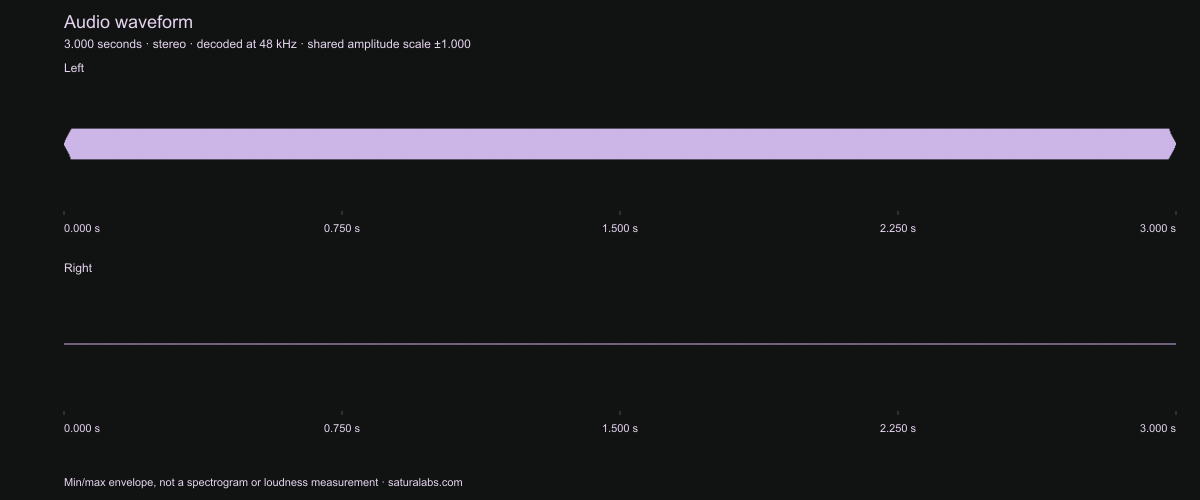
The right channel in this specific file contains zero-valued samples; we checked the stored PCM rather than inferring silence from the picture. The left contains a tone with short fades. In the viewer, press Load stereo test: left tone, right silence to inspect this same file without supplying a recording. It loads only on request and does not autoplay.
In a real interview, one side might instead contain a quieter microphone, crosstalk, or useful ambience. Listen before discarding it. The channel tool can extract an existing left or right channel. Channel selection is different from estimating a speaker out of overlapping sound.
Examples 2 and 3: similar envelopes, different channel relationships
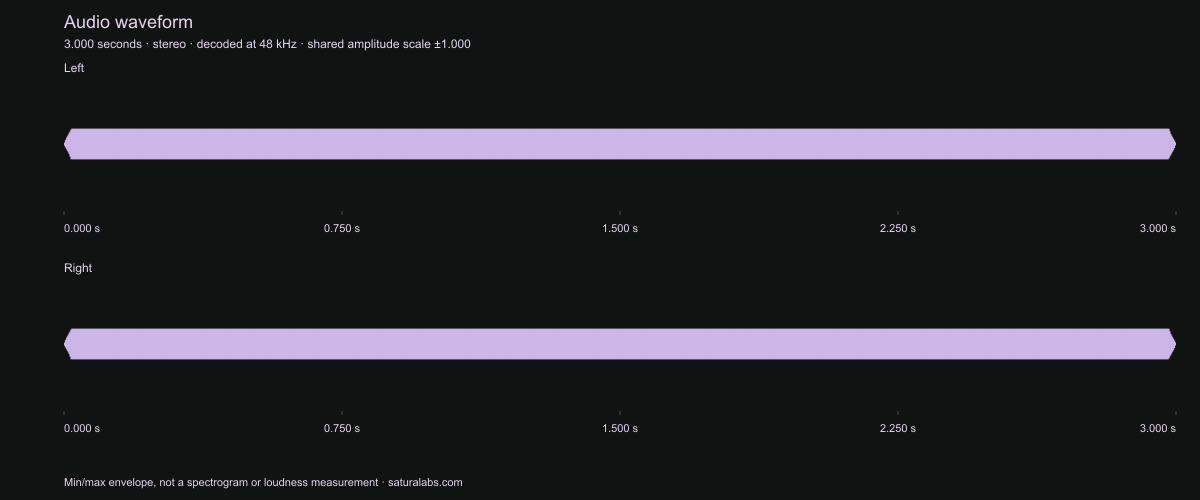
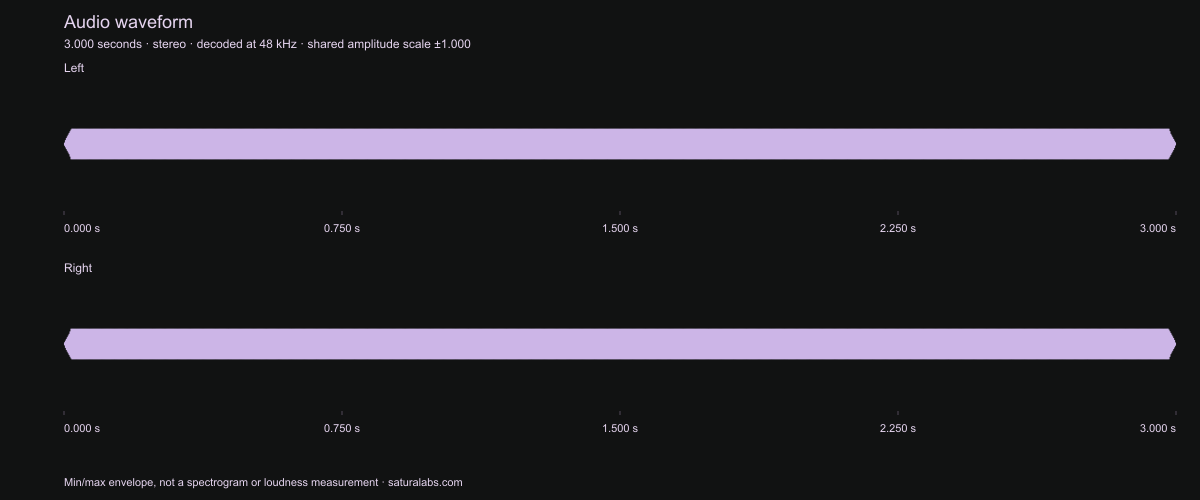
Both files contain nonzero samples on both sides, and their overview envelopes look very similar. Yet averaging their channels produces different outcomes. For matching samples, (L + L) / 2 = L. For these exactly opposite samples, (L + −L) / 2 = 0. An amplitude range over a time bin discards the detailed order and correspondence of samples inside it.
This does not mean that similar-looking real stereo channels always cancel, or that an overview can diagnose a polarity problem. These deliberately constructed files demonstrate why visual resemblance is insufficient. Use the channel examples and mono listening comparisons to hear their actual sources and mixes, then review your own recording on its own terms.
All three illustrated sources are three-second, 48 kHz, 16-bit PCM stereo WAVs generated for these lessons, with 20 ms outer fades. The images were made from the stored samples through the same min/max calculation as the viewer, with a common amplitude scale and no AI processing. They describe those files, not typical speech or music.
Keep waveform height separate from loudness and recording quality
Two recordings can have the same sample peak and different integrated loudness. A brief loud hit and a sustained tone distribute energy differently. Use the loudness meter for the supported integrated-LUFS and sample-peak readings, and the normalization comparison to choose the quantity you intend to adjust.
A flat-looking band in an overview is not a clipping diagnosis. Many normal oscillations can fill the bin's range. Conversely, previously clipped audio may have been turned down, leaving peaks below full scale while the damaged sample shape remains. The clipping lesson uses closer sample plots and original listening examples to show that specific operation.
Neither a neat shape nor a high bit depth proves source quality. The viewer decodes at 48 kHz; that working rate is not a reading of the stored header. For a WAV's actual stored rate, bit depth, layout, and byte size, use the WAV inspector.
Choose a spectrogram when frequency is the question
A waveform does not give pitch or frequency its own axis. If you want to investigate a steady tone, harmonic bands, or a changing frequency, use an appropriate spectral display and listening workflow. Audacity's Spectrogram View documentation describes its time/frequency display. Changing the view does not itself remove a sound.
A spectrogram also needs interpretation: display settings and time/frequency resolution affect what appears. Neither view automatically names an effect, verifies a speaker, transcribes words, or establishes that one audible source can be separated cleanly.
Save a useful reference without losing the original
Keep the original audio when exporting a waveform image. SVG or PNG is a visual reference, not an editable audio working copy. Note the source range and any timeline offset separately; the viewer's time axis begins with the selected file, not your video project's start time.
For a short excerpt, choose the range deliberately in the audio trimmer and retain complete words and effect tails. Reopen that audio when you need another operation. If the task is separating overlapping sources rather than displaying them, read the cleanup-method comparison before choosing a processing tool.