In this guide
A guitarist has a riff ready, a computer open, and a recording that sounds delayed, noisy, or impossible to reshape later. Those problems often start before the first take: the wrong input, an unsuitable monitoring route, or a tone that was committed too early.
A reliable computer recording is less about owning more gear than making choices that leave room for editing. A clean direct recording can be re-amped later, while a microphone captures the sound of an amplifier and its room. Either can work. The right choice depends on what the part needs and what may need changing after the session.
What a Clean Computer Guitar Recording Actually Requires
The recording path is straightforward: strings move the pickups, the guitar sends an analog electrical signal through a cable, an audio interface converts it to digital audio, and a DAW records the result as a file. The interface matters because it contains the converters that turn the guitar's voltage into digital samples. An electric guitar generally needs an instrument-level input, often labeled Hi-Z, rather than a standard microphone input.
The basic digital-audio format has roots in the Compact Disc. Philips and Sony introduced the CD commercially in 1982, using pulse-code modulation at 44,100 samples per second and 16-bit resolution (a history of digital audio). Sample rate describes how often the computer measures the signal; bit depth describes the available amplitude values for each measurement. The CD format remains historically important, but a modern DAW can record at higher resolution, including 24-bit, for more headroom when setting levels.
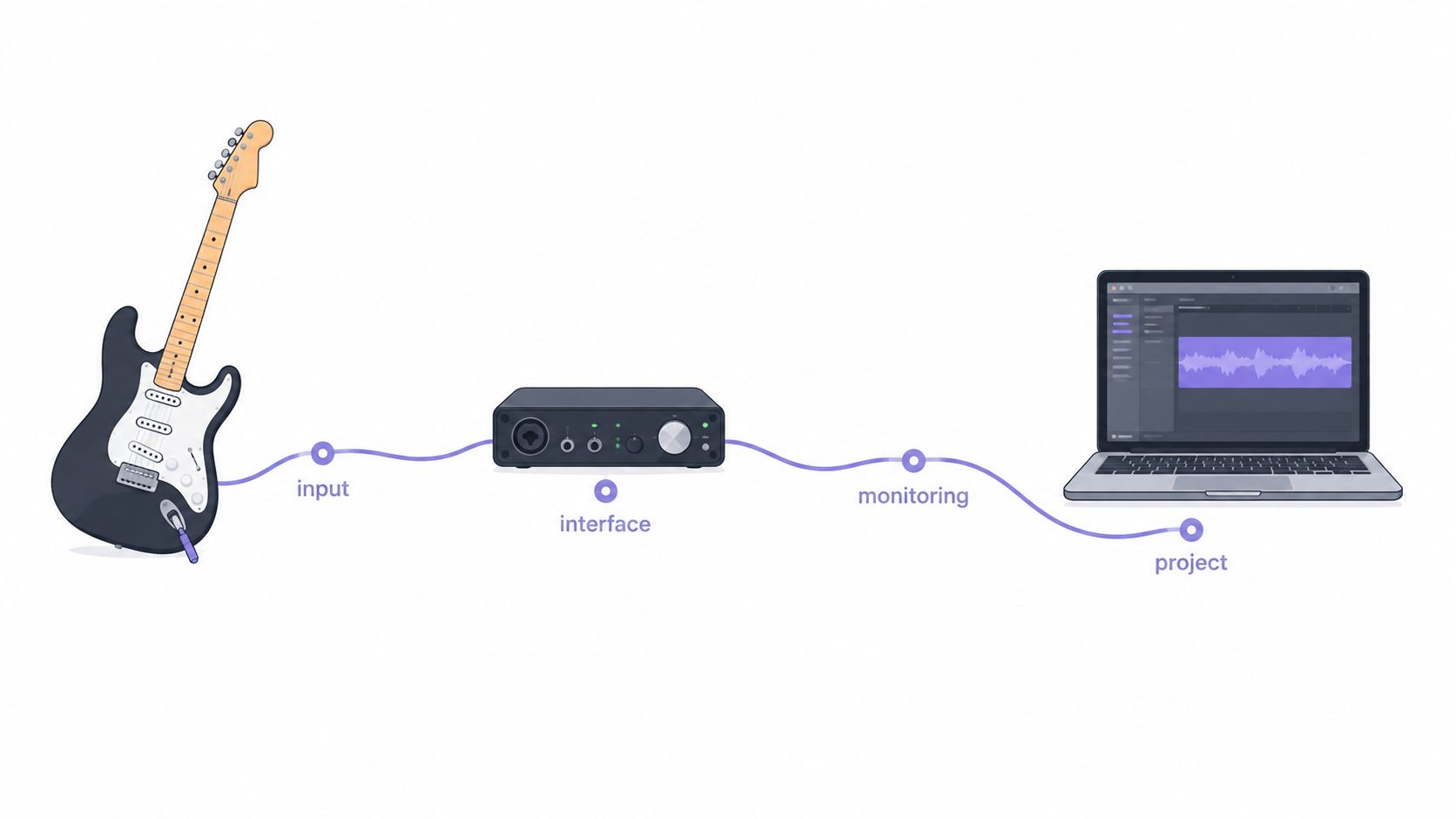
Before recording, the guitarist should settle four choices:
- Input source: a dry direct signal, an amplifier microphone, or both.
- Interface and input: a suitable instrument input, with the DAW listening to the correct channel.
- Monitoring path: direct through the interface, through the DAW, or through an amp-simulation plugin.
- Project settings: a sample rate and bit depth that fit the intended use.
These decisions affect how much can be changed later. A heavily processed signal may sound finished right away, but it can be difficult to undo if the tone doesn't fit the arrangement. A clean take preserves more options for remixing, editing, or applying a new amp sound later. The practical aim is not to make every recording sound dry. It's to know which parts are being committed and which should remain flexible.
Choosing Between Microphone and Direct Input Capture
A microphone recording captures an amplifier in a room. It includes the speaker's character, the microphone's position, and some of the space around the sound. That can make a rhythm part feel immediate and complete, but it also commits the take to those choices. If the room sounds boxy or the amp is too bright, fixing that later may be difficult.
A direct input, or DI, captures the guitar before an amplifier or amp simulator shapes its tone. The result usually needs an amp model, cabinet simulation, or other processing to sound like a finished electric-guitar part. In return, the same performance can be auditioned through different virtual amplifiers after the take. It's a useful default when the arrangement is still developing or when the part may need to be edited, re-amped, or remixed.
Match the capture to the part
For a distorted electric rhythm part, a microphone can capture the amp sound that makes the performance work. A DI alongside it gives the producer another option if the arrangement changes or the original amp tone feels too dense. For clean arpeggios, a DI can preserve the picking detail while leaving the choice of amp and effects open. If the guitar is being used for a low, bass-like part, a direct signal may be a practical starting point, though the final tone still depends on the instrument, performance, and processing.
Some sessions can record both paths at once: a microphone on the amplifier and a DI signal on a separate track. The tracks shouldn't be blended automatically, however. A microphone and DI can sound different in timing and tone, so the player should compare them in the mix and check for unwanted phase changes before combining them.
Decision rule: If the amplifier and room are part of the sound, capture them with a microphone. If the tone may change later, keep a DI. When the performance matters more than choosing one sound now, record both if the setup allows it.
The best choice is the one that protects the useful parts of the performance without locking in a problem. A mic can provide the finished character; a DI can provide a route back to the raw performance. Each serves a different editing purpose.
Setting Up the Interface and DAW the Right Way
Start with the physical connection. Plug the guitar into the interface's instrument or Hi-Z input with a standard 1/4-inch instrument cable, then connect the interface to the computer by USB or Thunderbolt. In the DAW, select that interface as the input device and choose the channel the guitar is plugged into. Audacity's instrument-connection guidance also notes that input choice affects both level and noise; a suitable instrument input is preferable to relying on a generic computer microphone socket.
For a single guitar pickup signal, create a mono track and assign the matching mono input. A mono instrument recorded to a stereo track can appear on only one side or be routed incorrectly. GarageBand's track-input instructions likewise distinguish a mono source such as a guitar from a source that provides two channels. Stereo is appropriate when the source itself is stereo, such as a stereo effects output.
Choose settings for the destination
Sample rate is a delivery decision, not a tone-setting shortcut. A 44.1 kHz session is associated with the CD-derived music-distribution ecosystem, while 48 kHz is common in video and film workflows. The Audio Engineering Society established those rates as digital-audio standards in 1985, as described in the history of home recording. Modern DAWs also offer higher bit depths, including 24-bit, which gives more headroom for setting levels than the historically important 16-bit CD format.
| Setting | Music release default | Video or film default | Reason |
|---|---|---|---|
| Sample rate | 44.1 kHz | 48 kHz | Choose a rate that matches the intended delivery workflow. |
| Bit depth | 24-bit session | 24-bit session | Provides more headroom while recording than 16-bit. |
| Track format | Mono for a single guitar signal | Mono for a single guitar signal | Use stereo only when the source supplies two channels. |
A WAV sample-rate and bit-depth guide can help when checking an existing file. Before the take, confirm that the correct track is armed, its input meter moves when the guitar plays, and the output monitoring is routed as intended. If the track plays back through an amp plugin while the player also hears direct monitoring, the sound can feel doubled. A bus with an unplanned effect can create a different problem: the player hears a sound that isn't being recorded.
Setting Levels That Leave Room for Mistakes
Set the input gain using the loudest passage expected in the take, not a gentle test strum. Turn the guitar's volume control up for the initial check, play the part at performance intensity, and watch the DAW's input meter. Then lower the interface gain if the signal approaches clipping. If the input adds obvious noise at a low gain setting, reduce the guitar's output only as needed and test again.
The converter is the limit to watch. Once it reaches its maximum level, it clips the signal, and lowering the DAW fader afterward won't reliably repair the distortion. A track can look like a healthy, strong waveform while still having lost the transient detail of a hard pick attack. A clean signal with headroom is more useful than a hot signal that leaves no margin.
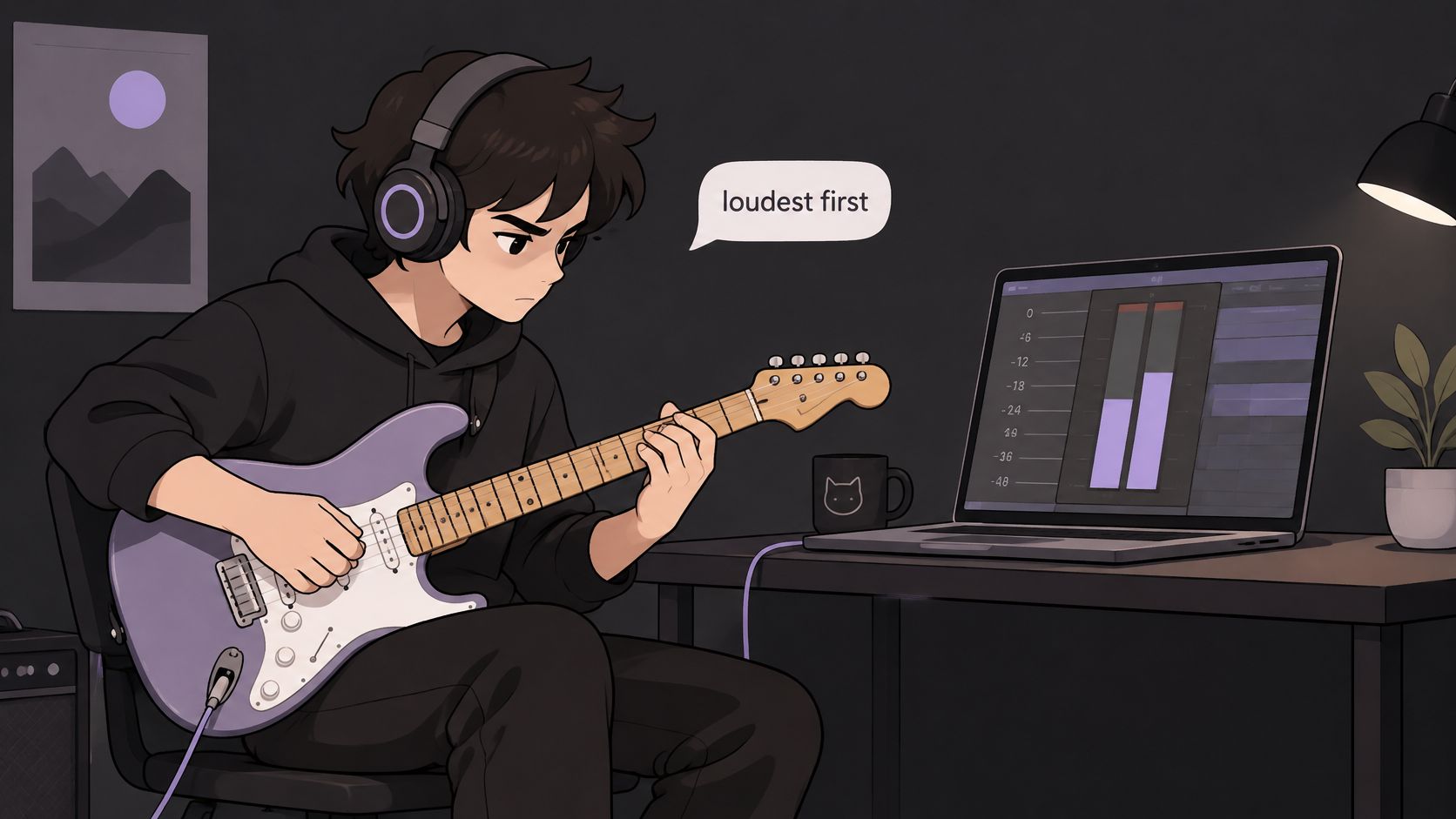
Run the gain check as a short routine
- Play the loudest section: Include hard strums, accents, and any sustained notes that push the pickups.
- Watch the input meter: If it reaches the DAW's clipping indicator, lower the interface trim and repeat the passage.
- Record a test: Listen for brittle or flattened attacks, not just an acceptable-looking waveform.
- Keep the setting consistent: Don't change the guitar's volume between the test and the actual take unless the sound is meant to change.
A 24-bit session provides substantially more headroom for performance peaks and gain-setting mistakes than 16-bit recording, but it doesn't make clipping harmless. The peak-versus-loudness normalization guide can clarify why peak level and perceived loudness aren't interchangeable. A clean, moderate recording can be raised later; a clipped converter signal is already damaged.
Choosing a Monitoring Path That Feels Right to Play
Latency is the delay between playing a note and hearing it. The right monitoring choice depends on whether the player needs to hear a processed amp sound while tracking. There are three common paths, and each changes what reaches the headphones.
Direct monitoring sends the interface input to the headphones without routing it through the DAW's software-monitoring path. It often feels immediate, but the player may hear a dry guitar rather than the amp simulation on the armed track. Software monitoring sends the input through the DAW and back to the output. That makes plugins audible while tracking, but the computer's processing and buffer settings affect the delay.
Monitoring through an amp or effects plugin adds another consideration. A demanding plugin chain can increase processing load, so an expensive or newer interface alone doesn't guarantee that the guitar will feel responsive. Latency can also depend on the selected input and output device, buffer size, sample rate, driver behavior, and computer load.
Test the route before adjusting everything
Record a short passage with plugins bypassed. Turn on direct monitoring at the interface and turn software monitoring off in the DAW. Compare the feel with software monitoring enabled. If the dry direct signal feels comfortable but the plugin path feels delayed, the issue is likely in the software-monitoring route or its processing, not in the guitar itself.
If the amp sound is essential while playing, reduce the buffer gradually until clicks or dropouts begin, then step back to the last stable setting. The practical target is the smallest buffer that remains reliable for the actual session, not the lowest setting available. Audacity describes the buffer as a block of audio awaiting computer processing and documents 100 milliseconds, or about 0.1 seconds, as its default. It also notes that consumer-level recording latency is typically around 130 milliseconds, or 0.13 seconds, and that lowering the buffer too far can cause recording or playback to fail (Audacity's audio setup guidance).
If the player hears an obvious delayed double, check that direct and software monitoring aren't both active for the same signal. When direct monitoring is available and the effects aren't needed during the take, it can avoid software-monitoring delay. When the tone matters to the performance, keep the plugin path and tune the buffer for stability.
Capturing Takes That Survive Later Editing and Remixing
A usable performance doesn't have to be one flawless pass. Recording multiple takes gives the producer material to comp, or combine into a composite performance, while keeping the original passes available. The player should name the takes clearly and avoid deleting alternatives until the comp is checked in context.
For a rhythm part played to a metronome, the click can help keep the timing consistent across passes. A lead line that needs a small repair doesn't always require a full re-record. If a phrase breaks at bar 17, the DAW's punch-in recording can replace that passage while leaving the surrounding performance intact. The edit should be checked for timing, tone, and the natural continuity of the phrase.
Keep a path back to the performance
When the setup permits it, route a dry DI to a separate track alongside the processed amp sound. That gives the producer a way to change the amp simulation or effects later without asking the guitarist to repeat the performance. A parallel dry track is especially useful if a tone that sounded right during the session later feels too bright, too distorted, or too crowded in the mix.
A short clean reference at the beginning of the session can also help when lining up later takes. The purpose is practical: preserve an identifiable point in the recording, so later editing doesn't depend on guessing where a performance begins.
Useful habits include:
- Keep the original passes: Comp from copies or playlists rather than erasing the source takes.
- Mark repairs clearly: Label punch-ins so edits can be reviewed quickly.
- Preserve the dry signal: Keep it separate from the processed sound when possible.
- Listen in context: A guitar tone that works alone may mask a vocal or other instrument in the full arrangement.
The session should leave the next editor with choices, not a mystery. Clear track names, intact source takes, and a dry option can make a guitar part easier to revise long after the performance is finished.
Putting the Workflow Together and Planning for What Comes Next
Before recording, the guitarist should check the room and listen for fan noise, hum, or other sounds that may be obvious in pauses. A short room-tone recording at the same gain and position as the performance can reveal noise that went unnoticed while playing. Moving away from a noisy computer or changing the microphone position may help more than aggressive cleanup. A brief test take is easier to redo than a full performance.
Next, choose a microphone, a DI, or both. Select the interface input in the DAW, create the correct mono or stereo track, and set the project for its intended destination. Test the loudest passage, choose a monitoring route that feels stable, and record multiple takes while preserving a dry signal when the setup allows it. The session is ready when the guitar plays comfortably, the meter stays clear of clipping, and the recorded file can be changed without losing the original performance.
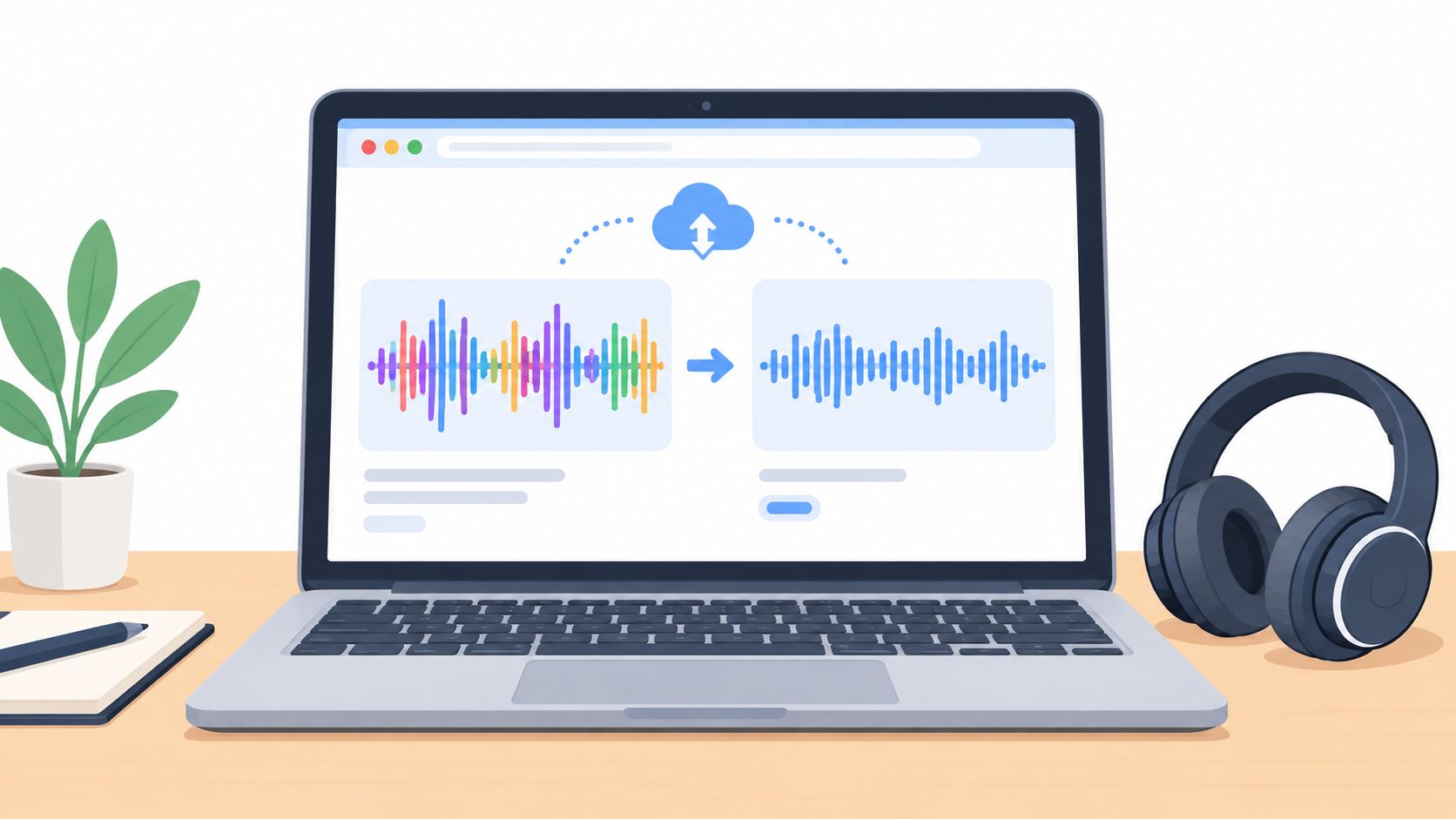
Sometimes the only available source is a lesson, demo, or rehearsal mix with guitar tangled up with other sounds. Text-guided audio isolation can estimate a target from a mixed recording, but separation quality depends on the source. Dense arrangements, heavy distortion, reverb, cymbals, and room reflections can cause bleed or audible artifacts, so the isolated result should be treated as a rough editing aid rather than a substitute for original multitracks.
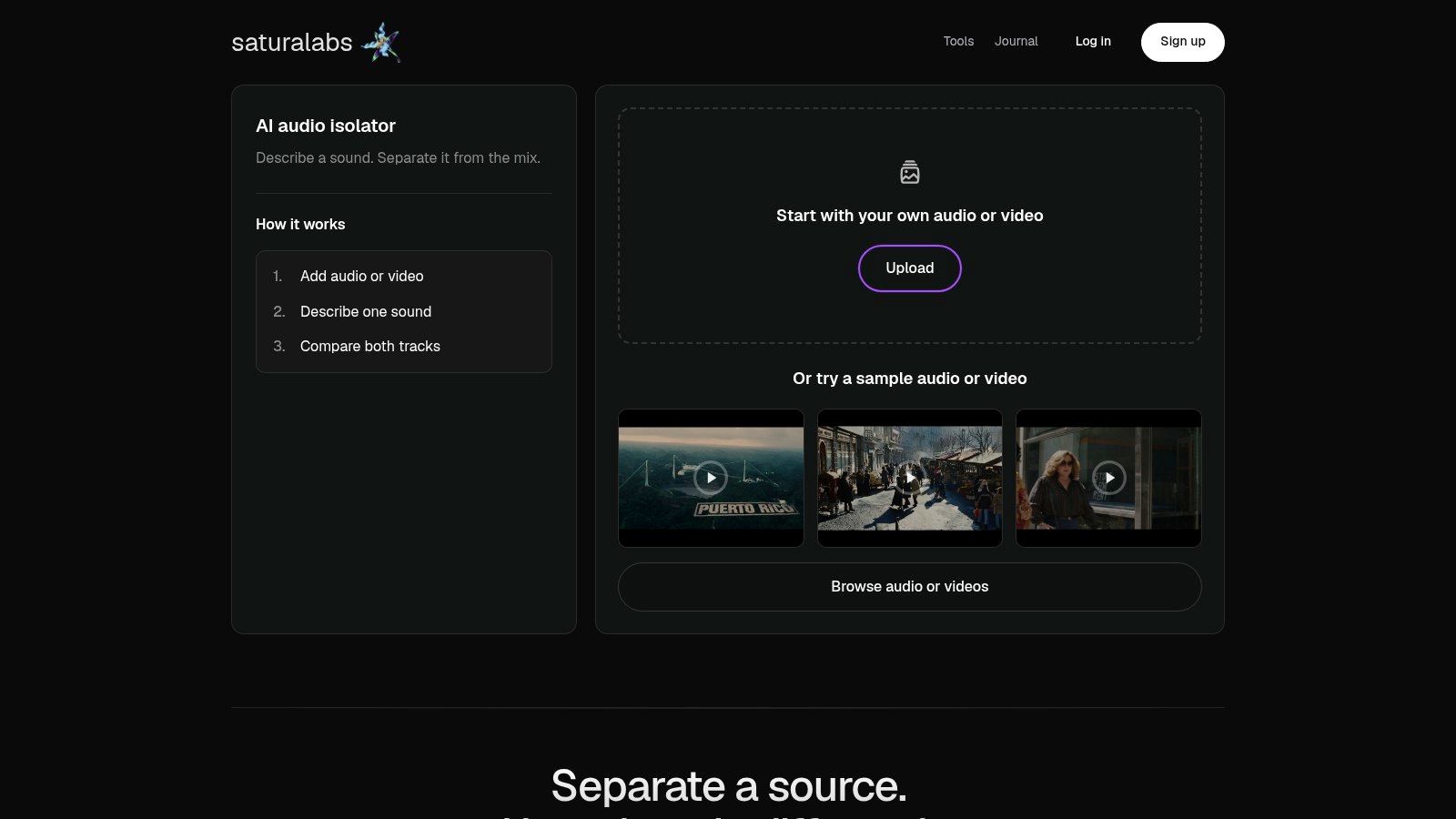
For a mixed file, a prompt such as “electric guitar” names one audible source at a time. “Isolated sound” keeps the target, while “Background audio” is the remaining recording with that target removed. Compare difficult passages with the original, listening for pick attack, sustain, bends, and backing-track bleed before using or downloading the result. Saturalabs accepts MP3, WAV, MP4, and MOV uploads up to 50 MiB (52.43 MB); users should check the displayed credit cost before downloading. Its audio-isolation prompt guide and stems versus audio isolation guide offer further guidance on working with mixed audio.
Recording or uploading a performance doesn't clear rights in material included in it. The U.S. Copyright Office distinguishes the copyright in a sound recording from the copyright in the underlying musical composition, and advises musicians to check permission or licensing for the intended use (copyright guidance for musicians). That matters for covers, backing tracks, and recordings that include another artist's performance.
When a guitar part exists only inside a rough mix, Saturalabs' guitar isolator can help estimate that audible source with a text prompt. Compare the isolated result against the original and review the displayed credit cost before downloading. For a post-session isolation workflow, visit Saturalabs.