
In this guide
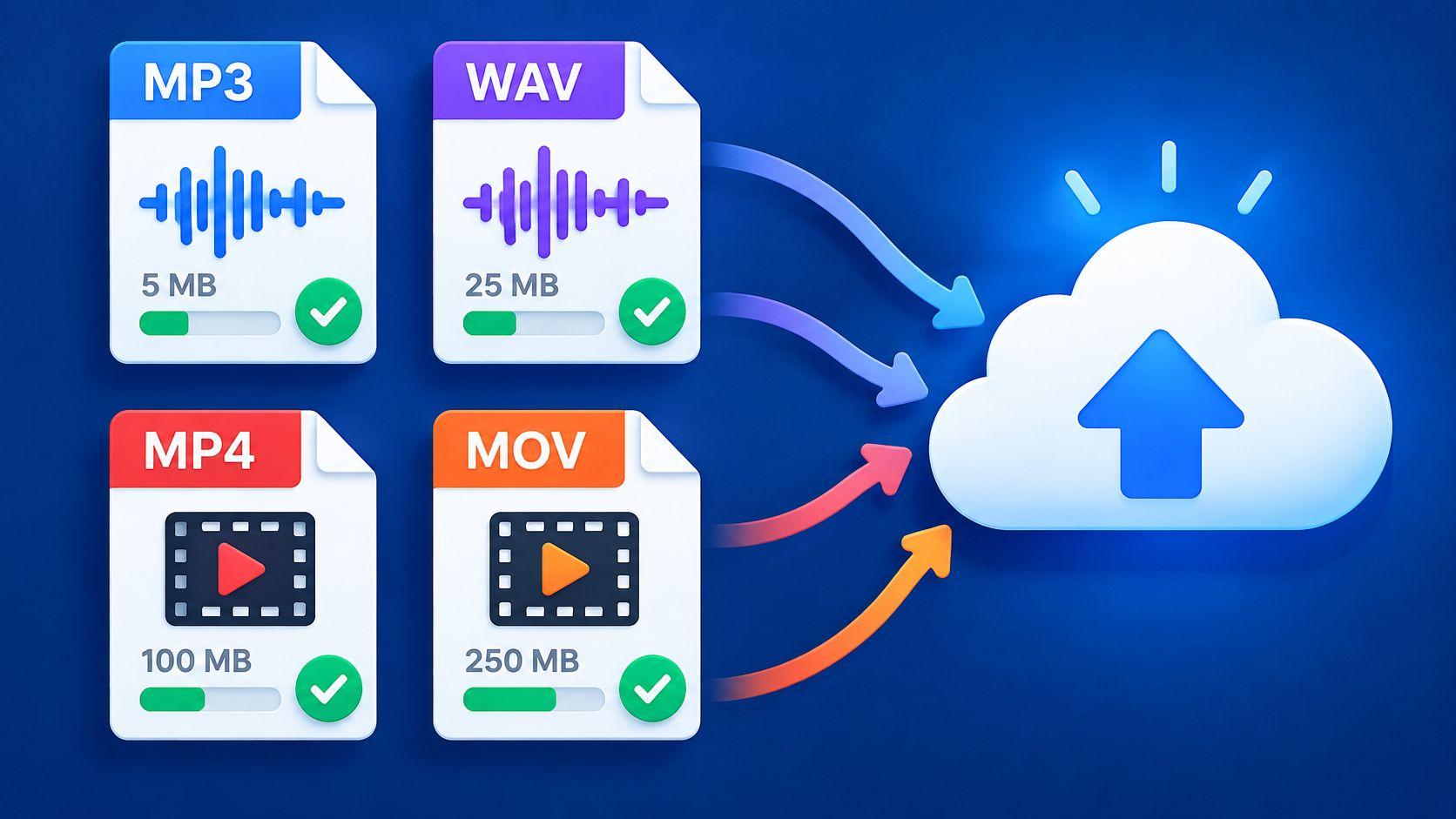
Saturalabs accepts MP3, WAV, MP4 and MOV uploads, with a limit of 50 MiB (52.43 MB) per file. Those four extensions are the supported file types for text-guided audio and video isolation.
Why does one supported MP4 separate cleanly while another returns thin, metallic speech? The extension answers only half the question. It names a wrapper, not the codec, bitrate, channel layout or recording quality inside, and those details decide whether a file is merely accepted or worth uploading. Readers who check what's inside before naming a target save credits, avoid refused uploads and get a clearer sense of what separation can and can't recover from a finished mix.
Accepted Formats, Limits and What Each Extension Holds
The starting rule is simple. Saturalabs accepts MP3, WAV, MP4 and MOV files up to 50 MiB (52.43 MB), and anything outside that list or over that size needs converting or trimming first. The more useful question follows immediately, because these four names don't describe the same kind of thing.
MP3 and WAV are audio files that readers upload directly. MP4 and MOV are containers that must hold a usable audio stream alongside any video. That split explains most surprises, since a container can carry many different streams under one familiar extension.
What the Two Audio Formats Actually Store
MP3 is a compressed, lossy format. Its detail depends on bitrate and on whether the source was already compressed before it became an MP3, because information discarded during encoding doesn't come back. Quiet vocals, cymbals and room ambience are the sounds most likely to blur together after that loss.
WAV usually stores uncompressed PCM audio and is the common master format from field recorders and digital audio workstations. It keeps more of the recorded waveform for the separator to work with, and that's why it's the stronger source when it fits. The trade-off is size, since an uncompressed stereo recording reaches the upload limit far faster than an MP3 of the same length.
Neither format guarantees a clean result on its own. A dense, reverberant WAV can separate worse than a dry, well-recorded MP3, because overlap between sounds matters as much as file detail. Format choice sets the ceiling, and the mix decides how close a result gets to it.
What the Two Video Containers Actually Hold
MP4 and MOV aren't single codecs. MP4 is standardized as ISO/IEC 14496-14 by the International Organization for Standardization and can hold video and audio in many codec combinations. MOV is the QuickTime format, and Apple's QuickTime file format documentation describes a movie file that can contain video, sound, still images, text and other media types.
That shared history, with QuickTime preceding and informing the MPEG-4 family, explains why both containers carry synchronized picture and sound yet behave differently across players and editors. Two MP4 files of identical length can differ in codec, sample rate, channel layout and number of audio tracks. The same is true of two MOV files from different cameras or export presets.
Practical rule: A supported extension is a starting check, not a guarantee that the upload will be accepted or the audio inside can be decoded. Also check the file size and confirm that its audio is present and readable.
So MP4 suits a finished video export that already contains dialogue, music or effects in one file. MOV suits camera originals and Apple or professional editing workflows, provided an audio track is present and isn't muted, empty or stored as a separate reference. Readers should also confirm on the results screen what a given file type returns before planning the next step, since a video upload produces separated audio rather than a finished video.
Accepted Upload Formats at a Glance
| Extension | What it is | Typical source | What to check |
|---|---|---|---|
| MP3 | Compressed audio file, lossy | Downloads, podcast files, exported music | Bitrate and whether the source was already compressed |
| WAV | Audio file, usually uncompressed PCM | Recorder masters, digital audio workstation bounces | File size against the 50 MiB limit |
| MP4 | Video container that can hold audio | Finished video exports, web video | Audio track present, codec and channel layout |
| MOV | QuickTime container, often with video and audio | Camera files, Apple and editing exports | Audio track present and file size |
Finding a source file in this table takes seconds. Confirming its size takes one look at the file properties. The step readers skip, and shouldn't, is asking what's inside the file rather than trusting what its extension says.
Choosing Between the Original and an Export
Upload the highest-quality native file that fits within 50 MiB. That's the whole rule, and it holds because quality lost to compression can't be recovered later. A file that's accepted isn't automatically a good source, and the most convenient copy is often the weakest one.
Preservation practice makes the same distinction. The Library of Congress, in its Recommended Formats Statement preference summary, prefers native-resolution files and uncompressed or lossless audio, and it separates professional master formats from compressed consumer delivery formats. Accepted and suitable are different standards, and separation rewards the stricter one.
Three Common Cases
- A podcaster with a WAV recorder master uploads the WAV. It's the least processed copy, so consonants, breaths and room tone survive intact for the separator.
- A creator who only has a downloaded MP3 uploads the MP3. No better copy exists, and re-encoding it won't manufacture detail that was never in the file.
- A video editor whose camera file exceeds 50 MiB trims to the needed passage and exports that section at the highest quality that fits. A short, clean excerpt beats a full clip squeezed down to a low bitrate.
Converting an MP3 to WAV deserves a direct answer, because readers ask about it constantly. It decodes the MP3 audio and typically stores the result as uncompressed PCM in a larger WAV file. It does not restore frequencies or transients discarded during MP3 encoding, so converting alone does not improve the source; the larger file may also exceed the limit.
Heavy pre-processing causes a subtler problem. Normalizing, hard limiting or running aggressive noise reduction before upload means the separator works on altered material, and artifacts from that processing can be mistaken for part of a voice or instrument. Light, honest files give cleaner decisions.
There's still a case for the compressed copy. When speed, storage or a slow connection matters more than fine detail, an MP3 or a smaller video export is a reasonable choice, as long as expectations adjust with it.
Keep the original archived, upload the best copy available, and compare difficult passages with the original before downloading anything.
Sizes That Fit the 50 MiB Upload Limit
Fifty MiB sounds small until it is translated into minutes. The limit is 50 MiB, which equals 52.43 MB, and audio size follows simple arithmetic from bitrate, so readers can estimate fit before touching an exporter. Video needs one extra check because the picture stream usually spends most of the budget.
Approximate Size and Length Within 50 MiB
| Source setting | Approx. minutes within 50 MiB |
|---|---|
| WAV, 44.1 kHz, 16-bit, stereo | about 4.95 |
| WAV, 48 kHz, 24-bit, stereo | about 3 |
| MP4 or MOV with video | about 1.4 min at 5 Mbps combined bitrate, 42 sec at 10 Mbps, 21 sec at 20 Mbps |
Uncompressed WAV at 44.1 kHz, 16-bit stereo carries about 10.6 MB per minute, so the theoretical maximum is about 4.95 minutes before headers and other overhead. Leave margin instead of exporting a full five minutes. The same recording at 48 kHz, 24-bit stereo carries about 17 MB per minute, which leaves room for about three minutes. Higher resolution buys detail and spends the budget faster.
MP3 size follows bitrate directly. A 128 kbps file runs about 0.96 MB per minute, 192 kbps about 1.44 MB per minute and 320 kbps about 2.4 MB per minute. That is why a full podcast episode fits easily as MP3 while its WAV master does not.
Video cannot be estimated from the container name. A MOV from a camera and an MP4 from a web export may share a duration and differ several times over in size, because the video and audio stream bitrates drive the total. Use combined bitrate for the estimate: divide 419.44 megabits by the bitrate in Mbps, then by 60 for minutes. Readers who want the arithmetic done for a specific setting can use the audio file size calculator and compare the estimate against the file. These figures are bitrate calculations, so the exact size in the file properties always wins.
When a File Is Too Large
Three responses work, each with a named trade-off.
- Trim to the needed passage. Length drops, quality stays intact, and nothing outside the excerpt gets processed. This is the first choice for dialogue fixes and single-song excerpts.
- Export at a lower bitrate. Size falls predictably, but fine detail goes with it, so this suits speech cleanup better than cymbal-heavy music.
- Choose a shorter WAV section. The master quality survives for the passage that matters, at the cost of processing a long recording in pieces.
For MP4 and MOV, trimming is usually cleaner than crushing bitrate. A short excerpt keeps edges, consonants and room tone intact for the separator, while a heavily recompressed video can carry the same weaknesses into the isolated WAV result.
How to Inspect a File Before You Upload
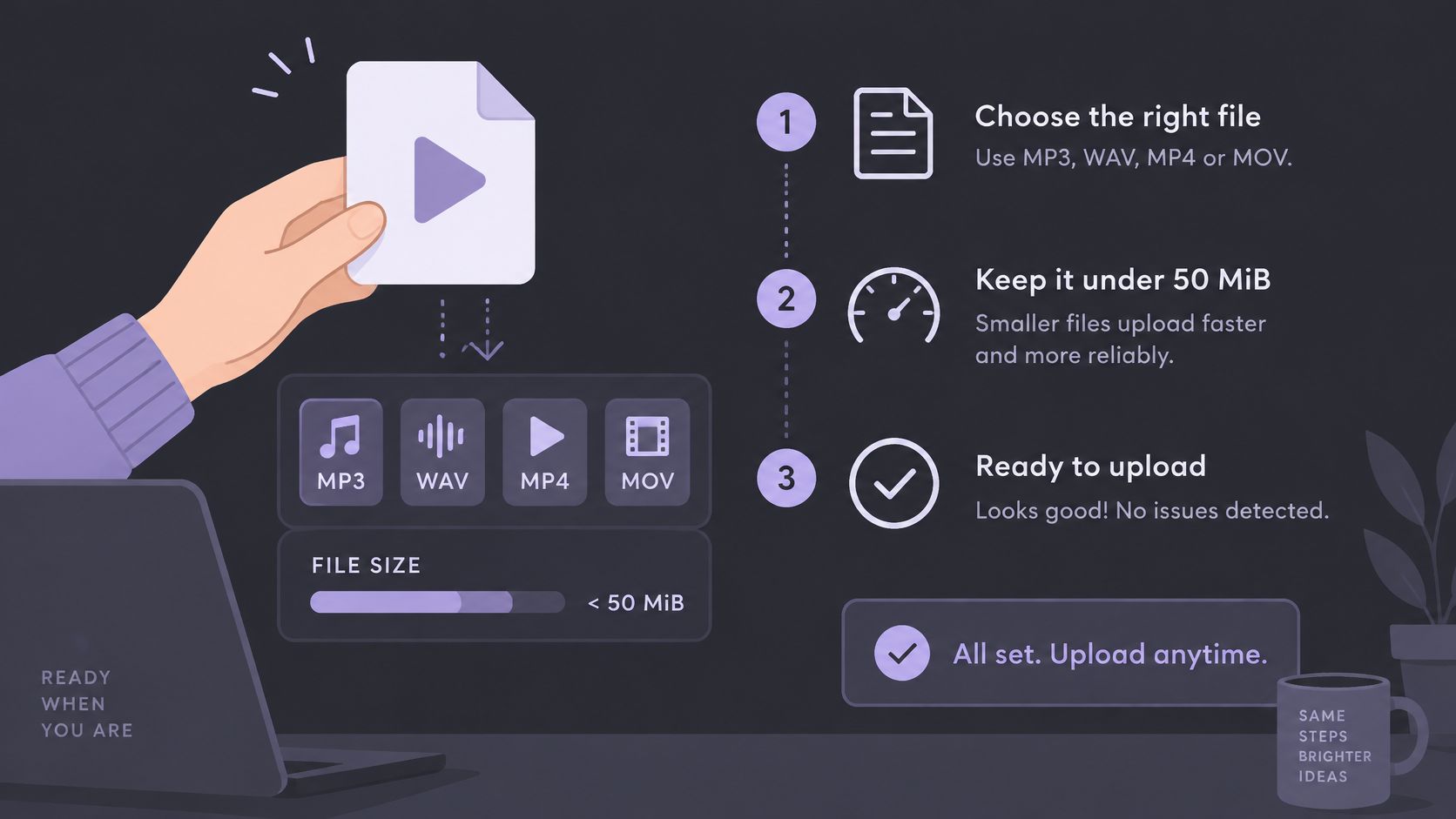
A supported extension can still produce a poor or failed result. The extension identifies a wrapper, not the audio codec, video codec, channel layout, sample rate or bit depth inside it. The Library of Congress makes exactly this point in its video format preferences guidance, distinguishing containers such as QuickTime and MPEG-4 from the codecs they carry and advising readers to weigh clarity and fidelity before the format name itself.
Six repeatable steps close that gap.
The Six-Step Inspection
- Confirm the extension and size. The file must be MP3, WAV, MP4 or MOV and at or below 50 MiB (52.43 MB); files above that limit are refused.
- Play it in two standard media players. Audio should be audible from start to finish in both, since a silent or broken track produces a silent result.
- Record the stream details. Open the file properties or a media information viewer and note codec, sample rate, bit depth, channel count and duration. For WAV files specifically, the WAV file inspector reads the stored encoding, sample rate, channels, duration and file size directly.
- Flag anything unusual. More than two channels, variable sample rates, very low bitrates or several audio tracks can each change how the separator reads the signal, and identifying them now explains odd results later.
- Export a safer copy if needed. When something looks nonstandard, export a standard stereo WAV or a higher-bitrate MP3 from the original and leave the source file untouched.
- Audition the target passage. Listen to ten seconds containing the sound to be isolated and check whether it is audible and identifiable. A heavily masked target can be harder to isolate, and no prompt guarantees recovery.
WAV generally sidesteps container ambiguity, since it's commonly paired with linear PCM, although the specification can hold other codecs and step 3 still applies. Compressed files trade that certainty for convenience. Neither trade is wrong, provided readers know which one they've made.
Steps 1 and 2 catch obvious format and playback problems. An upload can still fail if its codec or streams are unsupported. Steps 3 to 6 help assess whether the source is suitable.
Prompt wording is a separate skill from file preparation, and conflating the two leads readers to blame a healthy file for a vague request. The audio isolation prompts guide covers phrasing in depth for readers whose files pass inspection but whose results still miss the target.
Writing One-Source Prompts for Each File Type
One audible source per prompt. That's the discipline behind every example below, and the file type changes only which source is realistic to name and which output to audition.
Speech from a WAV recorder master takes a prompt like "the host's spoken voice", with Isolated sound as the output to keep. Readers should check consonant endings against the original, since final consonants are quiet, brief and the first thing a separator can soften.
A spoken interview from an MP3 download works better with a narrower prompt such as "the interviewer's spoken voice", again keeping Isolated sound. Breath and room tone at the start and end of each answer reveal whether compression artifacts in the MP3 are leaking into the result.
Prompts for Video Sources
Karaoke from an MP4 music video reverses the choice. The prompt names "the lead vocal", and Background audio is the output that matters, because it's the remaining recording with that vocal removed. Comparing it with the original during the chorus, where the vocal sits loudest over the band, gives the honest verdict. The karaoke vocal removal guide walks through that workflow in full.
Dialogue in a MOV camera clip with traffic takes "the woman's voice near the camera" and Isolated sound. Leftover traffic belongs in a separate pass, not in the same prompt, because naming it here splits the request between two targets.
The weak version of all of these is "vocals and drums". It names two sources, asks for two different separations and usually returns a compromise that serves neither. Splitting it into two runs, one per source, clarifies the request. Review the displayed credit cost for each result before downloading.
A stronger habit is naming the one voice or instrument that's audible in the hardest passage of the file. If that source separates acceptably there, the easier sections rarely cause trouble.
Common Upload Errors and How to Fix Them
Most upload problems announce themselves clearly. Match the symptom in the first column, read the likely cause and apply the fix before uploading again, rather than re-uploading the same file and hoping for a different outcome.
Upload Symptoms, Causes and Fixes
| Symptom | Likely cause | Fix |
|---|---|---|
| Upload refused for size | File exceeds 50 MiB (52.43 MB) | Trim to the needed passage and recheck the size table |
| File cannot be uploaded | Format outside MP3, WAV, MP4 and MOV, such as AIFF or M4A | Convert to WAV or MP3 with a separate converter, then upload |
| Result is silent or missing the source | No audio track, or audio muted in the export | Play the file in two players and re-export with audio enabled |
| Result sounds thin, metallic or gated | Lossy source or overlapping sounds | Upload the highest-quality native copy, name one source and compare with the original |
| Wanted sound is missing from Isolated sound | Target overlaps other sources, or the prompt names several sources | Name one audible source more precisely and run it again |
| Video output does not match the picture | Downloaded WAV not aligned in the editor | Align the WAV to the picture using the original timeline |
One row deserves emphasis. Downloads of separated audio from a video upload arrive as WAV audio, not as a finished video file. First align the WAV with its source start on the original timeline. If sync changes over time, check the source and export duration, frame-rate and editor settings; a fixed offset alone will not correct progressive drift.
Reading the Table Correctly
When a file is accepted but the result is poor, the cause is usually source quality or prompt scope, not the extension. A thin, gated vocal from a low-bitrate MP3 isn't an MP3 support problem. It's the separator reporting, audibly, what the encoder already threw away.
Overlapping sounds produce the same family of symptoms. Sources that occupy the same frequencies at the same moment can't always be recovered cleanly from a finished mix, so leakage and missing fragments are mechanical limits of the recording. Renaming the file or converting its wrapper changes none of that.
Diagnostic order: Check the file first, then the prompt, then the output. Reversing that order wastes runs on a file that was never suitable.
When the cause can't be identified from the file alone, readers should work through the inspection steps before rewriting the prompt. For size refusals, the size table holds the limit math, so there's no need to guess how much trimming a file needs.
Isolating Audio from MP4 and MOV Video
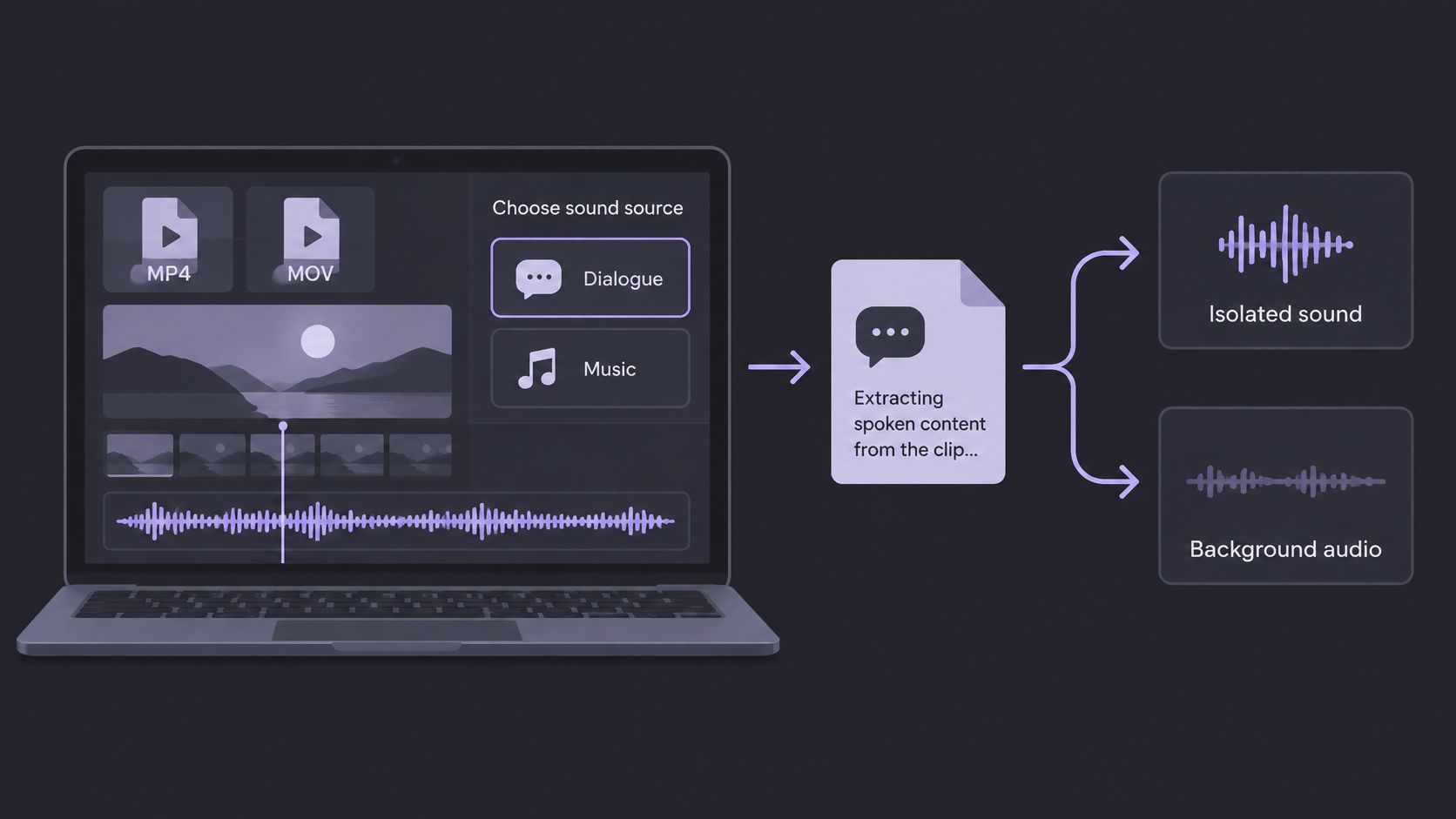
Video uploads follow the same logic as audio, with two additions. The file must carry its own audio, and the separated result returns as audio that goes back into an editor. Six steps cover the workflow for both MP4 and MOV sources, including material prepared with the audio extraction from video tool workflow in mind.
The Six Video Steps
- Trim and export a self-contained file. Cut unused footage, confirm audio is present and in sync, and avoid exports that reference external media.
- Upload the MP4 or MOV. Check the size first, since camera originals frequently exceed the limit before any editing happens.
- Describe one audible source. Plain words work, such as "the interviewer's voice" for a dialogue clip.
- Match the target and output to the goal. To keep dialogue, describe the spoken voice and review Isolated sound. To reduce music while keeping the remaining scene, describe the music and review Background audio. Compare either result with the original: wanted sounds may change and unwanted sound may remain.
- Compare against the original. Use the hardest moments, not the clean opening seconds.
- Download and realign. Confirm the file type on the results screen, then place the downloaded audio against the picture in the editor.
Three checks catch the problems an editor will otherwise reveal at the worst moment.
- Lip sync after music removal. Watch a line of dialogue with the new audio in place, because small offsets hide in audio-only review.
- Consonant endings in dialogue. Listen to word tails under any remaining ambience, since softened endings change intelligibility before they change tone.
- Transitions where sound starts or stops. Music entries, door slams and applause edges expose gating and leakage that steady passages conceal.
Noise-specific problems, such as wind, hum or room echo under dialogue, benefit from their own pass and their own prompt rather than being bundled into a music or voice request. Readers focused on that task will find a dedicated walkthrough in the guide to removing background noise from video.
Check Rights and Listen Before You Download
Two decisions come before any download, and neither is optional. Confirm the rights position first, then listen properly, then spend credits.
Customers retain rights to content they submit to Saturalabs and represent that they have the rights needed to submit it. That means owning the recording, holding permission, or relying on a valid legal limitation before processing or sharing a result. The U.S. Copyright Office fair use FAQ advises that uploading or downloading a copyrighted work without authorization can infringe the owner's exclusive reproduction or distribution rights, and the same source states that infringement can lead to statutory damages of up to $30,000 per work, or up to $150,000 when infringement is willful. Those figures are U.S.-specific, and educational or noncommercial intent doesn't automatically remove the obligation.
The Listening Check
Compare Isolated sound and Background audio against the original at the hardest passages. Listen for word endings, sibilants, cymbal hits, breaths and transitions, plus any metallic or gated residue sitting under the target. Both outputs matter, because sound missing from one often explains an artifact in the other.
Downloads require an account and sufficient credits, and the results screen shows the credit cost before the chosen WAV is downloaded. Checking that figure takes a second and prevents surprises. If a result fails the listening check, the fix isn't downloading anyway. It's re-describing one source more precisely and running the file again.
A file that separates beautifully says little about the next one. Separation quality depends on the material, the overlap and the recording, so each upload earns its own check.
Readers with a file that has passed the size, stream and listening checks are ready to run a real isolation rather than a hopeful one. Saturalabs lets creators upload an MP3, WAV, MP4 or MOV file, name one audible source in plain language and compare the isolated result with the background before spending credits on a download. Start the next isolation with a file that's ready for it at Saturalabs.