
In this guide
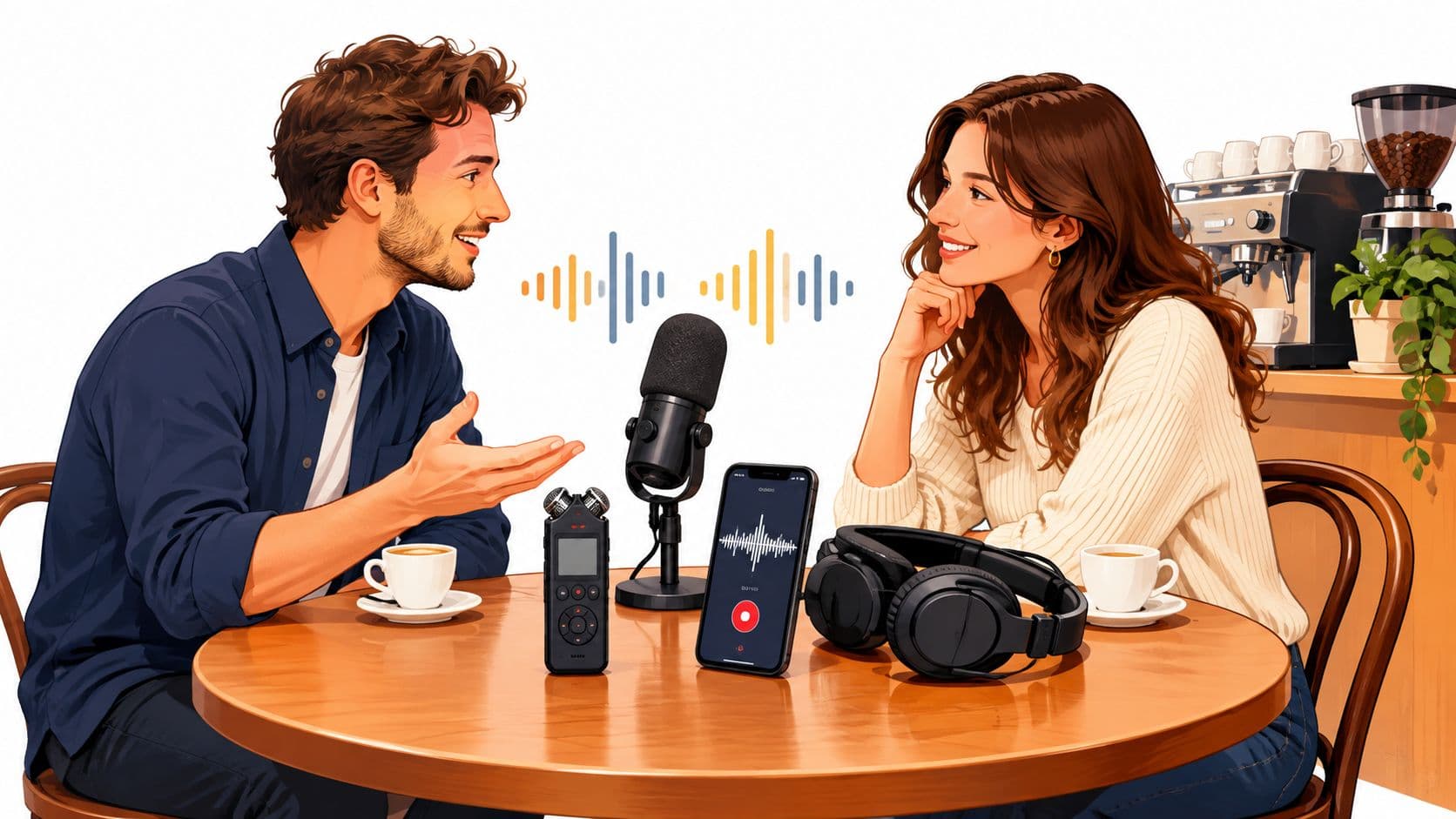
A phone interview starts in a busy café. The guest's voice is clear, but an espresso machine hisses behind it. Later, the clip needs cleanup for a podcast or video. The recorder that captured the conversation matters, but so does the file it leaves behind.
The right gravador de voz depends on the job: a quick memo, a remote interview, a rehearsal, or field recording. Every file needs a listening check before editing or isolation. If voices overlap, the microphone clips, wind hits it hard, or the room has heavy reverb, separation may leave artifacts or lose wanted speech.
The options below range from built-in phone recorders to desktop software and a remote recording service. Each is judged by what happens after capture: how the recording can be reviewed, prepared, and exported for dialogue cleanup or source isolation.
1. Apple Voice Memos
For a quick interview or a spoken reminder on an iPhone, Apple Voice Memos keeps the path from recording to playback simple. It's built into Apple devices, so there's no separate recorder app to set up. Users can pause and resume, then review, edit, and share recordings within Apple's ecosystem. When iCloud syncing is enabled, recordings can also sync across Apple devices.
The practical limit is control. Recording modes and sound options depend on the device. Supported models offer mono, stereo, and Spatial Audio options, but Voice Memos isn't a full audio workstation with detailed production controls. That's fine for a voice note or a quiet one-to-one interview. It matters more when a producer needs to shape levels or manage multiple tracks.
After-recording check: Play the start, a middle passage, and the loudest moment. Listen for clipping, handling noise, and room reflections before sharing the file.
For the café interview, Voice Memos can capture usable speech if the phone is placed close to the guest and aimed away from the espresso machine. It can't undo a clipped voice or separate two people talking over each other. If the recording needs cleanup, Saturalabs' online voice cleaner guide explains a focused workflow. Saturalabs accepts MP3, WAV, MP4, and MOV files up to 50 MiB (52.43 MB).
2. Google Recorder
Pixel owners who want a recorder integrated into their phone can use Google Recorder to capture, edit, and manage recordings. Google says recordings can stay in the app on the device without connecting a Google Account, which suits someone recording private notes who doesn't want to rely on account syncing.
Some enhancements depend on the Pixel model, so the available controls may differ between phones. Google also lists its AI “Create music” enhancement for Pixel 9 and later. That feature is not needed for a straightforward interview, where the priority is a clean voice file, not added musical processing.
For an interview in a small office, place the Pixel on a stable surface near the speaker, then record a short test and listen through headphones. Check that the intended microphone is active and that the guest's consonants remain clear. A room fan or distant music may be reducible later, but strong echo and overlapping speech will still complicate isolation.
When the file is ready for processing, a prompt should name one target, such as "spoken voice" or "background fan." The Voice Isolator workflow helps explain why it's better to describe the sound to keep rather than request several unrelated sources at once. Compare the isolated voice with the original, especially where the guest speaks softly.
3. Samsung Voice Recorder
Samsung Voice Recorder suits Galaxy users who need a quick memo, lecture capture, or conversation recording. Its Standard and Interview modes give users a straightforward way to choose a recording approach, while pause, resume, playback, and bookmarks help manage a longer file. Bookmarks are particularly useful when a meeting has several sections that need review.
On supported Galaxy devices, Galaxy AI can provide transcription and translation features. Samsung lists Portuguese (Brazil) among the supported transcription languages, though availability depends on device, language, and region. That can help when reviewing an interview, but transcription doesn't replace checking the actual audio. A transcript may make a missed phrase visible, while the sound file still reveals whether the voice is clean enough to use.
For a lecture, place the phone where it has a clear line to the speaker, then use bookmarks when the subject changes or a key point begins. After recording, listen for distant speech, chair movement, and reverberation. Those sounds can become difficult to separate when they overlap the speaker's voice.
A focused instruction such as “spoken voice” gives an isolation tool a clearer target than “clean up everything.” Keep the isolated result only after checking quiet phrases and word endings against the original. A phone recorder is convenient, but it isn't a substitute for a dedicated editor when detailed audio production is needed.
4. Dolby On
Dolby On is designed for mobile recording of voice, music, and performances, with processing applied automatically. Its tools include dynamic EQ and compression, stereo widening, limiting, sound styles, bass and treble controls, boost, and basic trimming. For a musician recording a rehearsal idea or a creator capturing a voice memo, those controls can make a quick phone recording sound more shaped without moving straight to desktop software.
Automatic processing is also the main trade-off. Compression and tonal changes may help one recording and make another sound less natural. A close-miked vocal can become too dense, while a room recording with background music may be harder to separate after the app has altered the balance. Dolby On is a capture and sound-shaping option, not a complex multitrack production environment.
For a guitar rehearsal, record a short passage first and listen for pumping or harshness in the processed sound. If the file will later be used for source isolation, preserve the most natural version available rather than adding effects that may blur the guitar attack or room ambience.
The listed App Store description calls the app free. Current app details should be checked directly in the Dolby On listing. For post-production, keep the original recording alongside the trimmed or processed copy, so a later editor can compare both versions.
5. Easy Voice Recorder
Easy Voice Recorder from Digipom focuses on everyday Android recording. It offers configurable recording options, playback, and file management, with use cases that include memos, rehearsals, and musical ideas. That narrower purpose can be an advantage: someone capturing a melody before it disappears doesn't need to open a full production suite.
It's an Android app rather than a cross-platform browser recorder. The listing also says call recording isn't supported on most phones, so it shouldn't be chosen on the assumption that it can capture phone calls. Free and paid features can change, and users should check the current app listing before relying on a specific option.
For a rehearsal sketch, place the phone where it can capture the instrument without being touched during the take. Afterward, listen for handling vibration and sudden peaks. A recording that sounds fine through a phone speaker can reveal clipping or room noise through headphones.
The Digipom website provides the product information, while Google Play is the app's distribution channel. Before sending a recording to another tool, check that the exported file is in a supported format. If the recording will undergo more processing, an uncompressed WAV generally preserves more of the original signal than a lossy MP3, though the larger file can be less convenient to transfer. The Library of Congress guide to digital audio types explains the format trade-off.
6. Audacity
Audacity is free desktop software for recording and editing audio on Windows, macOS, and Linux. It gives a producer more control than a basic memo app, including common-format import, export, and conversion, third-party effects plugin support, a spectrogram view, and beginner tutorials. It fits a recorded interview that needs trimming or editing before delivery.
The trade-off is setup. A computer and some time to learn the interface are necessary, and Audacity doesn't include every traditional digital audio workstation feature, such as MIDI editing and virtual instruments. For a quick note on the move, that's unnecessary overhead. For dialogue that needs precise edits, the extra control can be worthwhile.
For a podcast interview, record or import the source, remove unwanted dead space carefully, and export a copy for isolation rather than overwriting the original. Keep the speech peaks below clipping, then listen to quiet words and breaths after any cleanup. A broad noise reduction effect can make the voice sound thin if it removes too much of the room tone or consonant detail.
Audacity also works well for checking a result after source separation. The guide to removing vocals in Audacity covers a distinct editing workflow. Use Audacity when hands-on editing matters; use a text-guided isolation tool when the task is to target a specific audible source in a mixed recording.
7. Riverside
Riverside is built for remote interviews, podcasts, and conversations rather than quick personal memos. It offers audio-only recording and guest sessions, local recording with real-time cloud backup, separate participant tracks, and text-based editing. Its listed recording options include WAV or MP3 up to 48 kHz. Separate tracks are useful when one guest has a noisy room and the host's microphone is clean, because each voice can be reviewed independently.
That workflow takes more setup than opening a phone recorder. It also depends on a browser or app session, which may not suit a field memo or spontaneous rehearsal. Riverside advertises a free plan, but current paid-plan details should be checked on its pricing page. Editing and production features may depend on the plan.
For a remote interview, ask each participant to use headphones and record in a quiet room. After the session, listen to each track separately before combining them. If the guest's track contains a fan, try a focused prompt such as “spoken voice,” then compare the isolated result with the original during the guest's quietest and loudest passages.
The Riverside website describes its recording service. For a home music session rather than a remote conversation, this guide to recording guitar on a computer covers a separate capture scenario. In either workflow, separate tracks and a clean original give the editor more options than a single heavily processed mix.
What the Recorders Cover
Choose by what the file needs after capture. A memo for your own notes needs a quick trim. An interview headed for cleanup needs an export path that preserves the original.
| Item | Platform | Best For | Editing Depth | Free Option Listed |
|---|---|---|---|---|
| Apple Voice Memos | Apple devices | Everyday voice notes and sharing | Basic recording and editing | No pricing details listed |
| Google Recorder | Pixel phones | Recording and managing notes on Pixel | Basic recording and editing tools | No separate paid recorder subscription listed |
| Samsung Voice Recorder | Galaxy devices | Memos, lectures, and conversations | Basic editing, with transcription on supported devices | No pricing details listed |
| Dolby On | Mobile app | Voice, music, and performance recordings | Basic trimming and sound shaping | Yes, app listed as free |
| Easy Voice Recorder | Android | Memos, rehearsals, and musical ideas | Recording, playback, and file management | Free and paid features can change; see the Google Play listing for current options |
| Audacity | Windows, macOS, and Linux | Recording cleanup and detailed editing | Advanced desktop editing | Yes, free to download and use |
| Riverside | Browser and app | Remote interviews, podcasts, and conversations | Editing with separate tracks and text-based tools | Yes, a free plan is advertised |
The Editing Depth column is the dividing line. The phone apps capture, trim, and organize on the device, which covers memos and rehearsals. Audacity moves the work to a desktop editor for takes that need real repair. Riverside trades one-tap capture for more control over each speaker. Whichever row you pick, test the export path once before a session depends on it, since free features and paid tiers change.
Record Clean, Then Isolate with Purpose
A reliable export routine starts before the upload. Keep the recording level below clipping, and choose WAV when the device allows it and the file size remains manageable. WAV is generally uncompressed and lossless, while MP3 uses lossy compression, so a WAV can preserve more detail for later processing. Neither format can repair a poor microphone position or recover speech that never reached the recording.
Before processing, confirm that the file is under 50 MiB (52.43 MB) and uses MP3, WAV, MP4, or MOV. If it's too large, trim unused sections or export a suitable copy without overwriting the original. Listen to the source first, and note where the main problems occur: a steady fan, music under speech, room reflections, wind, or another speaker.
Saturalabs uses text-guided audio isolation. The user names one audible source per prompt, then reviews both outputs: Isolated sound keeps the named target, while Background audio is the remaining recording with that target reduced. For dialogue, describe “spoken voice” and audition Isolated sound. For karaoke, describe “vocals” and audition Background audio.
Listening rule: Check the difficult passage, not just the clean opening. Consonants, overlapping voices, reverberant endings, and dense music can expose artifacts that are easy to miss at first.
Isolation can reduce a distracting sound, but it can also change tone, leave bleed, or remove wanted audio. It doesn't guarantee the recovery of missing words or clipped speech. Compare the result with the original before downloading, and check the displayed credit cost on the results screen.
For a café interview, the best outcome starts with the phone close to the guest, a short test recording, and a clear target such as “spoken voice.” For a rehearsal, it starts with a stable device and an untouched original. Better capture gives separation a better chance, but careful listening remains essential.
Saturalabs lets creators upload supported audio or video, describe one audible source, and compare the isolated sound with the remaining background audio. For an interview clip, try the Saturalabs audio isolation tool with a focused “spoken voice” prompt, then review the difficult passages before downloading.