

In this guide
An interview has a steady fan hum underneath it, and a passing car masks part of an answer. The speaker is still understandable, but the edit is tiring to hear. Turning everything down won't help because the voice gets quieter along with the distractions.
Noise reduction software for audio takes several forms. General denoisers reduce steady noise, speech enhancers prioritize dialogue, spectral repair editors target specific defects, and text-guided separation estimates a named source within a mix. The fan and the passing car may need different treatments, even though they appear in the same recording.
No tool guarantees clean results. Overlapping sources, clipping, strong microphone wind, and heavy reverberation can limit any approach. A quieter background isn't an improvement if the speaker loses consonants or starts sounding metallic.
These seven options are compared by the problem each solves rather than by an overall ranking. Each includes a listening check before export. Start with a short passage containing clear speech, a pause, and the worst interference, rather than processing an entire interview before evaluating the result.
1. AI Voice Isolator
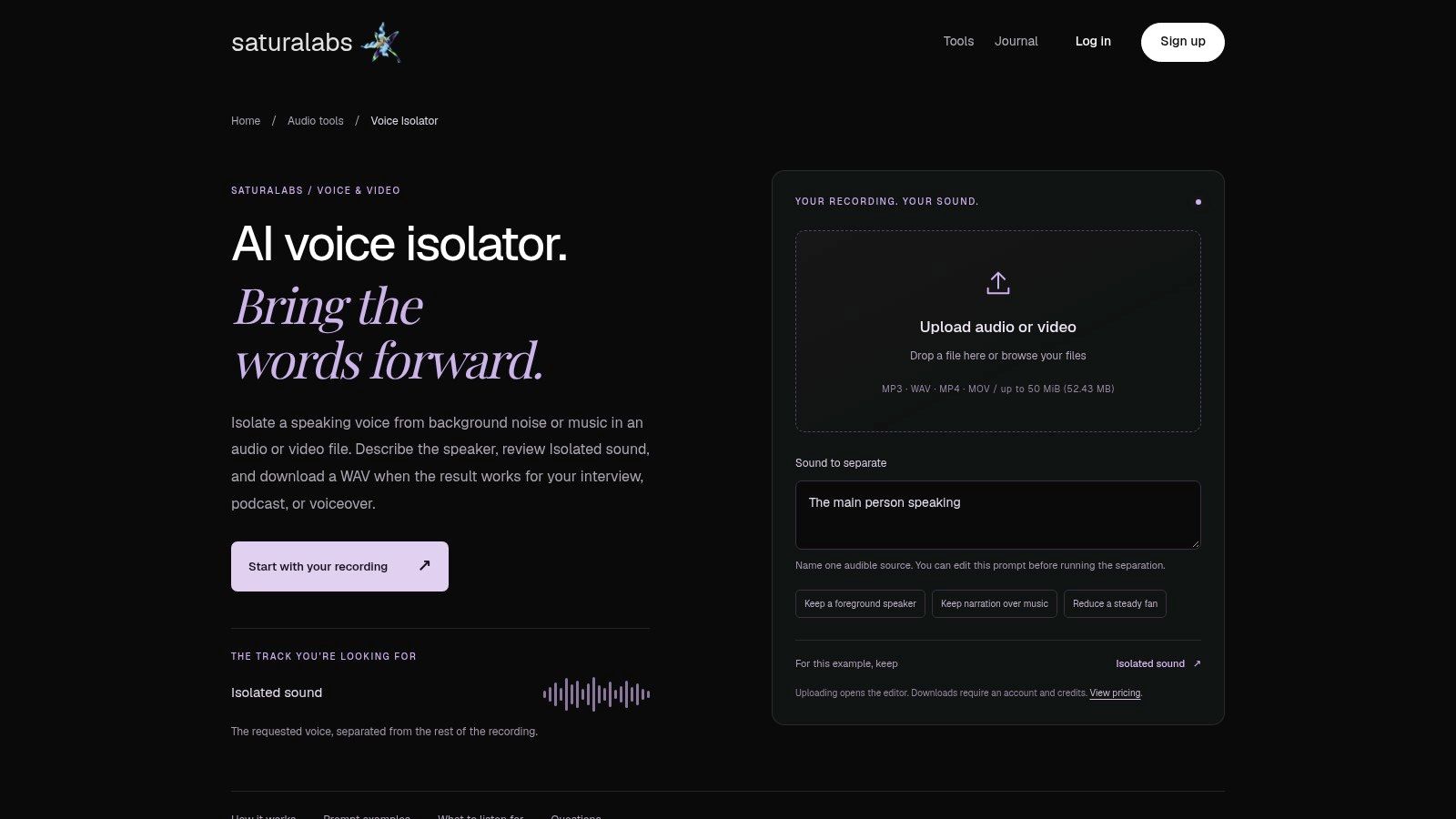
A voice competing with traffic or background music calls for source separation rather than just lowering quiet passages. Saturalabs AI Voice Isolator uses a plain-language description to separate spoken dialogue from the surrounding recording. It can also help reduce steady distractions such as a fan, although the result depends on the source.
This is text-guided audio/video isolation, not a general video editor or music generator. Supported uploads are MP3, WAV, MP4, and MOV up to 50 MiB (52.43 MB). A video upload returns separated WAV audio tracks, not a finished video; the chosen track must be aligned with the picture in a video editor.
Choose the Correct Output
Describe one audible source per prompt. For dialogue, enter spoken voice, then audition Isolated sound, which keeps the named target. Background audio contains the remaining recording with that target reduced.
- Keep dialogue: Use spoken voice and compare Isolated sound with the original.
- Inspect removed material: Audition Background audio for words or syllables that were mistakenly removed.
- Make a backing track: Isolate vocals and choose Background audio for karaoke, rather than keeping the isolated vocals.
The broader audio isolation software guide explains how this approach differs from other isolation workflows. A voice description can retain another speaker, so it shouldn't be treated as identification of a particular person.
Trade-off: Audio and video support, plain-language prompts, and access to both outputs make the workflow approachable. Separation can still leave bleed, change tone, or remove wanted sound, particularly when sources overlap.
Listening check: Compare the car pass-by, quiet sentence endings, and overlapping voices with the original at similar volume. Missing words aren't repaired merely because the background becomes quieter.
The tool is AI Voice Isolator. Downloads require an account and sufficient credits, so check the displayed credit cost before downloading.
2. Adobe Podcast Enhance Speech

For a spoken-word recording that needs broad cleanup rather than selective extraction, Adobe Podcast Enhance Speech offers a browser-based workflow. It enhances speech, reduces background noise and artifacts, and adjusts speech levels without requiring a DAW plugin.
Adobe's free and paid tiers differ in file limits, processing allowances, upload types, and available controls, so check the current Adobe Podcast product page before choosing a plan. Treat tier names and allowances as changeable.
Use It for Speech, Not a Complete Mix
An interview, lecture, or narration is a sensible starting point. A recording containing music that must retain its original tone is a different assignment: speech-focused enhancement may reshape those wanted sounds.
A clearer voice and a more natural voice aren't always the same result.
The simple upload workflow suits editors who don't need a full restoration application. The limitation is control. Some plans restrict adjustment or upload types, and unclear or heavily masked speech may not enhance well even when the noise floor drops.
Listening check: Compare whispered words, laughter, breath sounds, and consonants immediately after a loud noise. Listen for a voice that becomes unnaturally uniform or changes character between phrases.
The background-noise reduction guide supports the next decision: whether the remaining problem needs denoising, filtering, or source isolation. If enhancement damages only a small passage, retain the original there rather than applying the processed result indiscriminately.
3. iZotope RX 12
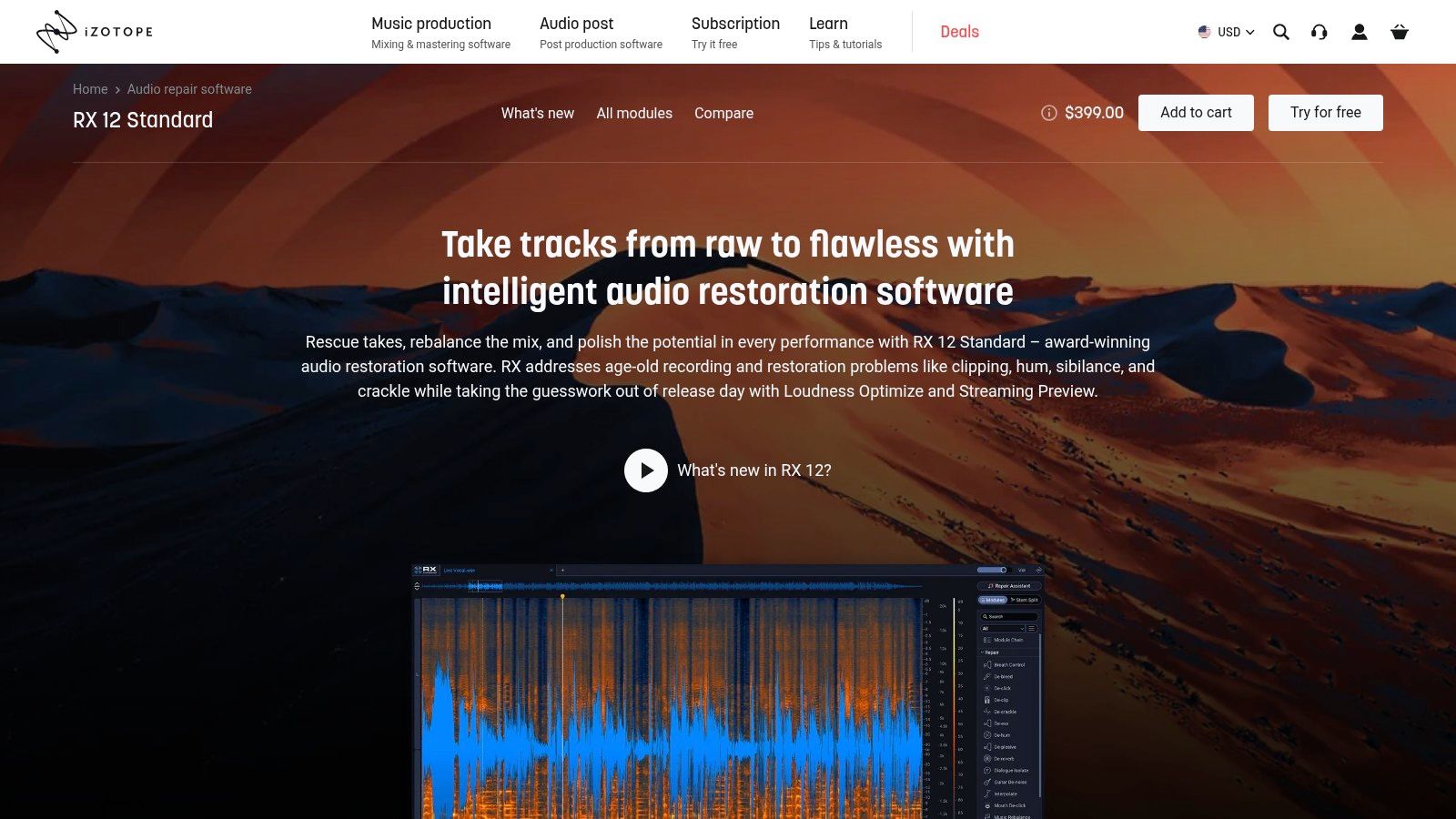
A chair click, electrical hum, and clipped shout aren't interchangeable problems. iZotope RX provides a desktop restoration workflow with specialized processing rather than relying entirely on speech enhancement.
The RX family includes Elements, Standard, and Advanced editions, with module availability varying by edition. The standalone editor and plugin options also depend on the edition and host compatibility, so the required module and workflow should be confirmed before purchase.
Repair the Defect Before Denoising Everything
Spectral De-noise addresses tonal and broadband noise. De-hum, De-click, and De-clip address different defects, making RX relevant to dialogue post-production, music restoration, and detailed editing.
- For steady hiss: Learn a noise profile from a passage without wanted audio, then begin with conservative reduction.
- For isolated clicks: Process the affected selection rather than treating the entire recording aggressively.
- For clipped peaks: Try repair before judging the need for further cleanup, but don't assume missing waveform detail can be recovered faithfully.
This depth is the advantage and the cost. A dedicated repair editor offers more targeted intervention than a browser enhancer, but selecting modules and tuning controls takes practice; higher editions also represent a larger purchase.
Listening check: Audition the boundaries around every repaired selection. A click may disappear while leaving a softened consonant, a dull percussion hit, or a brief change in room tone.
For clipped speech, judge the vowel's texture as well as the peak shape. A visually smoother waveform doesn't establish that the repair sounds convincing.
4. Acon Digital Restoration Suite
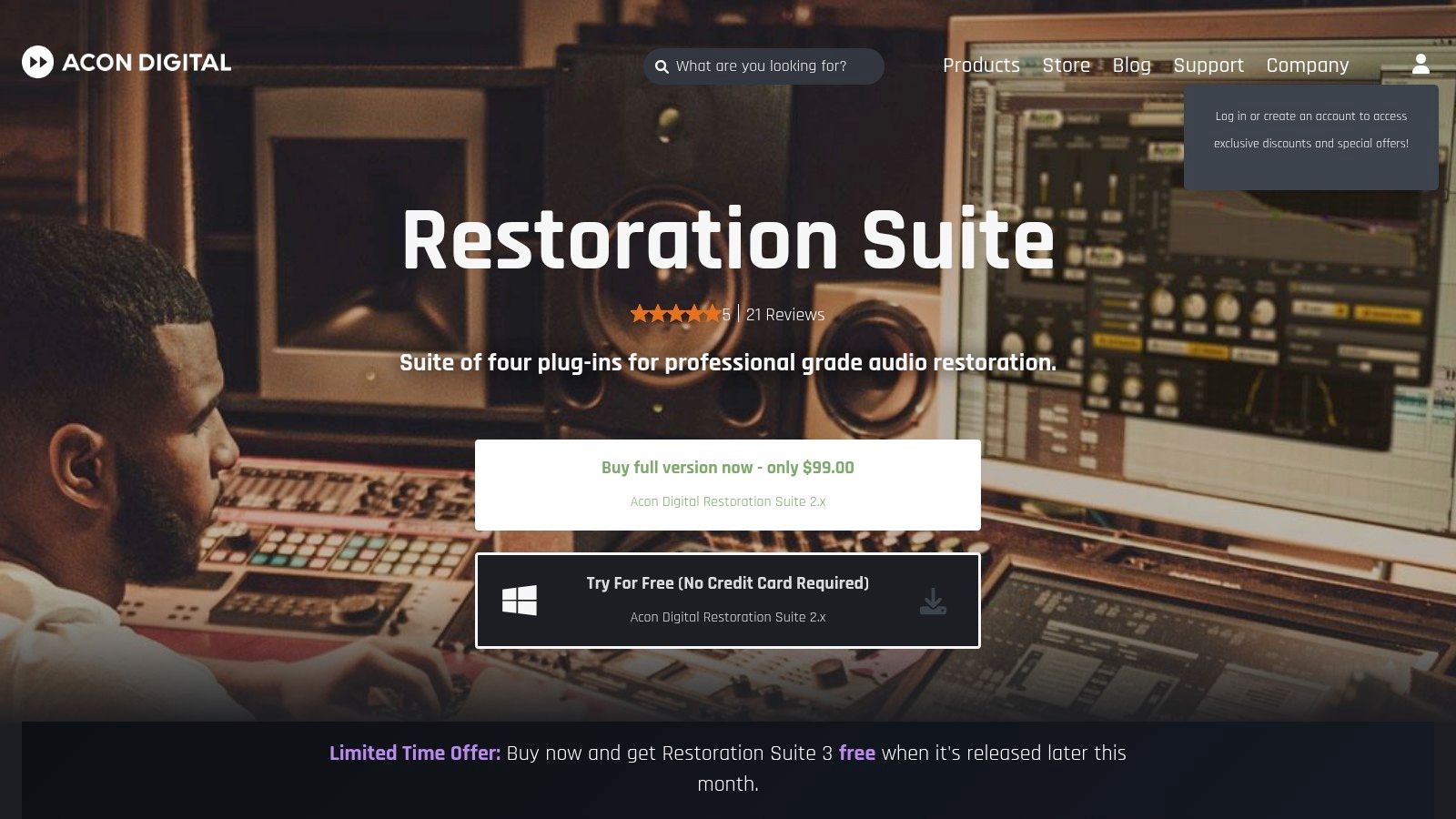
An editor already working inside compatible audio software may need focused repair plugins rather than another full application. Acon Digital Restoration Suite groups DeNoise, DeHum, DeClick, and DeClip around distinct recording defects.
DeNoise provides adaptive and noise-profile approaches, including dynamic profiles for changing noise. DeHum targets hum and buzz; DeClick addresses clicks, crackle, thumps, and plosives; DeClip attempts to reconstruct damaged peaks.
Select the Plugin by the Sound
Start by identifying whether the interference is continuous, tonal, impulsive, or distortion from overload. Choosing the right processor often matters more than increasing its strength.
For a fan recording, compare a learned noise profile with adaptive processing. A profile should come from actual background noise, not a breath or quiet syllable that the processor could mistake for unwanted content.
Practical rule: Add a repair stage only when a clearly audible problem justifies it.
The suite fits a DAW-based workflow and provides a narrower collection than a full spectral editor. It requires compatible host software, while its trial offers a way to evaluate the tools without committing to a purchase.
Listening check: With DeHum, compare the body of low voices and bass instruments. With DeClick, inspect plosives and sharp musical attacks so that wanted transients don't become blunt.
The online audio restoration guide helps distinguish targeted repair from browser-based isolation. Neither approach makes every damaged recording recoverable, and combining them should follow an audible need rather than habit.
5. Waves Clarity Vx
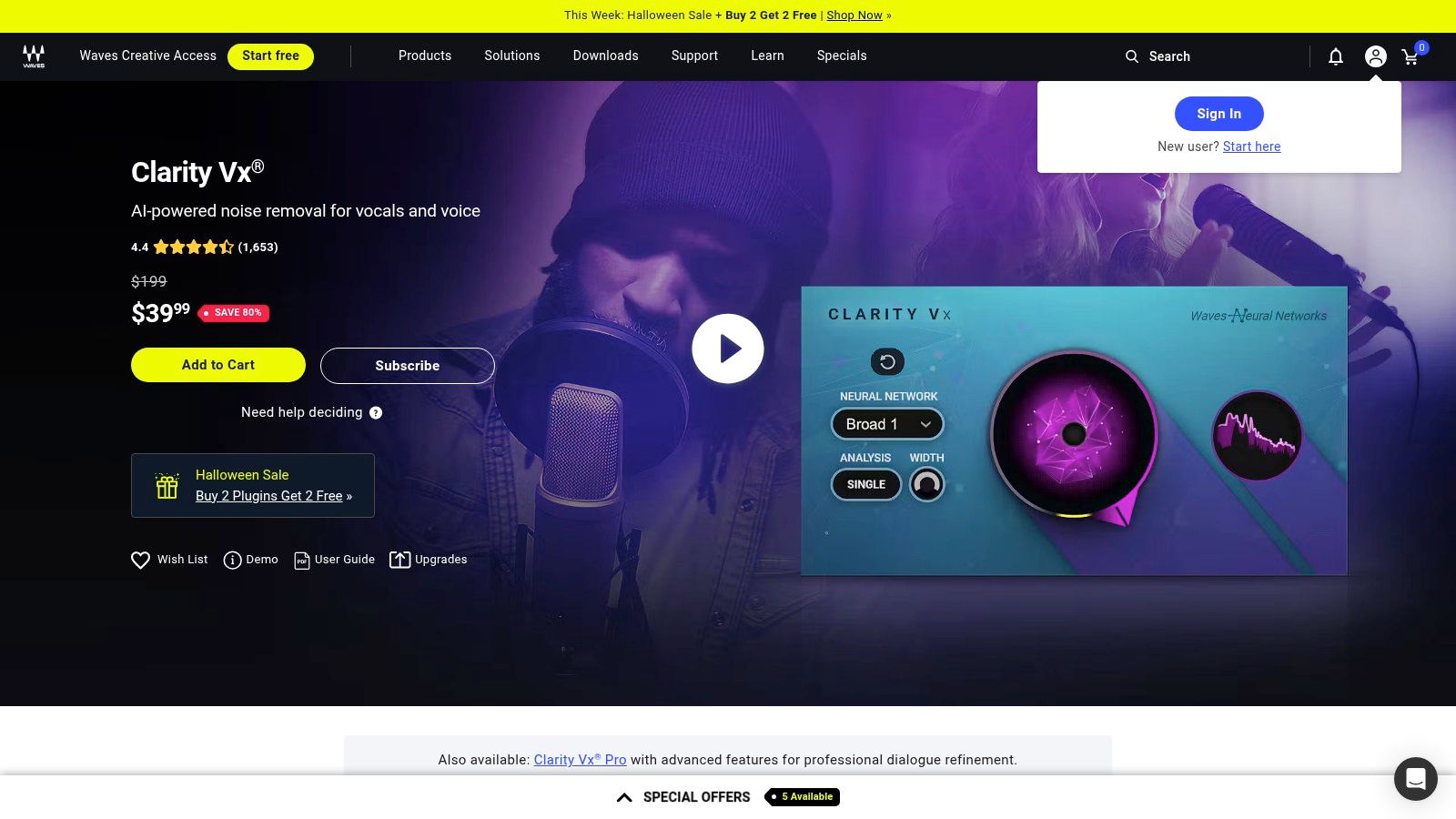
Keeping cleanup inside the mix session avoids exporting a vocal every time the edit changes. Waves Clarity Vx is a voice-focused noise-reduction plugin for compatible production software, with a separate Clarity Vx Pro option for more involved control.
Waves describes its neural-network processing as distinguishing vocals from backgrounds such as traffic, room rumble, and background talking. That voice focus makes it a different choice from a general repair suite: it isn't a replacement for dedicated click, hum, or clipping repair.
Adjust It in the Session Context
Begin with restrained processing while looping a phrase that contains both speech and interference. Raise suppression until the distraction becomes manageable, then back off if consonants become brittle or the voice loses body.
- Workflow advantage: Plugin processing stays alongside the edit and other mix decisions.
- Scope limitation: Voice cleanup doesn't provide selective repair for every instrument or sound effect.
- Purchase consideration: Standard and Pro serve different control needs; host compatibility should be checked before choosing either.
Listening check: Compare pauses, breaths, and the transition into the first syllable after silence. Listen for noise that surges around words or a background that changes abruptly when the speaker stops.
Audition the result both soloed and within the finished mix. A slight residual room sound may be unobtrusive under the production, while an aggressively processed voice can remain distracting even after music is added.
Avoid stacking another speech enhancer automatically. Each stage can alter the same vocal detail.
6. Descript Studio Sound
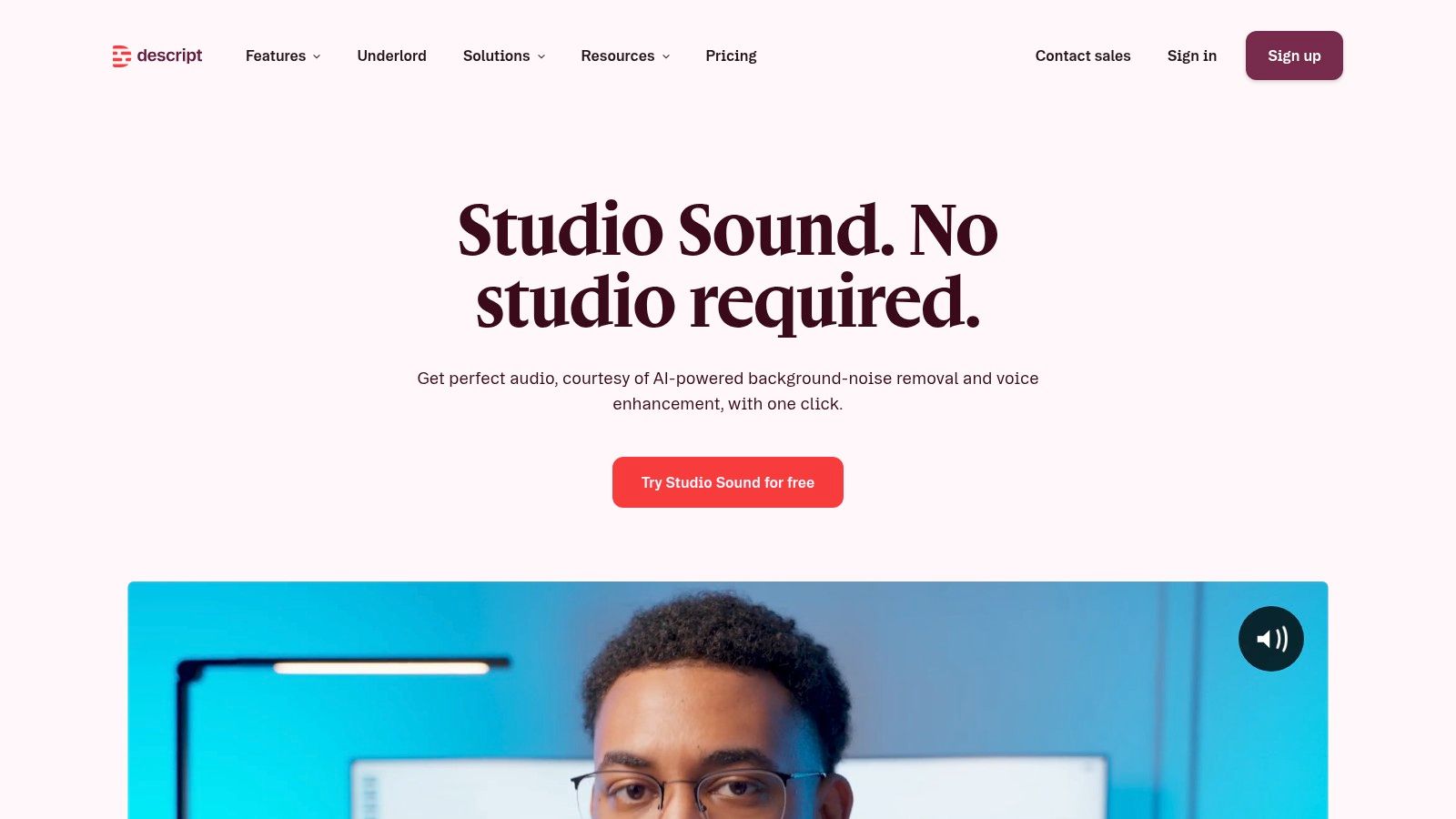
For creators editing an interview through its transcript, cleanup is only part of the job. Descript Studio Sound combines speech enhancement with Descript's audio, video, and text-based editing workflow.
Studio Sound is designed to reduce background noise and room echo while improving voice quality. Its toggle-style operation is accessible, but the simplicity also means it isn't a substitute for manually selecting a specific sound in a spectral editor.
Keep Editorial Choices Separate From Sound Choices
First compare the same uncut passage with processing enabled and disabled. Then make transcript edits, since comparing different word sequences makes tonal changes harder to judge.
Descript offers limited Studio Sound use through its free plan, with access and allowances governed by current plan terms. The broader application can suit podcasters, educators, and video creators who want editing and cleanup together rather than separate tools.
Trade-off: Integration reduces application switching, but speech enhancement may alter the original character of a voice or room. It's primarily a speech-improvement feature, not a text-guided method for extracting arbitrary instruments or effects.
Listening check: Pay particular attention to reverberant sentence endings and soft speech. Reduced echo can improve clarity while making the tail of a word sound shortened or synthetic.
For documentary or interview material, preserve enough room sound to maintain continuity between edits. Completely dry speech against audible room tone elsewhere can make a technically cleaner passage feel less consistent.
7. Steinberg SpectraLayers

A brief squeak crossing a sustained note may need a more selective approach than whole-file denoising. Steinberg SpectraLayers presents audio in a spectral view for visual editing, repair, and AI-assisted processing.
Elements includes automatic noise and hum reduction, while Pro provides broader extraction and repair processes. ARA integration supports compatible DAW workflows, including Cubase and Nuendo; the exact host and edition requirements should be checked before purchase.
Use the Display to Locate, Then Listen
A spectrogram shows time and frequency together, helping an editor locate narrow tonal interference or short broadband events. The useful selection is the smallest region that addresses the unwanted sound without cutting into wanted harmonics.
A clean-looking spectrogram isn't the deliverable. The repaired recording is.
Start with attenuation rather than assuming complete removal is necessary. When interference overlaps a voice or instrument, reducing it can sound more natural than leaving a hole where both sounds once existed.
Trade-off: Visual editing offers targeted control and supports detailed restoration or sound-design work. It requires more learning and attention than a speech enhancer, and the broader Pro workflow involves a larger purchase than basic cleanup software.
Listening check: Compare the repaired region in context, including the lead-in and decay. Listen for missing harmonics, interrupted ambience, softened attacks, and changes in stereo placement.
The display is especially useful for finding a defect, but hearing should determine when to stop. Repeated edits to the same region can remove more wanted sound than the original distraction warranted.
How the seven options differ by use case and access
| Item | Best for | Where it runs | Free access listed |
|---|---|---|---|
| AI Voice Isolator | Separating speech from background sound in audio or video | Web browser | No free access listed; downloads require an account and credits |
| Adobe Podcast, Enhance Speech | Quickly cleaning up spoken-word recordings | Web browser | Yes; free plan has upload and daily processing limits |
| iZotope RX 12 | Detailed audio repair and restoration | Desktop editor and compatible plugins | RX 12 Standard trial: 10 days with export disabled; account required to download. Check current terms and other editions. |
| Acon Digital Restoration Suite | Plugin-based repair of noise, hum, clicks, and clipping | Compatible audio software | Yes; free trial available |
| Waves Clarity Vx | Reducing background noise in vocal recordings | Plugin for compatible production software | No free access listed |
| Descript, Studio Sound | Enhancing speech within an audio or video editing workflow | Descript app | Yes; free plan includes limited Studio Sound use |
| Steinberg SpectraLayers | Visual spectral editing, repair, and sound isolation | Desktop software; integrates with compatible DAWs | No free access listed |
Match the Tool to the Problem, Then Listen Closely
Choose a speech enhancer for broad dialogue cleanup when the main objective is a clearer speaking voice. Choose a general denoiser for relatively steady hiss or fan noise, and a repair editor for hum, clicks, clipping, or a localized defect. A plugin makes sense when cleanup needs to remain inside a DAW session.
Text-guided separation fits a different decision: keeping or reducing a named audible source within a mixture. It's useful when the target overlaps other material, but it still estimates the separation rather than recovering an original multitrack session. A gate reduces audio when its detector falls below a threshold, often lowering noise in pauses. It does not recognize speech or interference: a loud distraction can open the gate, and interference can remain while speech keeps it open.
Judge the Difficult Passage Before Export
Compare processed and original audio at similar perceived volume. A louder version can seem clearer even when processing has removed detail, so level matching is part of the decision rather than a finishing touch.
- Words and tone: Check quiet syllables, consonants, laughter, and changes in vocal body.
- Bleed and artifacts: Listen for remaining interference, chirping, watery ambience, and metallic textures.
- Continuity: Compare pauses, room tone, edit boundaries, and the transition back to untreated material.
If cleanup sounds worse, reduce the strength, narrow the selection, or change the processing category. Repeating aggressive passes usually isn't a reliable way to restore missing detail. Keep the original available, and use only files and outputs for which the intended use is authorized.
For separation, the audio isolation prompt guide helps define a single target. For picture-based projects, the video background-noise guide supports the next editing step without treating audio isolation as a finished video export.
For spoken-voice workflows, Saturalabs Voice Isolator provides both the estimated voice and the remaining background for comparison. Downloads need an account and credits; current pricing and displayed credit costs apply.
Saturalabs offers browser-based, text-guided isolation for audio and video recordings, with separate target and background outputs. Visit Saturalabs to try a spoken-voice passage, compare difficult moments with the original, and check the credit cost before downloading.