
Audio preparation
How to Fix Clicks After Cutting Audio
Find out whether a click comes from an abrupt cut, an internal join, or the original recording. Choose a short fade, a crossfade, or a different edit.
Prepare a useful working copy: choose a source format, inspect channels and file size, and keep excerpt timing before an edit or isolation test.
Explore the audio toolsFind out whether a click comes from an abrupt cut, an internal join, or the original recording. Choose a short fade, a crossfade, or a different edit.
Reduce an audio file's size by choosing a bitrate or shortening the recording. Work through a 1 MB budget, compare actual exports, and keep the original.
Choose MP3 or PCM WAV for editing and AI isolation. Compare file sizes, understand conversion limits, and avoid unnecessary lossy exports.

Learn how to record a guitar on a computer with a clear workflow for interfaces, levels, monitoring, and clean takes ready for remixing or isolation.
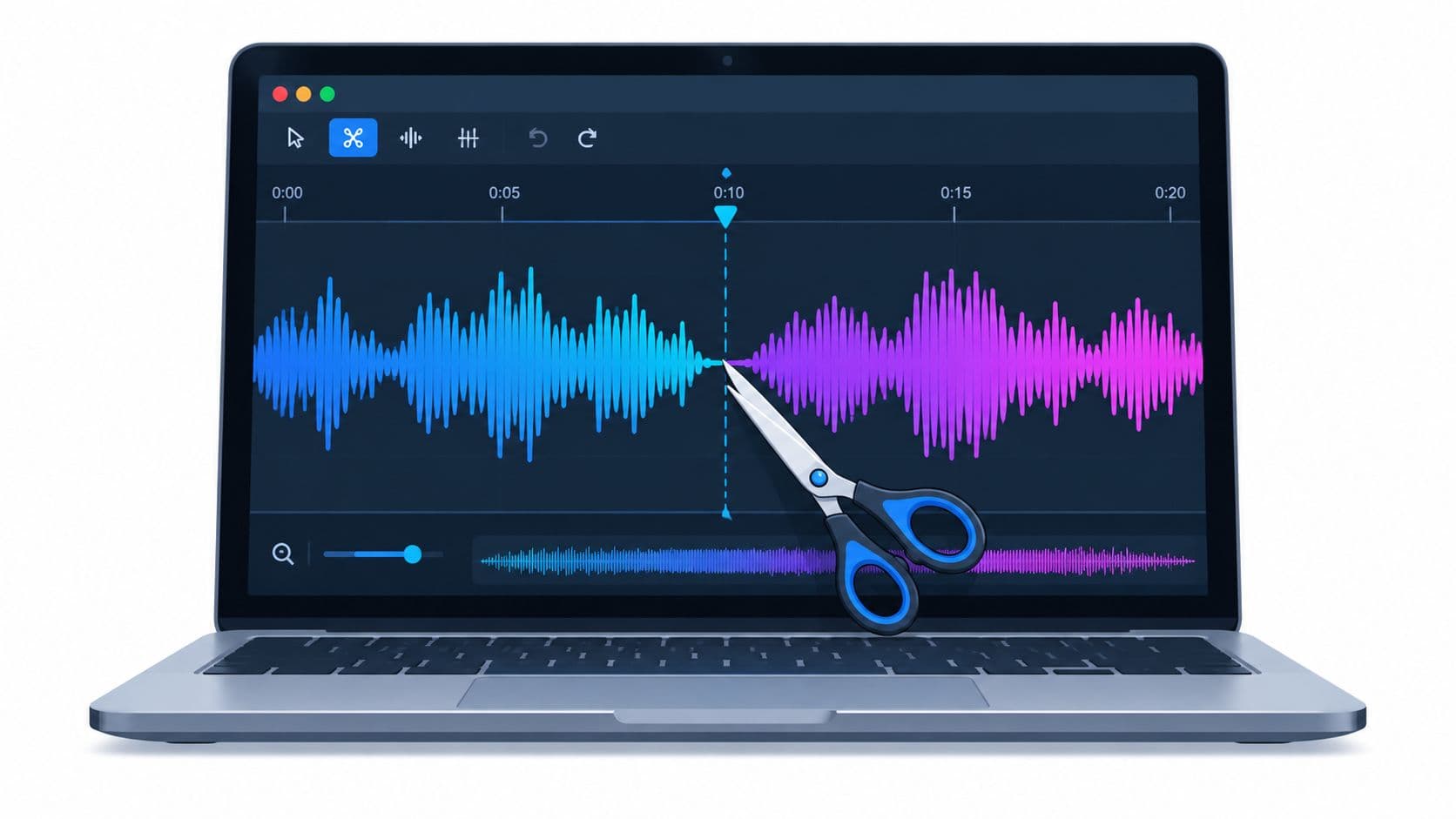
How to cut audio file. Learn how to cut an audio file without losing quality. Practical steps for WAV and MP3, exports, listening checks, and integrating
Choose peak or loudness normalization for a quiet recording. Learn dBFS, LUFS, linked stereo gain, noise limits, and how to preview a normalized WAV or MP3.
Read a WAV file’s sample rate, bit depth, channels, and duration. Understand PCM, float, valid bits, and why header settings cannot prove recording quality.
Understand left and right channels, mono mixes, and separated stems. Choose a channel for one-sided speech or dual microphones without losing wanted audio.
Choose a useful test section, trim without losing context, check your audio file size, and keep separated tracks aligned with the original recording.
Trim, join, inspect, or adjust a supported short recording locally. These utilities require no account or credits.