
In this guide
Read time across the horizontal axis, frequency on the vertical axis, and the color scale as the displayed strength of each frequency band. Confirm patterns by listening; display settings and analysis window size affect what you see.
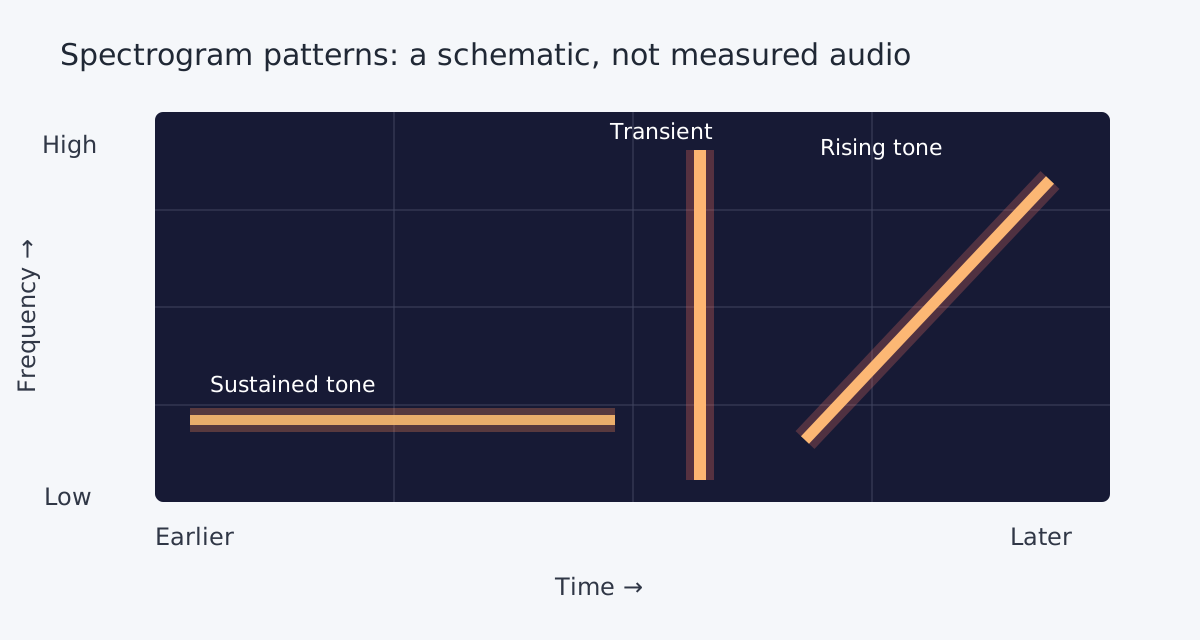
To read an audio spectrogram, follow time from left to right, frequency from low to high, and use the color scale to interpret the displayed strength at each time and frequency. A sustained tone often appears as a horizontal band; a short, broadband click can appear as a vertical stripe. These are clues, not automatic identification.
First check the actual axis labels and legend: software can use different color palettes, frequency scales and analysis settings. Listen to the same passage before deciding that a visible feature is unwanted noise.
Read the axes and color scale
| Part of the display | What it means | What to check |
|---|---|---|
| Horizontal axis | Time through the recording. | Use the time ruler to find when an event starts and ends. |
| Vertical axis | Frequency, usually in hertz or kilohertz, often low at the bottom and high at the top. | Check whether the scale is linear or logarithmic and which frequency range is visible. |
| Color or brightness | Displayed magnitude or energy for a time-frequency region. | Read the legend and display range. A bright color in one application may mean something different in another. |
Audacity's spectrogram documentation describes how display gain, range and color settings change the picture. Display brightness is not necessarily a change to the underlying audio or a direct measure of perceived loudness.
Recognize common patterns
| Pattern | Possible interpretation | What it cannot tell you alone |
|---|---|---|
| Horizontal band | A relatively steady frequency, such as a tone or hum; additional parallel bands may be harmonics. | Whether the sound is unwanted: an instrument or sustained voice can also produce bands. |
| Vertical stripe | A brief event with energy across a range of frequencies, such as a click or percussive attack. | Whether it is a defect, a consonant, a drum hit or another intentional sound. |
| Rising or falling line | A changing frequency, such as a sweep or pitched sound that rises or falls. | The source or musical intent without listening and context. |
| Diffuse broadband region | Energy spread across many frequencies, which may accompany hiss, wind or unvoiced speech. | Which component should be removed when voice and noise overlap. |
Zoom to the event and play a few seconds before and after it. A view can help locate a suspicious sound, but removing a frequency range can also remove wanted audio at the same time and frequency.
Spectrogram vs waveform vs spectrum
A waveform shows amplitude against time; it helps locate silence, transients and edit boundaries, but a normal waveform view does not identify frequencies. A spectrum shows frequency content for a selected moment or interval. A spectrogram displays frequency content across successive time windows, making changes over time visible.
The Saturalabs audio spectrum analyzer shows one 8,192-sample FFT snapshot from a selected channel and moment of a supported short MP3 or WAV. It processes locally and can help inspect a tone, but it is not a scrolling spectrogram or a noise-removal tool. For amplitude-over-time basics, see how to read an audio waveform.
Try a spectrogram in Audacity
- Open a copy of a recording in Audacity. Listen to the sound you want to investigate and note its approximate time.
- In the audio track's dropdown menu, choose Spectrogram. Audacity's track menu guide describes switching views; menu appearance can vary by version.
- Zoom into the event. Read the time ruler, frequency scale and color settings, then play the selection. Compare it with a nearby passage where the sound is absent.
- Adjust the visible frequency range or analysis settings if necessary. A longer analysis window can help distinguish nearby frequencies but makes precise timing less clear; a shorter window makes the opposite tradeoff.
- Before applying any edit, keep the source and confirm by listening. Use a small, reversible test and check whether wanted speech or music changed.
If you suspect a steady electrical tone, the hum removal guide explains checking the frequency and harmonics before using a notch filter. A line on a spectrogram alone does not establish its cause.
Common questions
Does a brighter color always mean louder audio?
It indicates a stronger displayed value relative to that view's scale, but palettes and display gain differ. It is not a complete measure of perceived loudness.
Can a spectrogram tell me exactly which instrument is playing?
Not reliably by itself. Similar patterns can come from different sources, and multiple sounds can overlap. Listen and use the recording's context.
Why does the same recording look different in another editor?
Window length, frequency range, scaling, color palette and display gain can differ. Compare settings before assuming the underlying audio changed.
Is the Saturalabs spectrum analyzer a spectrogram?
No. It displays a frequency snapshot for one selected window and channel, rather than a two-dimensional frequency-over-time display.