
In this guide
The familiar advice, WAV for quality, MP3 for size, misses the most important production question: what happens to the file next? An MP3 that sounds acceptable during playback may behave differently when software isolates a voice, reduces background noise, or prepares another compressed export. The useful answer to “Is MP3 better than WAV?” depends less on the file extension than on what the next tool needs to identify and preserve.
MP3 and WAV Compared at a Glance
| Factor | MP3 | WAV |
|---|---|---|
| Compression | Lossy, perceptual coding | Uncompressed linear PCM when stored as LPCM |
| Typical data rate | 128 to 320 kb/s | About 1,411 kb/s stereo at CD settings |
| Size per minute, stereo | About 0.96 to 2.4 MB | About 10.6 MB at 44.1 kHz, 16-bit |
| Re-encoding losses | Adds cumulative loss with each lossy export | No loss from the format itself |
| Best role | Previews, review copies, and final delivery when size matters | Working masters, editing, and separation sources |
| Saturalabs upload fit | About 21 minutes at 320 kb/s under 50 MiB | About 5 minutes at 44.1 kHz, 16-bit under 50 MiB |
MP3 wins on size and convenience. PCM WAV is the safer choice when audio will be edited, reprocessed, or separated. The table's rates and sizes describe common delivery settings, with approximate sizes calculated from the format specifications summarized in the Library of Congress audio-format guidance; upload durations are rounded estimates, not guaranteed maximum lengths.
WAV needs one qualification. It's a container, not an absolute promise of uncompressed audio. Common production WAV files carry linear PCM, which stores sampled audio without MP3's perceptual data reduction, but other configurations exist.
What the comparison means in practice
A producer sending a rough mix for approval usually benefits more from a compact listening copy than from a large working master. An editor extracting dialogue benefits from preserving source detail, even when the difference isn't obvious during ordinary playback.
The re-encoding row also needs careful reading. Copying an MP3 doesn't degrade it, and opening one doesn't cause another generation of damage. Decoding and exporting it through another lossy encoding stage introduces the additional risk.
Likewise, a WAV export can still change audio through clipping, processing, sample-rate conversion, or bit-depth reduction. The absence of lossy compression doesn't make every export operation harmless.
Practical rule: Choose the format for the next operation, not for the prestige of its extension.
Neither format repairs a poor recording. A clipped microphone recording remains clipped in WAV, and a WAV created from an MP3 retains the MP3's missing detail. Encoder quality, bitrate, source history, and the material itself all matter more than a filename alone.
Why Lossy Encoding Removes Detail You Cannot Recover
Linear PCM stores sampled values. MP3 stores a perceptually reduced representation of audio. That difference explains both MP3's small files and its limits during later processing.
An MP3 encoder uses psychoacoustic models to reduce information expected to be less audible. The Library of Congress MP3 format description explains the bitrate-quality trade-off and gives an example: 128 kbit/s MP3 is approximately one-eleventh the size of uncompressed LPCM at 44.1 kHz and 16 bits per sample. A higher bitrate gives the encoder more room to represent sound, but it doesn't make MP3 lossless.
The illustration below uses image detail as an analogy for irreversible information removal.
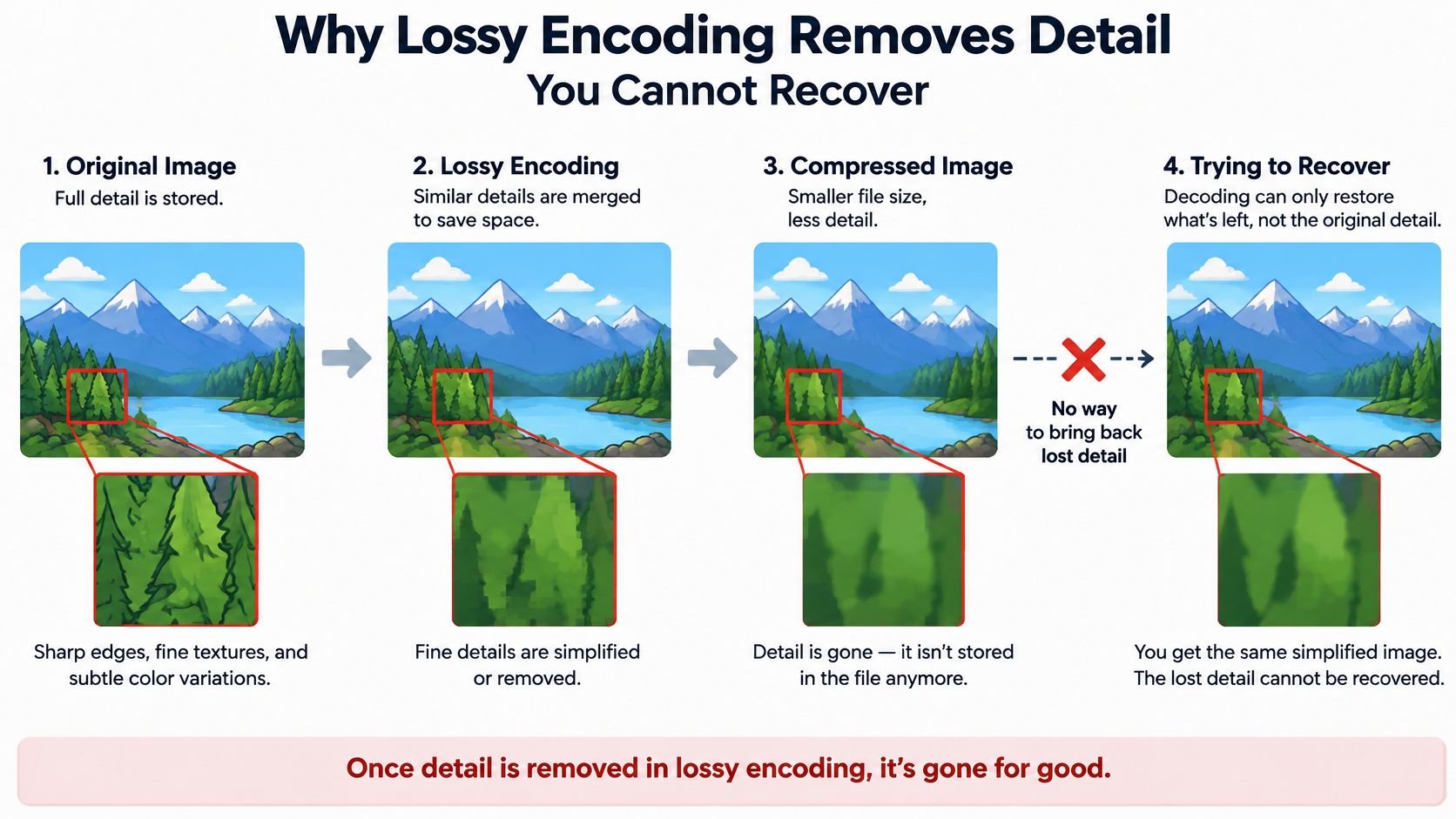
Masked during playback can mean exposed during editing
Consider a quiet reverberation tail beneath a loud drum hit. During encoding, the louder event may mask part of the quieter sound, allowing the encoder to represent that detail less accurately or discard it.
Later, an editor might reduce the drums or isolate the reverberant voice. The sound that made the compression compromise unobtrusive is no longer present at the same level. A shortened tail, ringing edge, or watery texture can become easier to notice.
No format conversion can reconstruct the exact information discarded during encoding. Restoration software may estimate a plausible replacement, but that isn't the same as recovering the original samples.
Sample rate and bit depth set different limits
Sample rate determines the frequency range a recording can represent. Bit depth determines the precision available for representing amplitude. Neither setting says whether the microphone placement was good, whether the room was quiet, or whether the input clipped.
A recording captured at a higher bit depth can offer more recording-level margin when levels are set conservatively. Merely exporting an existing file at a higher setting doesn't create new captured detail. The audio bitrate guide explains how these settings differ from compressed delivery bitrate.
A useful assessment asks:
- Was the detail masked? A full mix can hide defects that become obvious in isolation.
- Was it removed? Missing source information can't be recovered by changing the container.
- Will processing expose it? Separation, equalization, and dynamics changes can make an existing compromise more audible.
How Format Affects Audio Separation Results
A separation system can analyze only the signal it receives. With MP3, that signal may already contain reduced high-frequency detail, altered transients, or encoder artifacts. The system has no access to the uncompressed recording that existed before encoding.
An acoustic-scene classification paper reports that lossy coding reduced classification accuracy by as much as 57% compared with uncompressed captures, depending on codec and bitrate. That finding concerns classification, not audio separation, and it isn't a Saturalabs benchmark. It must not be interpreted as a predicted percentage improvement from uploading WAV.
The practical separation concern is narrower: an encoder can change cues that software uses to distinguish sources. A listener may still recognize the song or understand the sentence, while an isolated output exposes weaknesses that were less apparent in the complete recording.
Listen for exposed artifacts, not just cleaner silence
A spoken voice can remain intelligible while its sibilants become thin or watery. Removing surrounding music may make that texture more distracting because there's less sound to conceal it.
Drum-heavy material presents another challenge. A cymbal attack can lose its crisp edge, or a faint smear can appear around the transient. Separation may expose that smear without having created the original problem.
Listening checks for format-related separation artifacts
| Passage to check | What to listen for | Likely format issue |
|---|---|---|
| Sibilants such as s, sh and ch | Thin, watery, or missing hiss after isolation | High-frequency loss or artifacts from lossy encoding |
| Cymbals and percussive attacks | Smeared transients or lost snap | Pre-echo or smearing from perceptual coding |
| Reverb and room tails | Tails cut short or ringing around words | Low-level detail removed during encoding |
| Quiet consonants in speech | Missing word endings | Information lost before separation, which separation cannot recover |
| Sustained tones and strings | Warbling or watery texture | Compression artifacts becoming audible after processing |
These are diagnostic clues, not proof of cause. A watery voice can also result from aggressive separation. A missing consonant may have been masked in the recording, and a cymbal can smear because overlapping sounds are difficult to distinguish.
Separate source defects from processing defects
The strongest check compares each output with its own input. If ringing is already audible in the MP3 before processing, the separation result shouldn't be blamed for originating it. If the artifact appears only after isolation, the processing may have introduced or exaggerated it.
The audio preparation guide helps establish a consistent source before testing. A prompt should identify one audible source, such as spoken voice, rather than combine several instructions about noise, music, and loudness. The audio-isolation prompt guide provides examples without turning the format comparison into a prompt-writing experiment.
A cleaner background isn't a better result if the wanted voice has lost consonants or natural tone.
WAV still cannot guarantee clean separation. Overlapping sources, clipping, strong microphone wind, and heavy reverberation can limit either format. A controlled comparison should therefore judge wanted detail, unwanted bleed, and new artifacts separately, rather than treating the quietest output as the winner.
File Size and How Long Each Format Fits the 50 MB Limit
A stereo WAV can hit the upload ceiling in minutes, while a delivery MP3 can leave room for a much longer take. Saturalabs accepts MP3, WAV, MP4, and MOV files up to 50 MiB, equivalent to 52.43 MB. Decimal megabytes and binary mebibytes are not interchangeable once a file sits near the boundary, so a recording that looks close to “50” in one unit may already be over in the other.
MP3 lowers transfer and storage demands through lossy coding, as explained in Fraunhofer's MP3 and AAC technical paper. The estimates below use stereo audio with the stated PCM settings or MP3 bitrate. They exclude metadata, artwork, headers, and container overhead.
Calculate size from bitrate
For decimal megabytes, the calculation is:
MB per minute = kb/s × 60 ÷ 8 ÷ 1,000
For PCM, bitrate comes from sample rate multiplied by bit depth and channel count. For constant-bitrate MP3, the selected encoding bitrate supplies the input directly. Variable-bitrate MP3 needs its actual average bitrate for a useful estimate.
Approximate size and duration under the 50 MB limit
| Format and settings | Approx. size per minute | Approx. minutes under 50 MB |
|---|---|---|
| WAV, 44.1 kHz, 16-bit stereo | 10.6 MB | About 4.95 |
| WAV, 48 kHz, 24-bit stereo | 17.28 MB | About 3.03 |
| MP3, 128 kb/s | 0.96 MB | About 54.6 |
| MP3, 192 kb/s | 1.44 MB | About 36.4 |
| MP3, 320 kb/s | 2.4 MB | About 21.8 |
The heading uses the familiar 50 MB label; the duration math uses the actual 52.43 MB allowance. Treat the outputs as planning estimates. Rounding a duration upward can push a real export over the limit.
Check the file rather than trusting the estimate
File properties give the decisive byte count. Embedded artwork, tags, headers, and variable-bitrate encoding can shift the total, so leave margin instead of exporting exactly to the calculated boundary. If you want a quick cross-check, run the same formula in an audio file size calculator after confirming the bitrate.
For MP4 and MOV uploads, the whole video file counts, including picture, audio, and container data. A long video can exceed the limit even when its audio track alone would fit. Later separation output is WAV audio, so any chosen file still has to be aligned with the picture in a video editor.
The local MP3 conversion is lossy, does not start an AI job, and does not use credits; it accepts mono or stereo MP3 or WAV inputs up to five minutes and 50 MiB. That conversion reduces size. It cannot add back detail for the separator to identify. When only a short passage needs isolation, keeping that passage as PCM WAV usually gives the next tool more to work with.
How to Test MP3 and WAV on the Same Passage
A fair comparison changes the input format while keeping the source passage and description consistent. It shouldn't compare different performances, different edits, or unrelated downloads labeled with different extensions.
For production and interchange, the Library of Congress sound-format guidance identifies 48 kHz linear PCM as a current recommendation. A practical working specification is 24-bit, 48 kHz PCM WAV, provided the recording was captured at that quality. The purpose is to preserve available source information, not inflate an existing compressed file.
Run a controlled comparison
For example, a 30 to 60 second test passage can include a sibilant-heavy sentence, a cymbal strike, or a fading room tail. Keeping the difficult material in the test makes the result more useful than choosing an easy, exposed sound.
Prepare matched inputs. Export an MP3 from the original WAV at the intended delivery bitrate, leaving the WAV unchanged. Both files should contain the same passage without extra processing.
Upload the WAV and describe one source. Use spoken voice for dialogue or vocals for a sung performance. A single audible source gives the comparison a clear target.
Repeat with the MP3. Keep the description identical. Changing both the format and prompt makes the cause of any difference harder to judge.
Choose the appropriate output. For speech that should remain, audition Isolated sound. For karaoke, isolate vocals and audition Background audio, the remaining recording with the target removed or reduced.
Compare against the original. Use the listening checks above and keep playback levels reasonably matched. Check both the retained target and the remaining background, not merely the loudest or cleanest-sounding moment.
Review the displayed download cost. The results screen shows the credit cost before the chosen WAV is downloaded. Separated-audio downloads require an account with sufficient credits.
Record the useful difference. Note which input preserved consonants, attacks, and tails with fewer distracting artifacts. Use that result to choose the full-file source, without assuming every passage will behave identically.
Interpret an inconclusive result honestly
Saturalabs's basic workflow remains straightforward: add audio or video, describe one sound, then compare both tracks. A controlled test adds discipline around that workflow rather than promising that WAV must win audibly.
If both results sound similarly damaged, the recording itself may be the limiting factor. Trying a different format won't repair clipping or remove the ambiguity of heavily overlapping sources. The video dialogue-cleanup guide addresses that broader workflow.
For video, MP4 or MOV uploads produce separated WAV audio tracks, not a finished video. The chosen audio must be aligned with the picture in a video editor. Saturalabs is text-guided isolation, not a general video editor or music generator.
Choose the Format for Each Stage and Upload
The dependable default is keep the WAV master, make MP3 as a copy, and upload the lossless source when it fits. That separates preservation from convenience instead of forcing one file to serve every purpose.
The Library of Congress preservation guidance recommends uncompressed audio for preservation and identifies 44.1 kHz, 16-bit PCM WAVE as a suitable CD-quality format. The reason to retain that source is future flexibility: another edit, restoration pass, or delivery export shouldn't have to begin from a listening copy.
Match the file to the production stage
- Recording. Capture PCM WAV at a sample rate and bit depth appropriate to the project and recorder. The highest available setting isn't automatically necessary, especially when it creates impractical files without improving the capture.
- Editing. Keep intermediate renders lossless. Export review copies separately instead of replacing the working source with each approved MP3.
- Archiving. Retain the original WAV or another lossless master, together with enough project information to identify it later.
- Delivery. Export a high-bitrate MP3 when a listener, collaborator, or destination needs a compact file. A requested delivery specification takes priority over a general format preference.
WAV isn't the only sensible archive format. Forasoft's guide to lossless audio formats distinguishes uncompressed PCM from lossless compression such as FLAC, which can preserve the same audio information in less storage. FLAC isn't on Saturalabs's upload list, so an archive can remain FLAC while an upload copy is decoded to WAV.
Archive decision: Preserve the information first. Choose the container and compression around compatibility, storage, and the next task.
Apply the exceptions to the actual recording
For podcasts and interviews, an original WAV is the preferred starting point. When only MP3 exists, the best available source can still be useful. The meaningful check is whether the isolated speech retains natural consonants and intelligibility, not whether the output has acquired a WAV extension.
For karaoke from a finished song, the available source may already be compressed. The relevant result is Background audio after targeting vocals, with particular attention to the backing tone and vocal residue. The stems versus audio-isolation guide explains why extracting a source from a finished mix differs from receiving original production stems.
For video, preserving the original audio separately makes later revisions easier. The picture-bearing upload may need trimming before processing, and the returned audio still needs placement against the picture.
For remixing, lossless inputs avoid adding codec damage before separation, but they don't prevent bleed between overlapping instruments. Longer masters can be divided into purposeful passages while the full original remains untouched. Segment boundaries should leave enough surrounding sound to judge transitions and avoid cutting through important tails.
The final choice is therefore operational, not ideological. MP3 is better when compact delivery is the job. WAV is better when preserving the available signal for further work is the job. Neither label replaces a listening check or establishes permission to use the recording.
Saturalabs separates a described voice, instrument, or sound effect into Isolated sound, with the remaining mix returned as Background audio. Visit Saturalabs with the original WAV when available, describe one audible source, and compare the difficult passages against the original before checking the credit cost and downloading.