
Audio preparation
How to Convert M4A to WAV for Audio Editing
Convert M4A to WAV in your browser or with Apple Music, Audacity and a tested FFmpeg recipe. Choose export settings and inspect the actual output before editing.
Prepare a useful working copy: choose a source format, inspect channels and file size, and keep excerpt timing before an edit or isolation test.
Explore the audio toolsConvert M4A to WAV in your browser or with Apple Music, Audacity and a tested FFmpeg recipe. Choose export settings and inspect the actual output before editing.
Extract an audible bell, impact, or other effect from video. Preserve the attack and tail, compare bleed, and keep source timing with a free cue sheet.
Export a video's whole soundtrack with Audacity or FFmpeg. Choose WAV conversion or AAC stream copy, check the selected track, and preserve timing.
Check whether one-sided audio comes from your recording or playback setup. Extract the recorded channel as mono without averaging it with an empty side.
Find out whether a click comes from an abrupt cut, an internal join, or the original recording. Choose a short fade, a crossfade, or a different edit.
Reduce an audio file's size by choosing a bitrate or shortening the recording. Work through a 1 MB budget, compare actual exports, and keep the original.
Compare WAV and MP3 for sound quality, file size and editing. Learn when to use PCM WAV or MP3 and why converting an MP3 cannot restore lost detail.

Learn how to record a guitar on a computer with a clear workflow for interfaces, levels, monitoring, and clean takes ready for remixing or isolation.
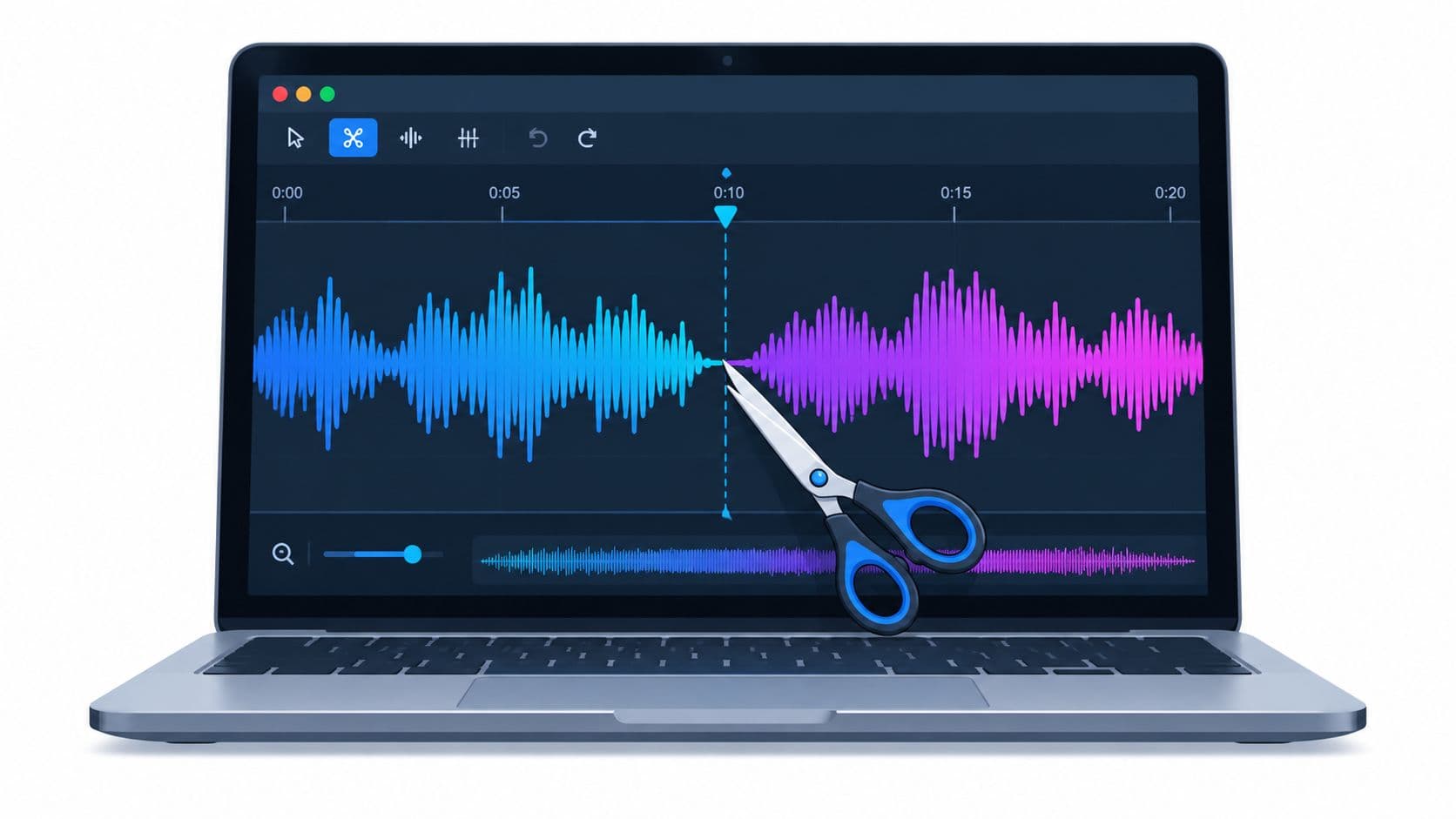
How to cut audio file. Learn how to cut an audio file without losing quality. Practical steps for WAV and MP3, exports, listening checks, and integrating
Trim, join, inspect, or adjust a supported short recording locally. These utilities require no account or credits.