In this guide
An audio stem is a related group of sounds exported as its own audio file, such as drums or vocals, usually from a production session rather than a finished recording. Everything after that definition depends on one detail the file name never tells you: whether a producer grouped those sounds on purpose, or software estimated them after the mix was already finished.
That gap trips up more people than any other part of the subject. Someone downloads a file labeled vocals, drops it into a session, and wonders why it sounds thin, why cymbals bleed through the held notes, why the reverb wanders. The file is real. It's just not the object they think it is.
Keep one question in mind the whole way through: was this sound ever its own file, and if so, who separated it. The answer tells you what you can change, what you should test, and when to keep the original recording instead.
What an Audio Stem Is in Plain Terms
Picture a kitchen drawer packed with loose cutlery. Each fork, knife and spoon is a track in a recording session, one microphone or instrument per line. Drop in a divider and label one compartment spoons, and you have a stem: a related group of pieces you can lift out as one unit. Fill every compartment and you have the arrangement in order. The plate that leaves the kitchen is the finished stereo mix.
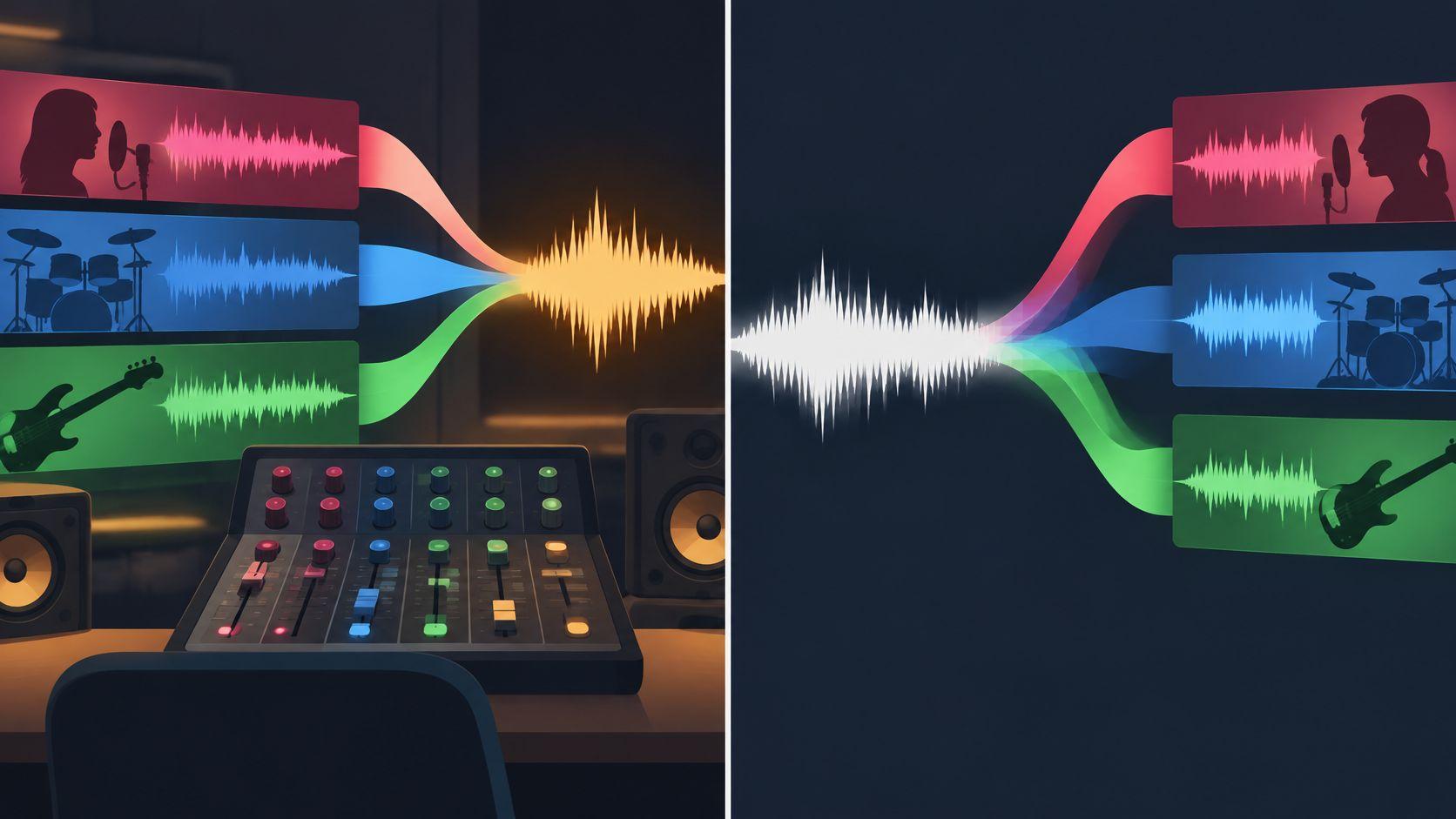
The same grouping appears in a session as layered waveforms sharing one fader.
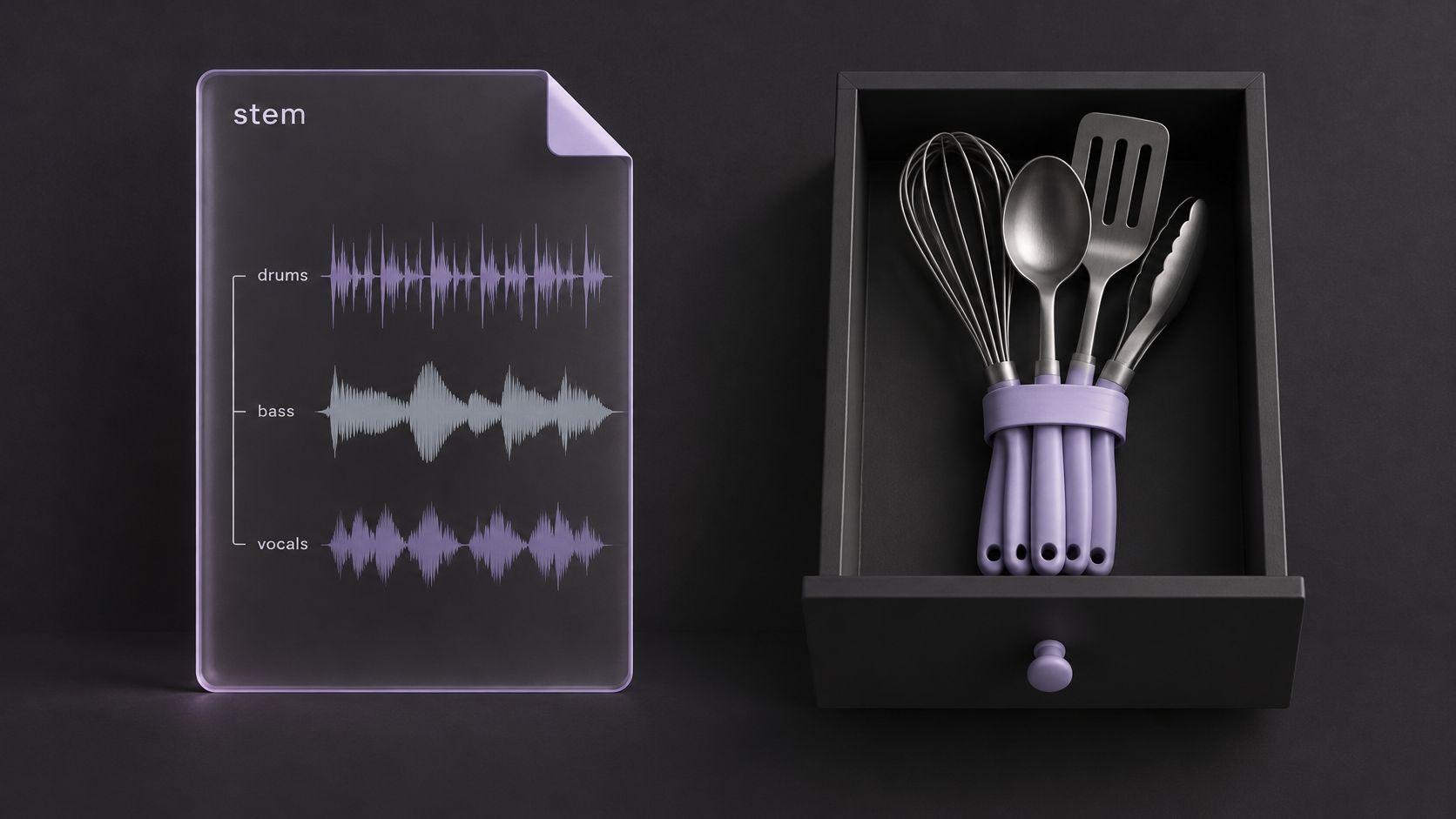
Producers group this way because mixing and mastering often need broad control rather than microscopic control. Kick, snare, toms, overheads and percussion get summed into one stereo drum stem. Vocals, bass, guitars, keyboards and effects get grouped files of their own. As iZotope's guide to stem mastering describes it, a stem is a consolidated submix treated as one unit downstream, and it sits between individual multitrack files and one completed stereo mix.
Two things people call a stem
- A grouped stem from a session. The producer still has the separate tracks and chooses to bounce a set of them together. Nothing is guessed, and the grouping reflects decisions made during the mix.
- An estimated stem from a finished file. The separate tracks are gone. Software listens to the summed recording and infers what the named source probably sounded like.
The second kind is what most online tools produce. Music source separation reconstructs individual source signals from one or more mixed recordings, and a paper on music source separation puts it plainly: sources such as vocals, drums, guitar and bass get rebuilt from the mix, which means the system infers each one from the combined waveform rather than retrieving an untouched original track.
That's why the wording of a request matters. For Saturalabs' text-guided workflow, start by naming the audible source, "spoken voice," "lead vocals," "electric guitar," rather than describing a desired outcome vaguely. One named source gives the estimator something specific to reconstruct.
A quick self-check: if you can't say which session the file came from, treat it as an estimate and audition it before you build anything on top of it.
Before going further, say your own sentence out loud. "I need a grouped drum stem from a session I still have," or "I need an estimated vocal from a finished track." Only the second one involves separation.
Stems, Multitracks and Mixes Side by Side
Four file types get described with the same handful of words, so it helps to line them up against the same four questions.
| File type | What it holds | Can you rebalance parts? | Where the audio comes from |
|---|---|---|---|
| Multitrack session | Each microphone or instrument on its own track | Yes, track by track | Original recording session |
| Audio stem | Related sources grouped and bounced together | Yes, by group only | Producer grouped tracks before the final mix |
| Full stereo mix | One summed final recording | Only overall level and tone | Final render of the production |
| Isolated estimate | One named source estimated from a finished file | Limited, depends on separation quality | Separation of a finished recording |
A multitrack session is the most generous of the four. Every part sits on its own track, so you can rebalance, rerecord or replace anything. It exists only because someone kept the session and handed it over.
An audio stem is where deliberate choices get baked in. Unlike individual multitrack recordings, a stem can already contain internal balance, processing and summing, and MusicTech's introduction to stem mastering explains why that makes broad groups, such as a stereo drum stem, rhythm instruments, lead vocal and bass, the practical unit for downstream work.
A full stereo mix keeps only the sum. You can change overall level and tone, and nothing else. An isolated estimate is the newest arrival and the least certain, because it works backward from that sum.
No fixed number of stems exists. A four-file music export of drums, bass, instruments and vocals is a common convention, but the count follows the project, the genre, the delivery specification and the engineer's habits. A podcast might need two files. A film delivery might split dialogue, music and effects, then split those again for localization.
The core line to remember: a multitrack keeps every source separate, a stem keeps the groups a producer chose, a full mix keeps only the sum, and an estimate tries to recover one named source after the sum already happened.
A vocal stem is a good test case for that limit. If lead vocal, backing vocals and vocal effects were bounced into a single file, one fader controls the whole group. Later separation may estimate parts of that group, but it cannot guarantee recovery of the original tracks or their independent effects.
If you want the session side in more depth, the guide to what multitrack recording is and how it changed production follows a performance from separate microphones to a finished arrangement.
Pick the row above that matches the file in front of you. The rest of this article applies to that row, not to the other three.
How Stems Come From a Multitrack Session
People talk about stems as if the recorder produced them. It didn't. Multitrack recording became practical in the mid-1950s, when Ampex developed an 8-track Sel-Sync system and sold the first machine to guitarist Les Paul, as the history of multitrack recording records. That machine stored discrete tracks, individual performances and microphones. Grouping them into drums, bass, instruments and vocals is a separate step a producer performs later.
The grouping usually happens at the bus stage, where several tracks feed one channel.
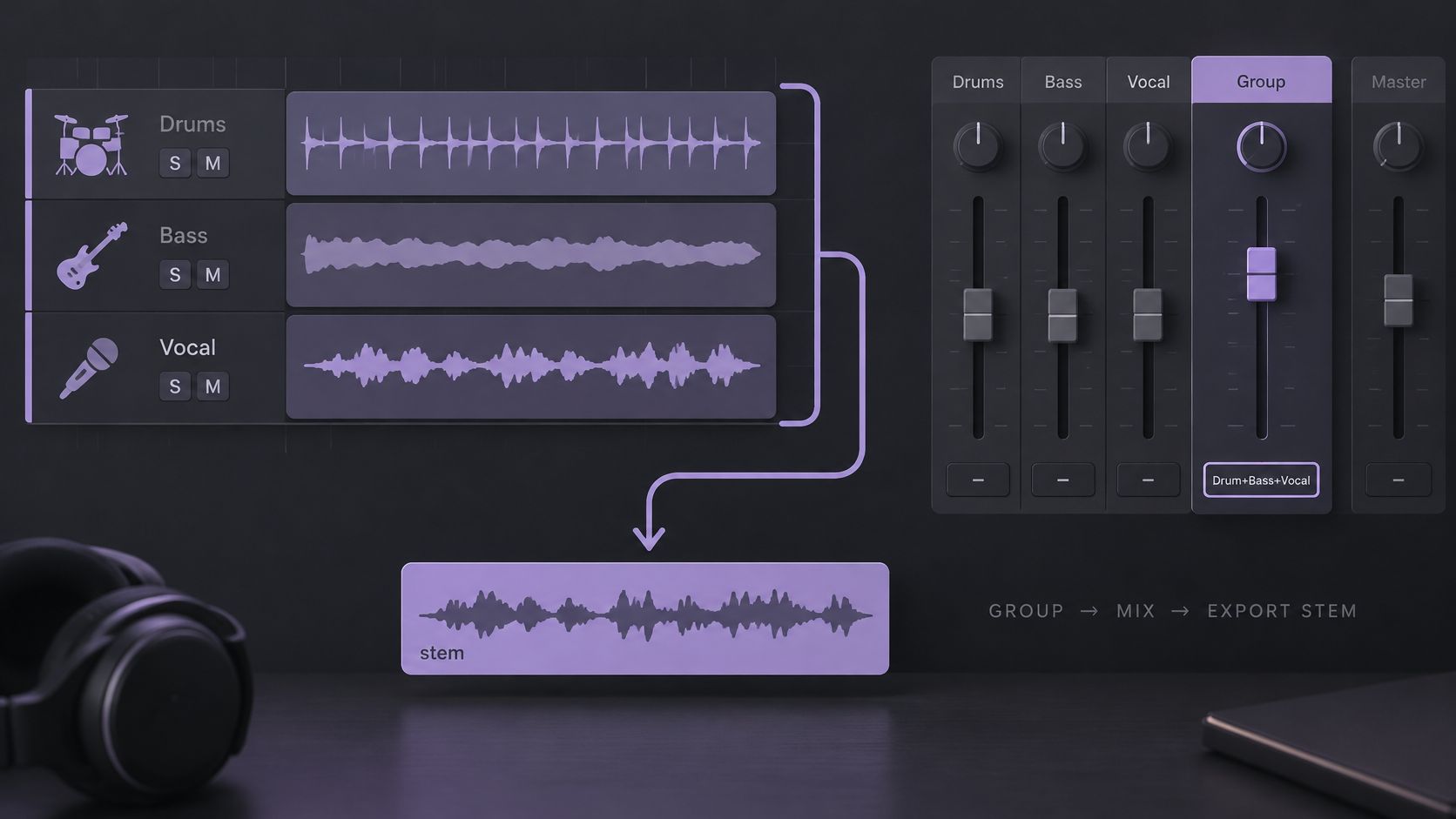
- Group related tracks. Pull kick, snare, toms, overheads and percussion into one drum group, then do the same for bass, instruments, vocals or effects. The group becomes the unit every downstream engineer sees.
- Route each group to a bus that carries the processing it should keep. Group reverb, EQ and compression belong in the export if they shaped the sound. A stem should sound like the record, not like raw session files.
- Render the full arrangement from the first bar to the last. Ableton's guidance on exporting stems recommends rendering the whole arrangement so every file covers the same span. A stem exported from a later start point needs its original offset restored to align with the others; a fixed offset is different from progressive timing drift.
- Turn off normalization and mono conversion. Both alter the relative levels between files, and stems only recombine correctly at the balance they were exported at.
- Export PCM WAV or AIFF at one shared sample rate. Same zero point, same duration, same rate for every file, which prevents pitch and sync errors once the files land in another session.
Clean does not mean unprocessed. A drum stem that sounds polished already includes the bus compression and reverb the mixer chose, and stripping those out changes the record.
Run your own verification: import all the stems into an empty session, align them to zero, play them at unity gain, and compare with the bounced mix. If the sum is louder, quieter, wider or tonally different, look for duplicated bus processing, master limiting, normalization, missing effect returns, or stems exported from different ranges.
Where Stems Are Used and What to Keep
Six situations cover most requests, and each one pairs a source to describe with an output to keep and a single check that decides whether the result works.
| Use case | Source to describe | Output to keep | Main check |
|---|---|---|---|
| Karaoke backing track | vocals | Background audio | Lead vocal fragments and reverb tails left in the backing |
| Acapella or vocal practice | vocals | Isolated sound | Consonants, breaths and sibilants against the original |
| Dialogue cleanup for a video edit | spoken voice | Isolated sound | Quiet words and consonants compared with the original |
| Instrument practice | acoustic guitar | Isolated sound | Cymbal bleed and overlapping chords |
| Remix sketch | drums | Isolated sound | Transients and cymbal hits |
| Sound effect extraction | door closing | Isolated sound | Tail of the effect and leftover room noise |
The karaoke case needs two checks, not one
Karaoke deserves the longest look because it's where people judge the wrong file. Traditional vocal removal subtracts the left channel from the right, a trick called phase cancellation. Lead vocals usually sit near the center, so the subtraction reduces them, but it also damages centered bass, snare and other instruments and leaves audible artifacts, as Karadeo's explanation of vocal removal for karaoke sets out.
Source separation works differently, estimating the vocal and the accompaniment as separate signals. The same source notes that artificial noise, residual interference, harmonic loss and transient damage remain possible errors. So the target is the vocal, but the audition is the backing track. Check both, especially where the voice overlaps instruments or effects.
Prompt rule of thumb: name the audible thing, not the outcome. "Vocals" separates something. "Make it karaoke-ready" describes a wish, and a wish gives the model nothing to listen for.
For the remix row, the walkthrough on how to build a remix from an existing track covers tempo mapping and arrangement once you have the parts in hand.
Treat the table as a starting point. Your own check should follow the sound you want, not the row label.
Isolate a Stem From a Finished Recording
When the session is gone, everything runs through estimation. Pulling one source out of a finished mix is an inverse problem: the sources were already summed, and overlapping frequencies, shared reverberation, masking, stereo placement and nonlinear processing can leave information that is irrecoverably ambiguous, as research on single-channel source separation describes. Start from that honest position and the results make more sense.
- Choose the file. Saturalabs accepts MP3, WAV, MP4 and MOV up to 50 MiB (52.43 MB). A video upload returns separated audio tracks rather than a finished video, so plan to place the audio against picture yourself. The source recording and its encoding set limits, not guarantees: the National Archives file type definitions describe WAV as commonly holding pulse-code-modulated audio and MP3 as an encoded stream, and no format restores detail lost to compression, clipping or a dense mix.
- Describe one sound in a short noun phrase. "spoken voice," "lead vocals," "acoustic guitar." Add a distinguishing detail only when the broad name is too wide, such as a voice type when two speakers overlap. Skip quality adjectives, because they describe a preference rather than an audible source.
- Pick the output that answers your question. Isolated sound keeps the named source. Background audio keeps the rest of the recording with that target removed. Both come from the same pass, so review both before deciding.
- Compare difficult passages with the original. Overlapping speech, cymbal hits, sibilants and reverb tails reveal errors first. Saturalabs runs a three-step workflow, add audio or video, describe one sound, then compare both tracks, and the comparison step is the one that decides usability.
- Check the displayed credit cost, then download and align. Separated tracks download as WAV, and downloads need an account and sufficient credits. A second pass is required for each additional instrument, since one pass targets one described source.
Two passes that cover most requests
Say a video editor is cleaning an interview recorded in a reverberant room. Describe "spoken voice," keep Isolated sound, then listen to the tail of each sentence and to quiet consonants, where removed room tone often takes part of the word with it. The mirror case works the same way, with "vocals" and Background audio for a backing track.
Once the file is downloaded, align it in a DAW or video editor against the original so picture and timing match. A stem that starts a few frames late is worse than no stem.
Limits of Estimated Stems and Listening Checks
The most common disappointment sounds like this. Someone isolates a vocal, plays it alone, and hears a watery shimmer under the held notes, or the hi-hat from the drum kit sitting behind the voice. The separation worked. It just worked imperfectly, like every estimate does.
Separation doesn't recover missing words or notes, and it can leave bleed, shift tone or add artifacts. Overlapping sources, clipping, strong microphone wind and heavy reverberation all limit what comes back. Saturalabs doesn't automatically export a four-stem pack or a separate file for every instrument, which is why the source you name has to be the source you need.
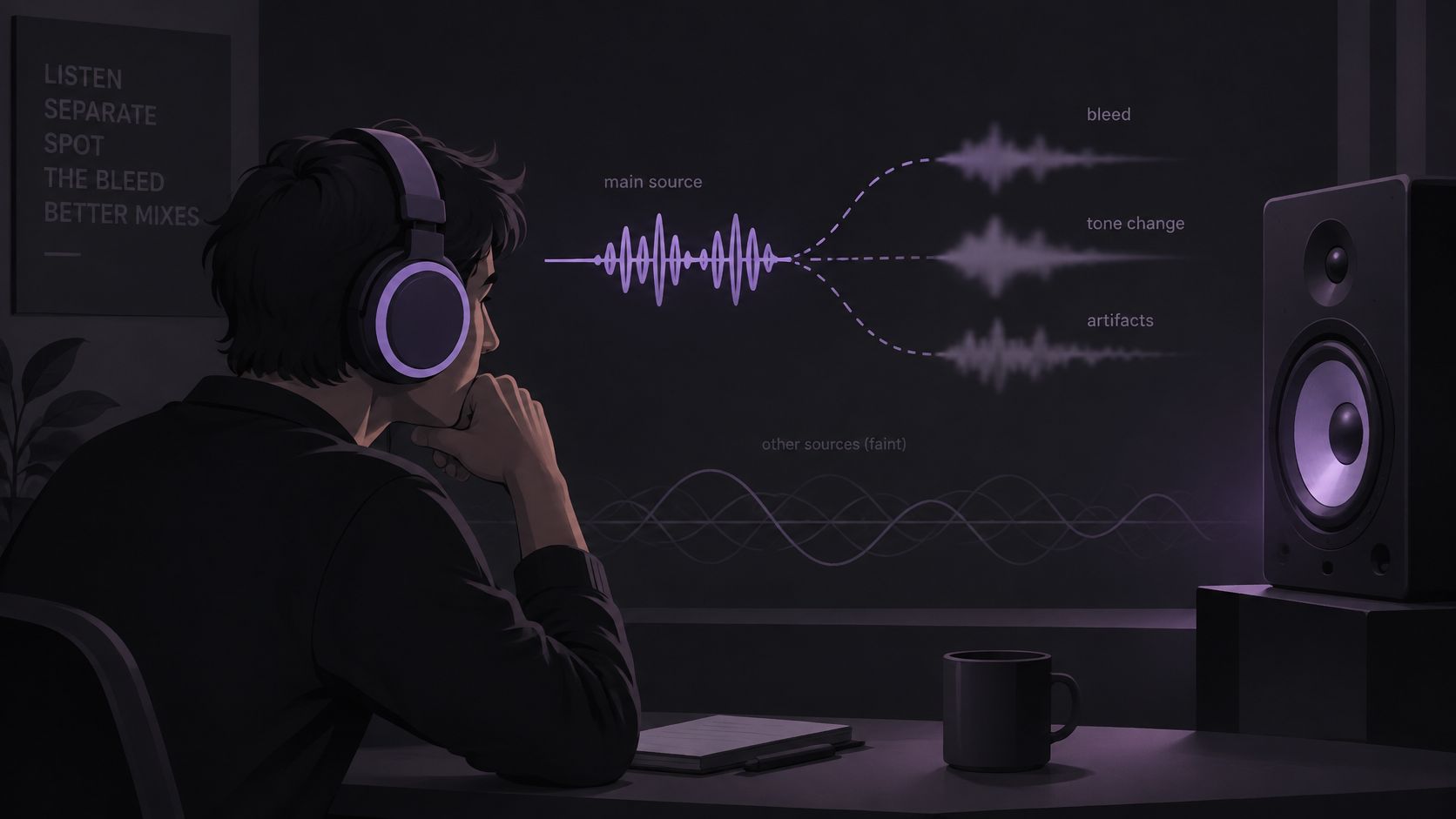
Three kinds of error worth naming
The BSS-Eval framework used in research evaluating music source separation splits error into three parts, and the split is useful when you're judging a result. Target distortion covers changes to the wanted sound, such as filtering or spatial errors. Artifacts are artificial sounds the processing introduces. Interference is unwanted sound from other sources that stays in the extracted result. A separate study of music-separation outputs reports examples including added noise, missing harmonics and altered transients. Its observations concern the systems it evaluated; listen for those problems in your own result.
A four-step listening check
- Play the isolated result alone and listen for added noise, missing harmonics or a hollow attack.
- Play the background result and listen for pieces of the target that stayed behind.
- Compare overlapping speech, cymbal hits, sibilants, reverb tails and dense choruses against the original file.
- Decide: keep the result with light EQ or short fades, re-describe the source, or keep the original and use nothing from this pass.
| Symptom | Likely cause | Fix |
|---|---|---|
| Lead vocal audible in the backing | The vocal and accompaniment overlap in the mixed recording | Compare Background audio with the original, re-describe the source once, then keep the original if bleed persists |
| Hollow or muffled transients | Separation removed part of the attack | Compare cymbal hits against the original and keep the original if the attack is missing |
| Metallic or watery noise | Artificial noise added by processing | Audition the Isolated sound alone and avoid it for close listening |
| Missing consonants or breaths | The estimate did not preserve quiet vocal detail | Re-describe the source with a more specific noun phrase and compare sibilants against the original |
| Reverb tails cut or left behind | Tails were split between the two outputs | Check tails in both outputs and use short fades before reuse |
| Stem drifts out of sync in the DAW | Misaligned start or mismatched sample rate | Align starts to the same zero point and match the project sample rate |
An estimate is a reconstruction, not an export. Nobody grouped those sounds, so nobody can promise the grouping matches the record.
When the choice between a producer's grouped files and an estimated separation still feels unclear, the guide to stems versus audio isolation lays out the trade-offs side by side.
Confirm the Stem Fits Before You Download
The decision comes down to what you're holding. If the original session exists, export grouped stems from it and use those files, because they carry the grouping and processing chosen during the mix. If all you have is a finished recording, an estimated stem can serve practice, rough edits, backing tracks or sound design, but only after it passes a listening check on the passages your project depends on.
From there, let the result choose the next step.
- Clean on the difficult passages. Keep it, then apply light EQ or short fades at the seams to hide transitions.
- Bleed in the isolated source. Re-describe the sound with a more specific noun phrase and run one more pass, since wording changes the estimate.
- Still failing after one clearer prompt. Keep the original file and accept that this particular stem isn't available from this recording.
Choose your wording from the audio isolation prompts guide, which lists noun phrases for voices, instruments and effects that describe one audible source more clearly than vague requests.
Saturalabs is a browser-based audio isolation service for anyone pulling one sound out of a finished recording: upload an MP3, WAV, MP4 or MOV up to 50 MiB (52.43 MB), describe a single audible source, then compare Isolated sound with Background audio before you commit. That comparison is what separates a usable part from a disappointing one, especially on choruses, consonants and reverberant tails. Try the Audio Isolator at Saturalabs, and check the displayed credit cost on your file before downloading any output.