In this guide
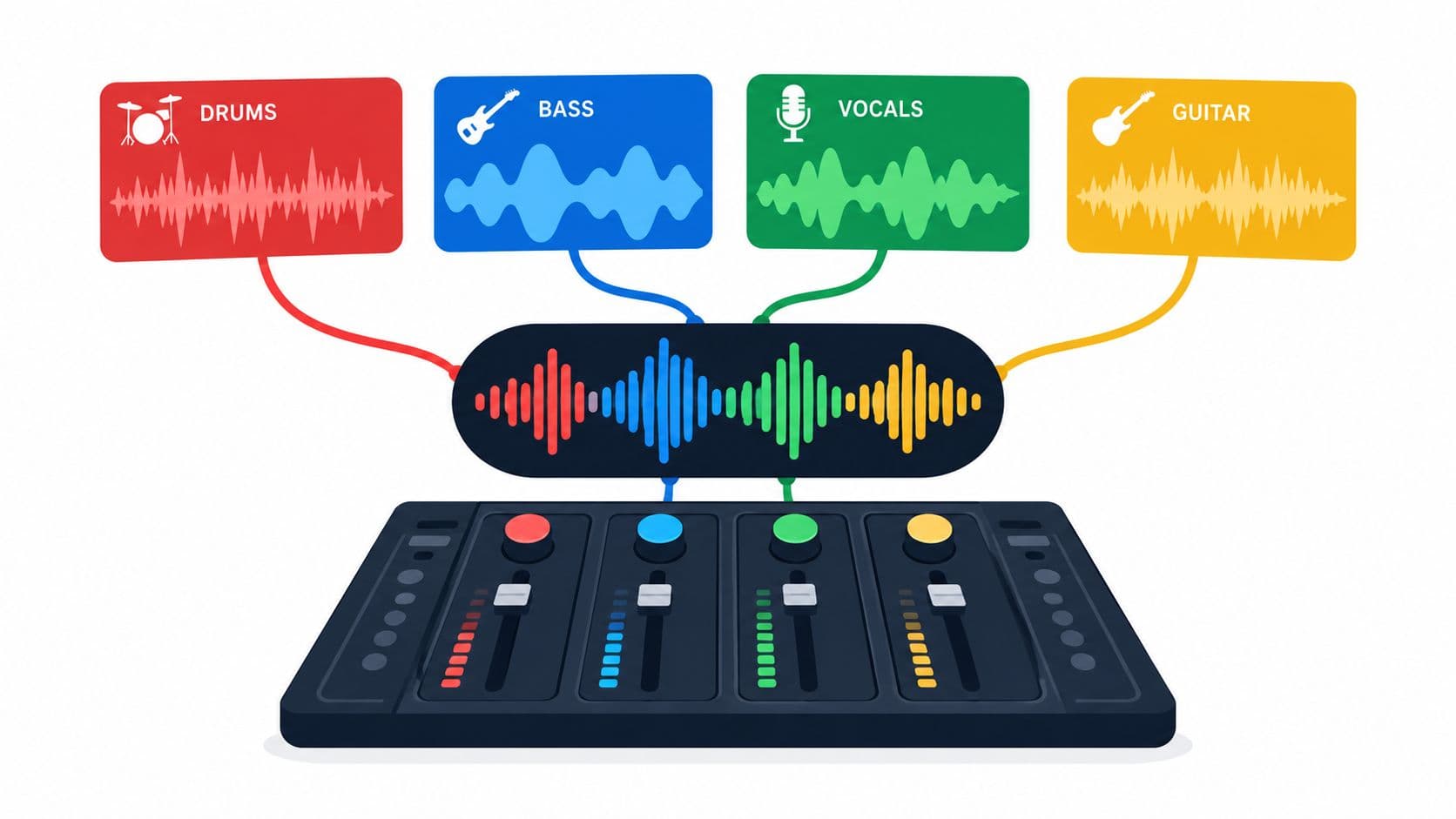
Multitrack recording keeps sources or performances on separate tracks so they can be edited and balanced later. Tracks can be recorded together with independent inputs or built up one at a time. A stereo mix or AI-separated estimate is not the original multitrack session.
Multitrack recording is a way to capture and work with multiple audio parts separately. A vocal, guitar and keyboard can each occupy their own track, allowing you to adjust a vocal level without turning up the guitar. Those parts can be recorded at the same time through separate inputs, or added one at a time while listening to earlier parts.
A finished stereo file combines parts into left and right output channels. It is useful for listening and sharing, but it does not normally retain the original independently editable vocal, guitar and keyboard tracks. The Federal Agencies Digitization Guidelines Initiative distinguishes separate production tracks from mixed channels assigned positions in a sound field.
How a multitrack session works
- Choose the parts to keep independent. For a simple song, create tracks for a guide, guitar and lead vocal. For an interview, separate tracks for each microphone make later balancing easier.
- Connect and assign sources. A recording app or digital audio workstation (DAW) receives microphone or instrument inputs and routes them to tracks. To record multiple sources simultaneously onto independent tracks, the interface or recorder, driver and app must expose and support enough independent inputs.
- Record and review. Test each input, set a conservative level and confirm that the intended source appears on the intended track. Separate inputs do not eliminate microphone bleed or room reflections.
- Layer or edit. Add another performance while hearing the existing parts through headphones, or edit timing and levels in the session. This is an overdub when a new performance is recorded against earlier material.
- Mix and export. Balance, pan and process the tracks as needed, then export a stereo or mono mix for its destination. Save the session and source files as well as the mix so you can revise it later.
For a concrete software walkthrough, Audacity’s multitrack overdubbing tutorial explains playing existing tracks while recording another part. Controls and supported inputs vary by device and software.
Tracks, stems, stereo and separation: what is the difference?
| Item | What it contains | What to check |
|---|---|---|
| Original multitracks | Separate captured or created parts from the session, such as a lead vocal and guitar. | Bleed, effects and shared processing may still be present; not every sound is necessarily isolated. |
| Stems | Usually grouped exports, such as drums or all backing vocals. Usage varies, so confirm the supplier’s meaning. | Whether effects, processing and intended start time are included. |
| Stereo mix | The arrangement combined into left and right channels. | Those channels describe playback positions; they do not generally represent separate instruments. |
| AI-separated audio | An estimated target or remainder derived from a mixed recording. | Listen for source bleed, lost detail and artifacts. It is not a recovery of the original session tracks. |
Ask for original tracks first when they are available. If only a finished file exists, Saturalabs’ stem splitter can test a named source from a supported recording; compare both outputs with the original. AI downloads require an account and sufficient credits, with the cost shown before download. The stems guide explains practical listening checks.
A simple one-person recording exercise
Use a multitrack app and headphones. The free voice recorder can capture a single microphone file locally, but it is not a multitrack workstation and does not add a backing track while recording. Import a saved file into a suitable editor if you use it as a starting source.
- Record or import a short guide part on track 1. Listen for a clear beginning and ending.
- Create track 2, select the microphone input and make a brief test. Use headphones so the playback is less likely to enter the microphone.
- Play the guide and record a short vocal or instrument part on the second track. Monitor at a comfortable level and stop if feedback occurs.
- Play both tracks together. Solo each one, listen for unwanted playback bleed, and check whether their timing aligns. Adjust routing or latency settings if needed; keep the original take.
- Save the project with its media and export a test mix. Reopen the project and play the exported file separately to confirm the handoff.
If the second track records silence, check microphone permission, device selection, input routing and whether the track is armed in that app. If it records the backing too, check headphones, microphone pickup and software loopback routing. Different devices and recording systems offer different monitoring and latency options.
When separate tracks are useful
- Podcasts and interviews: adjust speakers separately and edit a cough without automatically cutting the other speaker, provided the sound did not bleed into both microphones. See how to record an interview.
- Music: replace a vocal take or adjust an instrument in the context of the other parts. The home vocal guide covers recording preparation.
- Video: keep narration, music and effects on separate timeline tracks so their levels can be adjusted before export. A finished soundtrack may need a different repair or separation workflow.
Common questions
Can I record multiple tracks with one microphone?
Yes, by recording one part at a time and overdubbing. One microphone usually captures the combined sound in its room during each take; it does not create independently adjustable recordings of multiple simultaneous sources.
Is a stereo recording the same as a multitrack session?
No. Stereo has left and right output channels. A multitrack session can contain many separate parts, each of which may itself be mono or stereo.
Can AI restore the exact original multitracks?
No. Separation estimates parts from the mix and can leave bleed or introduce artifacts. Request the original session tracks when you need the producer’s actual sources.