In this guide
You have a file that's nearly right. A two-person interview recorded in a kitchen with the refrigerator running, or a finished song where the vocal sits too far forward to work as a backing track. You need one element of that recording alone, or gone, and nothing in front of you says which button to press first.
Handling separation well is less about the tool and more about the order of decisions. Name one sound. Choose one output. Compare one difficult passage against the original. Repeat only where the result fails. Much of how to deal with separation comes down to that sequence, and to accepting that some recordings won't give you a clean answer no matter how carefully you phrase the prompt.
The walkthrough below follows the order you'll work in, from the first prompt to the moment you decide whether a downloaded file is worth keeping.
Pick One Sound and the Right Output
Every job starts with a pairing that decides everything after it: the single sound you name in the prompt, and the output you audition when the pass finishes. Get either half wrong and a working result looks like a failure.
| Goal | Prompt (one source) | Output to audition | Check first |
|---|---|---|---|
| Podcast or interview dialogue | spoken voice | Isolated sound | Consonants and breaths against the original |
| Karaoke or backing track | vocals | Background audio | Drum hits and cymbals in the remainder |
| Acapella from a song | vocals | Isolated sound | Sibilants and reverb tails |
| Instrument practice | acoustic guitar | Isolated sound | Strumming attacks and string noise |
| Music under dialogue in video | background music | Background audio | Speech clarity and music residue |
| Sound effect for an edit | door-closing effect | Isolated sound | Effect tail and room tone |
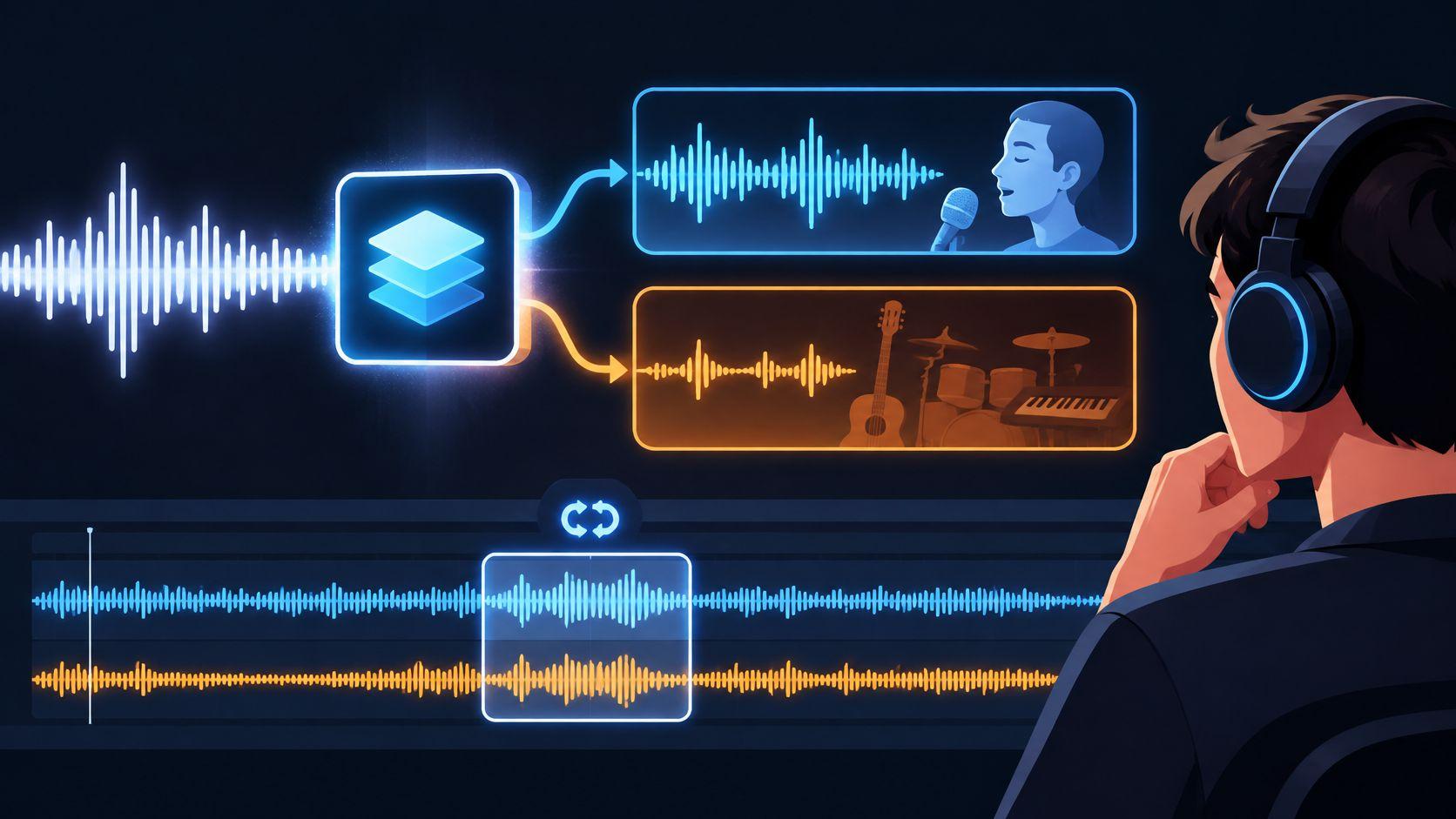
The logic behind the third column is simple. Isolated sound keeps the sound you named. Background audio is everything else, the recording with that target removed. For karaoke you want the vocal gone, so you name vocals and audition Background audio. For a podcast you want the voice kept, so you name spoken voice and audition Isolated sound.
Each pass targets one described source, and the tool doesn't split a full mix into every instrument at once. A prompt that names "voice and guitar and drums" won't return three clean files. Run three passes, one per source, and give each its own listening check.
Common mismatch: auditioning Isolated sound on a karaoke job, hearing the lead vocal loud and clear, and deciding the separation failed. That output did exactly what it was asked to do.
Before writing any prompt, play the original and confirm the sound is there. If the door never audibly closes in the take, no wording will surface it. That one check saves more credits than any phrasing trick.
Longer prompt wording, including how to describe a source precisely, is covered in the audio isolation prompts guide. If a collaborator asks for stems rather than one isolated part, check a stems versus isolation comparison first, because the two workflows return different things.
Prepare the Source File Before You Upload
The file you upload sets the ceiling for everything that follows. Separation pulls apart what's present in the recording, so information lost before upload can't be invented later.
Start with the highest-quality version you can find. The Library of Congress format recommendations rank native-resolution files above converted ones, uncompressed above compressed, and lossless compression above lossy, and they list 44.1 kHz/16-bit PCM WAV as CD-quality audio. That hierarchy is a reliable guide to what to feed a separation pass.
Say an interview exists as a small MP3 someone compressed for email and as the 44.1 kHz WAV still on the recorder's card. The MP3 plays fine in a browser and sounds identical on laptop speakers, but it has already discarded part of the signal. Upload the WAV.
- Find the original. The recorder card, the camera card, the session folder from the mix. Prefer it over any export someone sent you.
- Check the format and size. MP3, WAV, MP4 and MOV are accepted up to 50 MB.
- Skip unnecessary conversion. The Library of Congress guidance on QuickTime MOV treats the container as a production format and puts audio fidelity, especially native resolution and PCM encoding, ahead of convenience. Every extra transcode is another chance to lose detail.
- Trim to the problem. Cut a 30 to 60 second section around the worst overlap and test that first, before sending the full file.
That short test is the cheapest diagnostic available. A one-minute excerpt tells you whether the prompt and output choice are working, and it costs a fraction of what a full-length pass does.
MP3 is a delivery format, not a master. The Library of Congress description of MP3 frames it as a distribution and playback format, which is the right way to treat it: acceptable when it's all you have, second choice when anything better exists. WAV carries more information at the cost of much larger files, a tradeoff the Library of Congress audio types summary sets out plainly.
File-level preparation, including trimming and level decisions before upload, is covered in the guide to preparing audio for AI isolation. One last gate: confirm you have the rights to the recording and to the intended use of the separated result. A clean separation grants no permission to publish anything.
How to Run One Separation Pass
The pass itself is short. Most of the skill sits in what you choose to test and how you read the result.
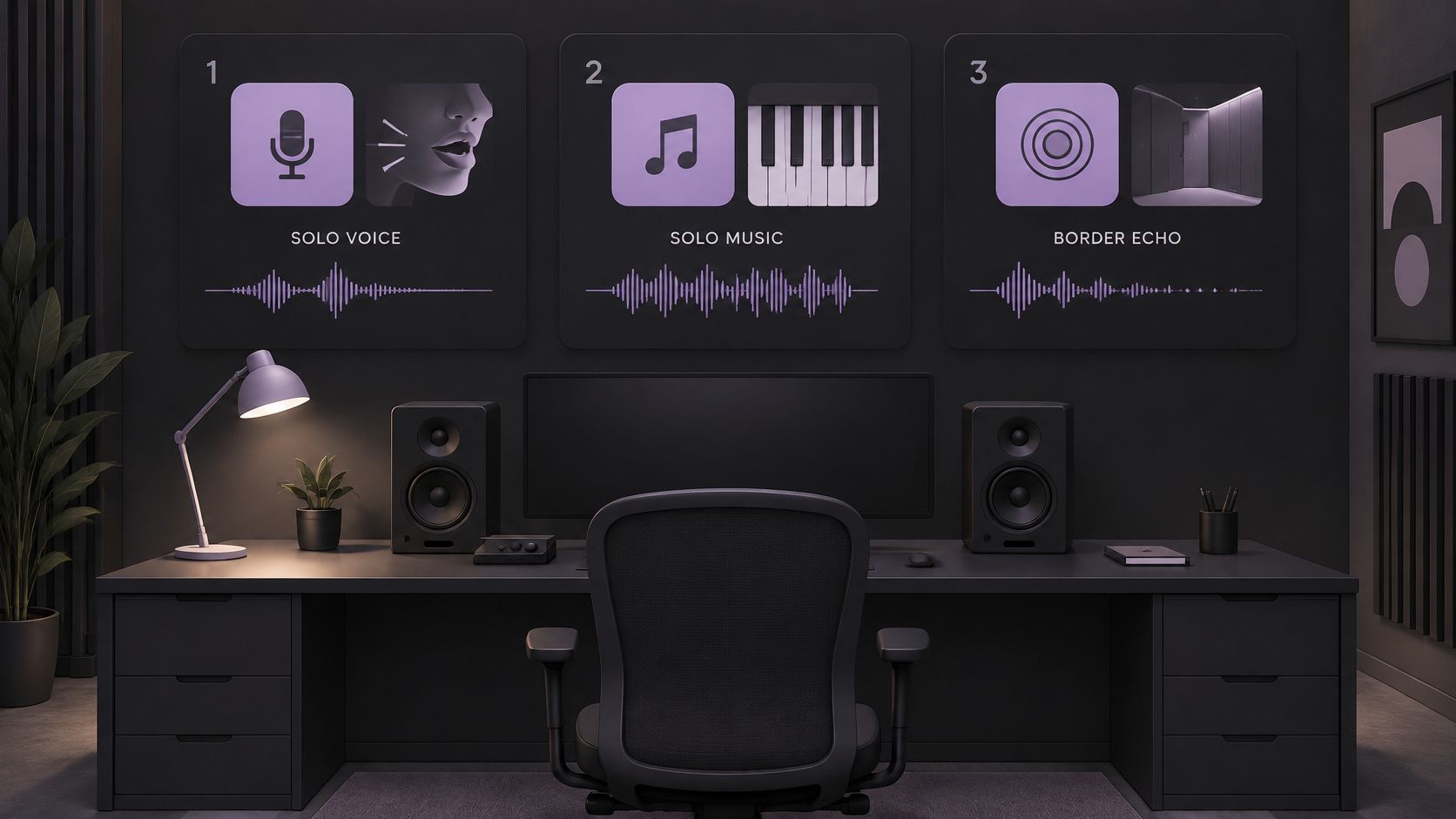
- Name one audible source. "Spoken voice" is a prompt. "Voice and music" is two jobs on one line, and each pass targets one described source, so a compound prompt splits nothing cleanly.
- Find a moment where that source is exposed. A phrase of dialogue with no music under it, or a guitar intro with no vocal. If the source is never alone in the clip, you can't tell what the pass preserved and what it invented.
- Match the output to the goal. Isolated sound returns the target; Background audio returns the remainder with the target removed. Pick the one your edit needs, not the one that sounds more impressive.
- Upload the prepared excerpt and run the pass. Saturalabs separates a described voice, instrument, or sound effect from an uploaded audio or video file, and returns the requested source as Isolated sound and the remaining mix as Background audio.
- Audition once at normal listening level before changing anything. Re-running against a half-heard first result tends to pile on processing the original never needed.
Why some prompts struggle
Auditory research in Cerebral Cortex Communications on temporal coherence describes how listeners group sound components partly by whether they start, shift and stop together. Features that move as one are heard as one source, which explains most separation difficulty in plain terms.
When the target and an interferer share timing, pitch, frequency range, room reverberation or stereo position, the pass has less to work with. A guitar and a piano in the same register, a cymbal sitting under a sibilant consonant, a snare that lands on the same beat as a consonant, a long room tail smearing everything. Predict those passages before you run anything and you'll know where to listen hardest.
A weak first result usually means the excerpt or the prompt is wrong, long before it means the recording is unusable. Try a narrower prompt or a shorter clip before stacking extra cleanup.
What a usable first result sounds like: the named sound is present and intelligible throughout, and the remainder hasn't gone hollow. If the voice survives but the surrounding track seems to have lost a slice of midrange, that's expected. The removed voice occupied frequencies the music was also using.
Listen for Artifacts Against the Original
A separation score won't settle whether a result is usable. A study comparing separation metrics with human ratings found that SDR, SIR and SAR don't consistently predict what listeners prefer, and that artifacts and instrument type materially change the relationship between the number and perceived quality. Listen instead.
The listening checklist
- Consonants. S and T sounds smear first in speech. If they turn to mush, the intelligibility of the whole line is at risk.
- Breaths and room tone. Natural breaths belong in a voice track. Their disappearance makes a take sound synthetic.
- Reverb tails. A tail that stops dead leaves an audible hole behind the last syllable.
- Cymbal attacks and drum transients. Fast attacks are where separation blurs.
- Bass transients. Low end can lose its punch or turn flabby without an obvious pitch change.
- Stereo image. Width that collapses toward the centre usually means phase damage.
- Sustained notes. Long tones expose wobble and modulation that short ones hide.
- Residual competing sound. Some bleed may be acceptable. Decide how much before you start judging.
Learn the artifact names so you can describe what you're hearing: burbling under a sustained vowel, smeared transients on a drum hit, phase damage across a stereo pair, and leftover competitors that survive the pass.
Compare against the original, not a score
Loop the hardest 10 to 20 seconds, compare directly with the original at the same monitoring level, and listen to the overlaps rather than the cleanest passage. A dense chorus, loud music under speech or a reverberant room reveals far more than a quiet solo line ever will. Put the two files on adjacent tracks in your editor and switch between them without moving the fader.
Keep rule: retain the result only when the named sound stays intelligible and the artifacts are acceptable for the intended use.
State the limit plainly. Separation can leave bleed, change tone, or introduce artifacts, and it doesn't guarantee recovery of missing words or notes. A word buried under a louder instrument may stay buried.
More detail on the artifact patterns that appear in isolated vocals sits in the guide to vocal removal artifacts.
Fix Hard Passages and Decide What to Download
Most failures are diagnosable. The table pairs what you hear with the most likely cause and the first fix worth trying.
| Symptom | Likely cause | Fix |
|---|---|---|
| Metallic or phasey speech | Overlapping voices or music in the same frequency range | Narrow the prompt to spoken voice and process only the worst section |
| Music residue under words | Music shares timing and pitch with the voice | Keep the original under the speech and use Isolated sound selectively |
| Words clipped at sentence edges | Aggressive gating at the edges of speech | Re-run a shorter excerpt with a wider margin and compare the cut |
| Room echo remains | Reverb overlaps with the voice in time and frequency | Accept some reverb or test a lighter processing pass |
| Ambience vanishes and cuts sound abrupt | Room tone removed too completely | Keep a controlled amount of Background audio under the edit |
| Drum transients smeared | Separation blurs fast attacks in music | Compare with the original and use Background audio only where the drums are not needed |
Why stacking cleanup backfires
Running a second and third hard pass rarely fixes a metallic edge. It sharpens it. Speech separation research tested against realistic, changing noise recordings separates three distinct things: the isolated speech, a noise-suppressed version, and the remaining background. The existence of three outputs is the point. "Cleaner" isn't automatically better, and speech stripped of breath, room and timbre stops sounding like a person in a place.
A controlled amount of Background audio under the edit often does more for continuity than another isolation run. It covers the seams between cuts, keeps room tone consistent, and hides the moment where a gated phrase snaps back in.
Choose one of three outcomes
Download when the target is intelligible and the artifacts fit the use. That's the ordinary case, and it doesn't require a flawless file, only one that holds up in context.
Re-run when a single passage fails. Narrow the prompt, shorten the excerpt, or extend the margin around the problem area, then compare the new cut with the old one.
Keep the original when separation doesn't hold up. A hard cut to the original audio, a foley replacement, or a music bed pulled lower can solve the edit without a separated file at all.
Check the credit cost shown for the pass before downloading, because downloads aren't free or unlimited, and confirm the rights and intended use for the file first. The decision about how to deal with separation ends there: a short excerpt, one named source, a direct comparison with the original, and a download only when the result earns it.
Saturalabs separates a described voice, instrument, or sound effect from an uploaded audio or video file, returning two outputs you can compare side by side: Isolated sound and Background audio. Upload a WAV, MP3, MP4, or MOV file up to 50 MB, name one source at a time, and audition the hardest passage against the original before spending a credit. Run a short excerpt through Saturalabs and let the listening check decide what you download.