
In this guide
The arrangement is right, the tempo feels familiar, and the singer is the only part standing between a saved video clip and a useful practice track. Searching for “vocal remover YouTube” can seem like the last step. In practice, removing the voice is only the start: the remaining music still needs to sound usable, and the intended use needs permission.
A reliable workflow starts with an authorized file, targets the vocals, and tests the resulting backing track against the original. Saturalabs provides text-guided audio/video isolation, not music generation or a finished video edit. The useful question isn't whether the voice disappeared completely. It's whether enough of the accompaniment survived for the job.
What to Have Ready Before You Upload
Start with the file, not the separation controls. Confirm permission to process the recording, then prepare a clean copy without downloading material in ways that violate platform rules.
- Authorized file: Keep evidence of ownership, permission, or another valid basis for processing, rather than assuming that public availability permits reuse.
- Original preserved: Retain the untouched recording for comparison and work from the highest-quality authorized version available.
- Supported format: Saturalabs accepts MP3 and WAV audio, plus MP4 and MOV video; its supported file types guide provides preparation guidance.
- Format understood: The University of Cambridge's digital-preservation guidance identifies WAV as uncompressed, MP3 as compressed, and MOV as a QuickTime container; MP4 likewise carries media streams rather than guaranteeing audio quality.
- File within the limit: Uploads must be no larger than 50 MB; a long recording may need trimming to the required passage.
- No unnecessary conversions: Repeated lossy encoding can discard detail, and converting an existing MP3 to WAV won't restore what's already missing.
- One target selected: For a karaoke backing track, the target is vocals, not a combined request for vocals, drums, and crowd noise.
A suitable extension doesn't establish that the mix will separate well. At this point, the editor has an upload-ready file, an intact reference, and a defined target, but the quality of the resulting accompaniment remains unverified.
Choose Background Audio or Isolated Sound
The output to keep depends on the intended result, not whether the upload began as audio or video.
Output and prompt by goal
| Goal | Describe | Keep | Listen hardest for |
|---|---|---|---|
| Karaoke backing track | vocals | Background audio | Chorus, ad-libs, reverb tails |
| Acapella | vocals | Isolated sound | Breaths, consonants, leftover instruments |
| Dialogue cleanup from video | spoken voice | Isolated sound | Quiet words and consonants |
| Remove background music from video | the music | Background audio | Speech that was cut or thinned |
| Reduce barking, keep the rest | barking | Background audio | Dialogue and ambience |
| Instrument practice | acoustic guitar | Isolated sound | Bleed from the vocal or drums |
Isolated sound keeps the estimated source named in the prompt. That estimate may still contain unwanted instruments, noise, or another voice. Background audio is the remaining recording with the target reduced, so its label doesn't mean ambient noise only. For karaoke, it's the accompaniment.
A second pass is a new separation job and should begin with a new prompt that identifies the next intended target. Reprocessing without a clear change makes it harder to judge whether the result improved. The audio isolation prompts guide helps with concise descriptions.
Selection rule: Name the source to separate, then keep either that source or the remainder. Don't describe the desired finished production as though it were one audible sound.
For arrangement decisions, such as how much backing-vocal material a singer needs, consult the karaoke workflow. For projects needing separate instrument files, the stems versus audio isolation guide distinguishes a full stem workflow from keeping a single isolated output. Select the table row that matches the actual deliverable before processing.
How to Remove Vocals from a Video Clip Step by Step
A vocal-removal result is ready only when the backing track holds up on its own and the replacement audio can be aligned with the picture. Keep the original file intact and work through one separation pass at a time.
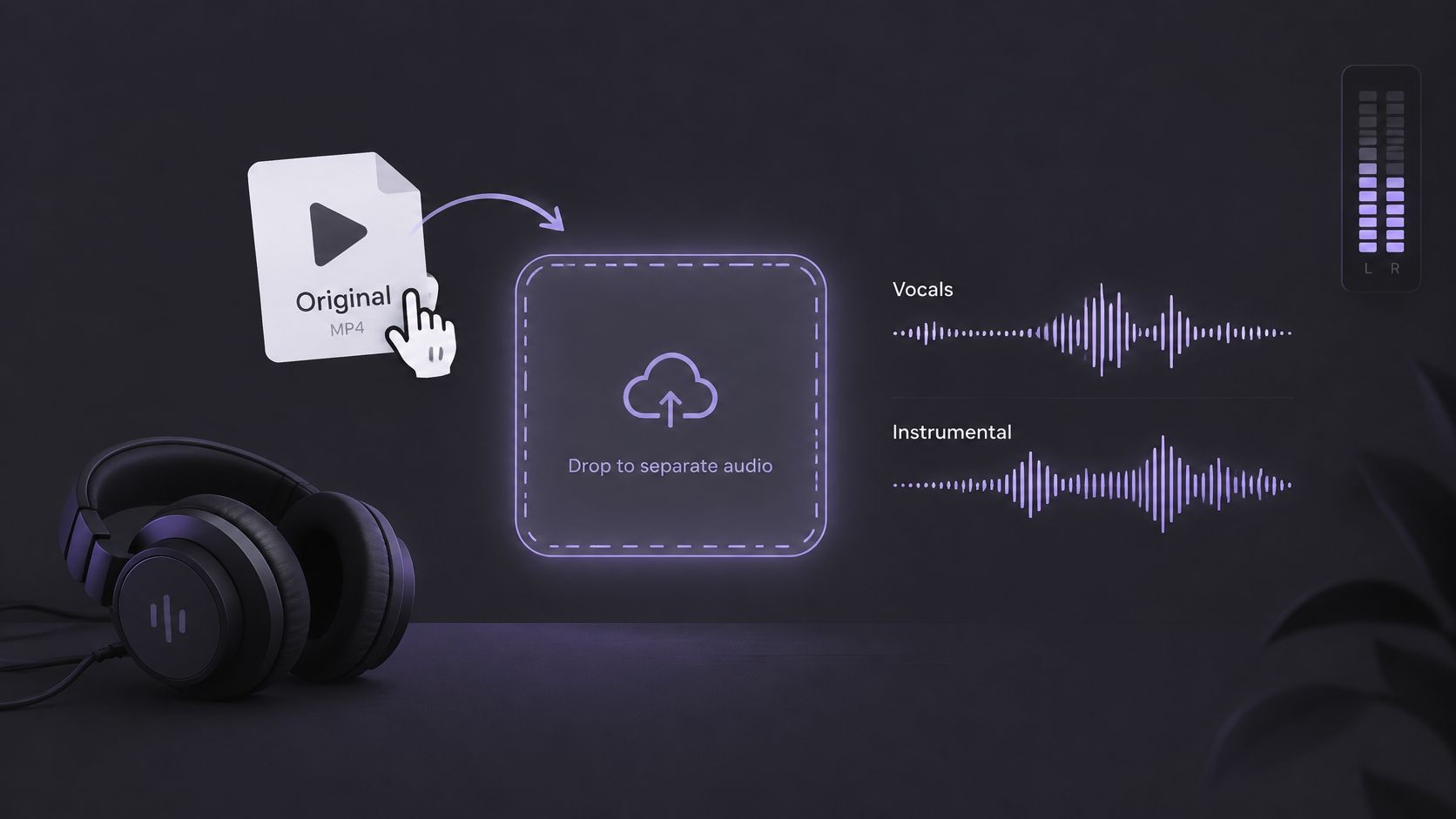
Prepare and Run the Separation
Start with the original recording. Use the best available source file rather than a compressed copy when the original is available. That gives the separation process the clearest version of the recording you have.
Upload the supported file without corrective processing. Add an MP4 or MOV video, or an audio file, and leave EQ, noise reduction, and loudness changes alone unless there is a specific technical problem to correct. These changes alter the balance between the vocals and accompaniment before separation, which can make the result less predictable.
Describe one audible source. Enter vocals to target the singing voice. Each pass targets one described source, so a prompt naming vocals and guitar won't separate both into individual tracks.
Choose the output for the task. Select Background audio for a karaoke backing track or Isolated sound for the vocal part. These are two versions of the separation: one retains the requested source, and the other contains the remaining mix with that source reduced.
Review and Export Deliberately
Compare the result with the original. Start with a passage where the singer overlaps dense backing layers. A quiet introduction can sound clean while a chorus exposes leakage or changes to the instruments.
Check the displayed credit cost before downloading. The results screen shows the cost for the chosen WAV. Download only after deciding that the track is worth keeping.
Download the audio and align it with the picture. A video upload produces separated WAV audio, not an edited video. Place the chosen track in a video editor and check its alignment against a visible vocal entrance, a clear transient, and a point near the end.
Mute the original video audio during the sync check. Otherwise, the original singer may remain audible beneath the backing track and obscure whether the separation is usable.
Listening Checks Before You Download
Audition at normal listening volume first, then use headphones to examine unclear passages. Compare each questionable moment with the original at a similar perceived level, rather than mistaking a louder version for a better one.
For the karaoke test, play Background audio and move through the intro, loudest chorus, dense sections without vocals, backing or doubled vocals, stereo-panned phrases, reverb tails, and final fade. The music source-separation comparison distinguishes unwanted-source interference from artificial artifacts, a useful distinction when deciding whether the problem is a surviving lyric or newly damaged music.
Test the Hardest Passage First
Consider a hypothetical twenty-second chorus from a three-minute clip. Processing that excerpt first can reveal whether stacked harmonies leave recognizable words or whether the guitar loses its attack when the voice enters. It's a screening test, not proof that the full recording will work.
A clean excerpt doesn't clear a quieter verse, a different vocal effect, or the ending. Once the full result is available, inspect those transitions independently rather than assuming the same separation behavior throughout.
Then audition Isolated sound. A clear piano chord, cymbal hit, bass note, or guitar phrase there can explain a hole in the accompaniment. Some bleed may be tolerable, but the relevant question is whether its removal makes the backing track distracting during actual use.
Reject the output when damaged consonants, cymbal transients, bass notes, or ambience interfere with the intended task. A faint vocal remnant may be acceptable for private rehearsal, while a pulsing cymbal wash can make timing practice harder. The acceptance threshold should follow the job, not the desire to hear total silence where the singer stood.
- Compare difficult passages: Match the result against the original, including the chorus and ending.
- Check both outputs: Listen for surviving vocals in the background and lost instruments in the isolated target.
- Approve the download deliberately: Confirm audible quality and the displayed credit cost before committing.
The listening result, not the tool's completion status, decides whether the track is usable.
Fix Artifacts, Leakage and Missing Parts
Faint vocal phrases in the accompaniment are an obvious failure, but removing too much music can be worse. Separation can leave bleed, alter tone, or introduce artifacts; it can't promise a clean backing track.
The study on artifacts in music source separation describes broadband noise, hollow-sounding instrument attacks, and missing audio segments in separated outputs. These are reasons to compare against the original, not judge how quiet the singer became.
Artifact symptoms, causes and fixes
| Symptom | Likely cause | Fix |
|---|---|---|
| Vocal phrases left in Background audio | Backing or doubled vocals | Re-audition the chorus; retry one clear prompt |
| Guitar, piano or drums thinner | Spectral overlap with the voice | Compare Isolated sound; accept or use another source |
| Warbling or reverb-like remnants | Heavy reverb, wide stereo, low bitrate | Use the highest-quality original; avoid re-encoding |
| Constant hiss or broadband noise | Noisy or live recording | Accept the limit or choose a cleaner source |
| Clicks or distorted output | Clipping in the source | Re-export the file without clipping |
| Missing words or notes | Lost material in the source | Separation cannot recover it; use another take |
Separate Fixable Setup Errors from Source Limits
A clearer prompt can resolve an ambiguous target. It won't reliably untangle a guitar and vocal that occupy the same musical space. The singing-processing study explains why a sung voice's harmonic structure can overlap with accompaniment, making this harder than separating unrelated sounds.
For clipping, re-export from an unclipped source or project if one exists. Merely lowering the volume of an already clipped recording won't reconstruct the damaged waveform. Likewise, converting a low-quality file to a larger format doesn't create a cleaner source.
The vocal-removal artifacts guide helps distinguish residual voice from damage introduced into the accompaniment. Diagnose the symptom before adding EQ or another separation pass, since extra processing may conceal the cause while creating another compromise.
A wrong output selection or unclear prompt may need only a corrected attempt. Persistent overlap, strong microphone wind, heavy reverberation, or missing source material usually calls for a different recording or a reduced expectation. Separation doesn't guarantee recovery of missing words or notes, and repeated passes aren't a substitute for information the source never captured.
Check the Rights Before You Publish
Removing the singer doesn't turn a copyrighted recording into an unrestricted version. The underlying sound recording and composition can still require permission, and Saturalabs performs separation rather than copyright clearance.
YouTube's copyright guidance treats valid removal requests separately from the technical act of editing audio. Teaching, research, criticism, and commentary can be relevant to fair use, but they don't automatically authorize music reuse.
Rights questions by intended use
| Intended use | Question to answer | Before you publish |
|---|---|---|
| Private practice | Did the editor obtain the recording legally? | Keep the track private |
| Classroom or educational use | Does the institution's licence cover playback? | Check the licence terms |
| Public performance or live karaoke | Is a performance licence needed? | Obtain permission or a licence |
| Remix or cover released publicly | Are the composition and master rights cleared? | Secure applicable licences before release |
| Monetized YouTube video | Does the rights holder permit monetization? | Confirm permission in writing |
| Client editing | Does the contract cover this edit and use? | Confirm scope with the client |
For a cover recorded entirely from scratch, permission questions differ from those for a remix containing an existing master. The important distinction is what protected material remains in the finished production, not the label attached to the project.
A classroom playback permission may not extend to posting the lesson publicly. A client's authorization to edit footage may not establish rights to the music inside it. Rules differ by country, while platform policies apply both to obtaining the source and publishing the result.
- Record the source: Note where the authorized file came from and who controls it.
- Define the use: Specify private rehearsal, performance, client delivery, or public distribution.
- Save the permission: Retain the licence or written authorization covering that use.
When permission is unclear, obtaining an authorized accompaniment may be more practical than separating an existing master. The guide to getting instrumentals of songs offers a useful starting point for that decision.
Decide Whether the Backing Track Is Ready to Use
The backing track is ready only when listening quality, intended-use rights, and download requirements all pass.
- Listening quality passes: The intro, loudest chorus, and reverb tails have been compared with the original without distracting damage. If not, retry a clearer target description, select a cleaner original, or accept the limitation for authorized private practice rather than public delivery.
- Rights are confirmed: The intended use has an appropriate permission or legal basis. If publication rights remain unresolved, don't publish; keeping the result private doesn't excuse an unauthorized source or processing step.
- Download requirements are acceptable: The displayed cost fits the project, and the account holds sufficient credits. Downloads require an account and enough credits; if the cost isn't suitable, trim the job to the passage needed and check again.
A successful export isn't the final approval. Keep the original and separated output together, label the accepted version clearly, and verify the chosen WAV in its actual playback or editing context. That prevents an acceptable practice file from being mistaken for a publication-ready deliverable.
Saturalabs offers text-guided isolation for separating vocals from an authorized audio or video file and retaining the remaining accompaniment. Visit Saturalabs to run the vocal-removal workflow, compare difficult passages, and keep the original alongside the accepted output. Separation quality depends on the source recording.